30
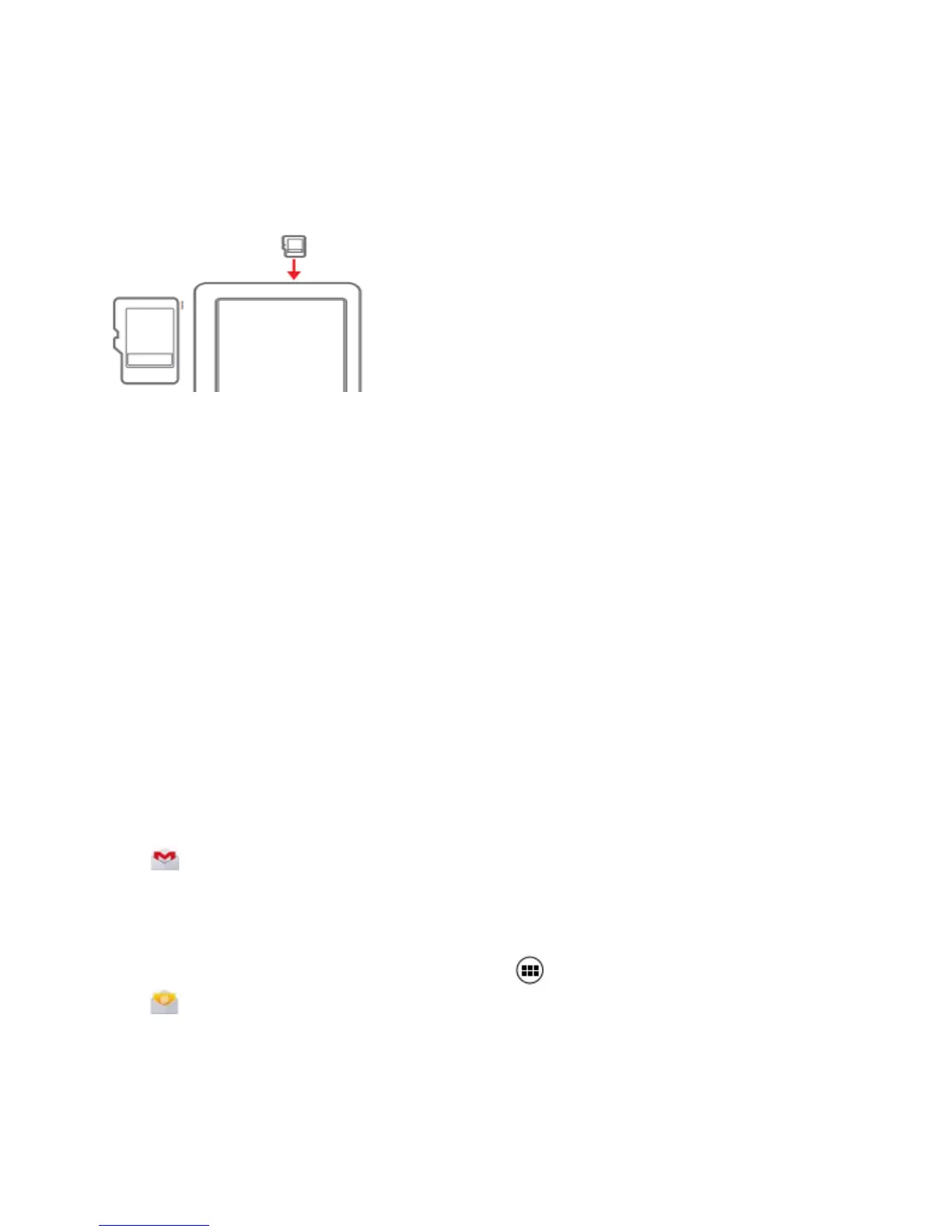
TF Memory Card Slot
The tablet supports TF memory cards (up to 32GB). Use an optional memory card to
store music, videos, photos, documents, and more when your Tablets internal storage
capacity becomes limited.
TF Card
To install: Turn off Tablet; insert the memory card face up into the slot until it clicks and
locks into place.
To remove: Open “Settings” > Storage > Unmount Memory Card.
Make certain there are no programs running. Push the memory card inward with your
fingernail until it pops out.
NOTE: Memory cards can only be inserted one way. Do not force when inserting;
un-mount the card before ejecting; do not un-mount from the tablet while a program is in
use.
Connect to Keyboard, Mouse, & other USB devices
You can connect a keyboard, mouse, and other external devices to your tablet via USB
or Bluetooth and use in the same way as you would on a PC.
Email Accounts - Gmail
Set up a Gmail account to access Google features including the Play Store, Google
Drive, YouTube, Adwords, etc.
Tap to launch the Gmail App. Tap EXISTING then enter your account and
password. If you don’t have a Gmail account then tap NEW
Adding Other Email Accounts
To set up an email account other than Gmail tap to access all Apps in the App tray.
Tap to log in. Tap SETTINGS then ADD ACCOUNT.



 To Next Page