10
3.5 Keyboard
3.6 Vehicle Power
3.7 Code Lookup
2) -- A Arrow indicates additional information is
available on the next screen.
3) -- An Arrow indicates additional information is available
on the previous screen.
4) -- Idntifies a Pending DTC when viewing DTCs.
5) -- Identifies the control module number from which the data
is retrieved.
DOWN
UP
Pd
$
No solvents such as alcohol are allowed to clean the keypad or
display. Use a mild nonabrasive detergent and a soft cotton cloth. Do
not soak the keypad as the keypad is not waterproof.
Aplastic DLC cover maybefound for some vehicles andyou
need to remove it before plugging the OBD2 cable.
The power of the scan tool is provided via the vehicle Data Link
Conncctor (DLC). Just follow the steps below to turn on the scan tool:
1) Connect the OBD II Cable to scan tool.
2) Find DLC on vehicle.
3) Plug OBD II Cable to the vehicle,s DLC.
The Code Lookup function is used to search for definitions of DTCs
stored in the Scan Tool.
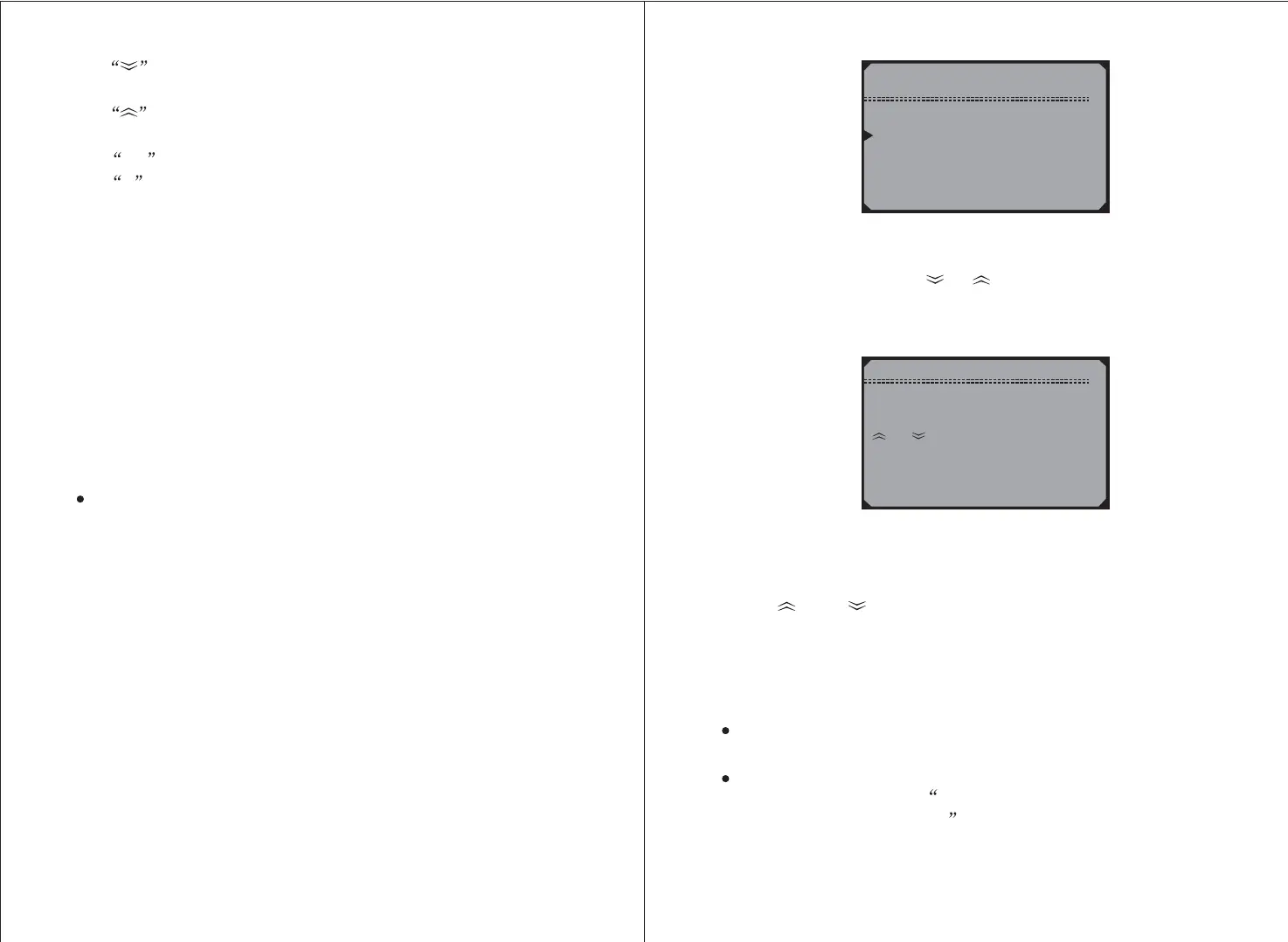
1) From the , use the scroll buttons to
select and press the button.
Main Menu UP/DOWN
DTC Lookup Y
Main Menu
1) Diagnostics
2) DTC Lookup
3) System Setup
4) Tool Information
2) From the menu, use the button to move to the
desired character, use or arrow buttons to change selected
digit/character and press button to confirm.
DTC Lookup N
Y
3) View the DTC definition on screen
4) To view next or previous DTC in the built-in DTC library, use
[ ] or [ ] arrow button.
5) To enter another DTC, press [ ] button to return to previous
screen
6) To exit to press and hold button for at least 3
seconds.
N
Main Menu, N
For manufacturer specific codes, youneed to select a vehicle
make onanadditional screen to look for DTC definitions.
If definition could not be found(SAEorManufacturer Specific) ,
the Scan Tool displays DTC definitionnot found! Ple ase refer
to vehicle service manual!
DTC Lookup
[N] =NextCharacter
[ ] [ ] = Change Digit
[ Y ] = Confirrn
Hold [ N ] = Exit
P0001
11



 To Next Page