Section 7 COPIER MANAGEMENT FUNCTIONS
7-24
4
The total number of copies made under that department ID-
code will be displayed.
Inch specifications
Close
Each Management Total
Default setting - Management 0007 1st Sales Dept.
Counter
clear
Number print.
Number in( )
is limit value
50 30 80
100 100
Copy Printer
Scanner Fax
Total
Scan.Transm. Fax Transm.
Black & White:
Scan # pages: Trsm. # pages:
Commun.Time:
1Hrs 10Mins
Metric specifications
Close
Each Management Total
Default setting - Management 0007 1st Sales Dept.
Counter
clear
Number print.
Number in( )
is limit value
50 30 80
100 100
Copy Printer
Scanner Fax
Total
Scan.Transm. Fax transm.
Black & White:
Scan # pages: Trsm. # pages:
Commun.Time:
1Hrs 10Mins
NOTE
On the “Each Management Total” screen, the number in the brackets
following the number of copies made indicates the maximum number
of copies that can be made.
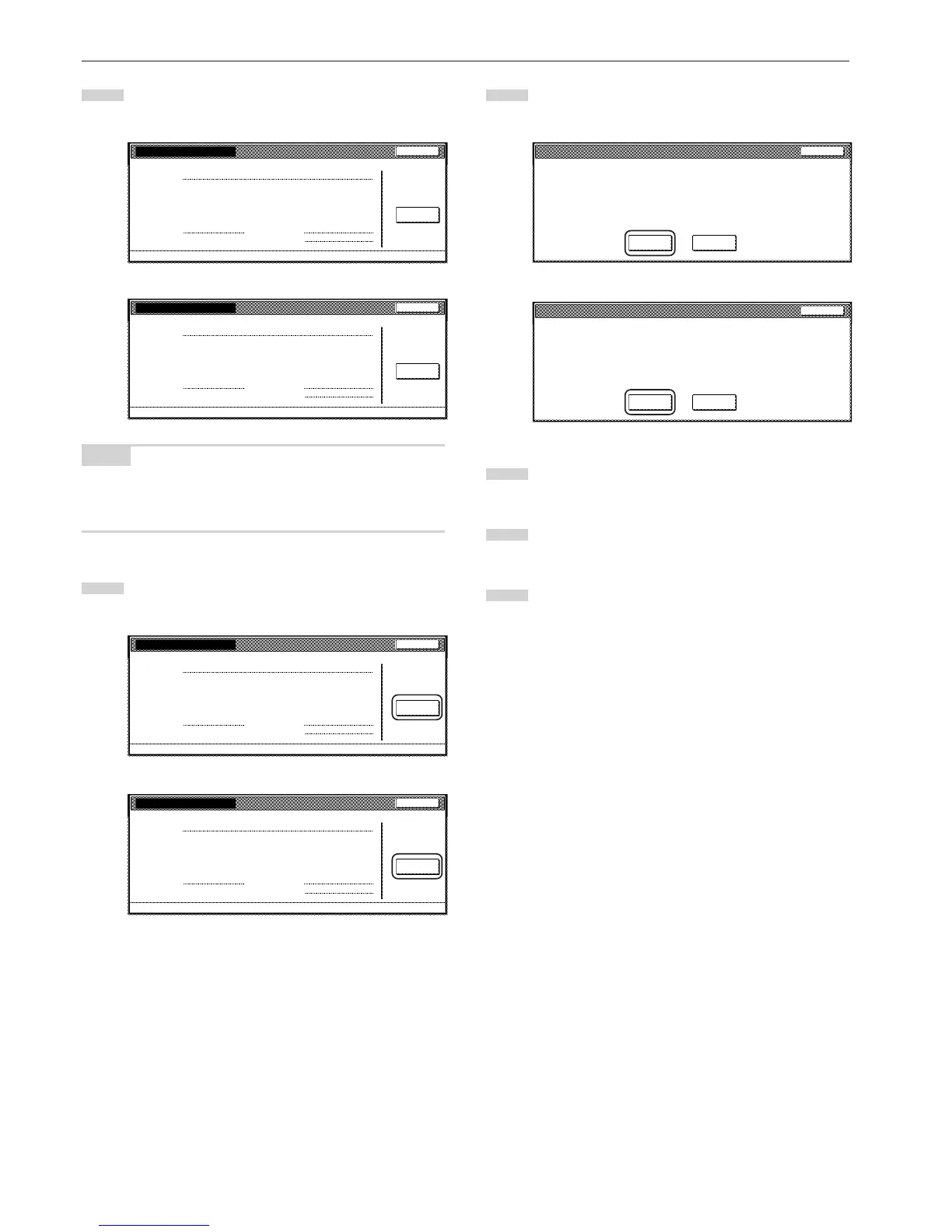
5
To clear all of the copy counts for that ID-code, touch the
“Counter clear” key.
Inch specifications
Close
Each Management Total
Default setting - Management 0007 1st Sales Dept.
Counter
clear
Number print.
Number in( )
is limit value
50 30 80
100 100
Copy Printer
Scanner Fax
Total
Scan.Transm. Fax Transm.
Black & White:
Scan # pages: Trsm. # pages:
Commun.Time:
1Hrs 10Mins
Metric specifications
Close
Each Management Total
Default setting - Management 0007 1st Sales Dept.
Counter
clear
Number print.
Number in( )
is limit value
50 30 80
100 100
Copy Printer
Scanner Fax
Total
Scan.Transm. Fax transm.
Black & White:
Scan # pages: Trsm. # pages:
Commun.Time:
1Hrs 10Mins
6
When the confirmation message appears, touch the “Yes”
key.
Inch specifications
7
Touch the “Close” key.
The touch panel will return to the screen in step 3.
8
Touch the “Close” key.
The touch panel will return to the screen in step 2.
9
Touch the “Close” key.



 To Next Page