EasyManua.ls Logo

Oce OP1030 - User Manual

Oce OP1030
296 pages
Print Icon
To Next Page IconTo Next Page
Loading...
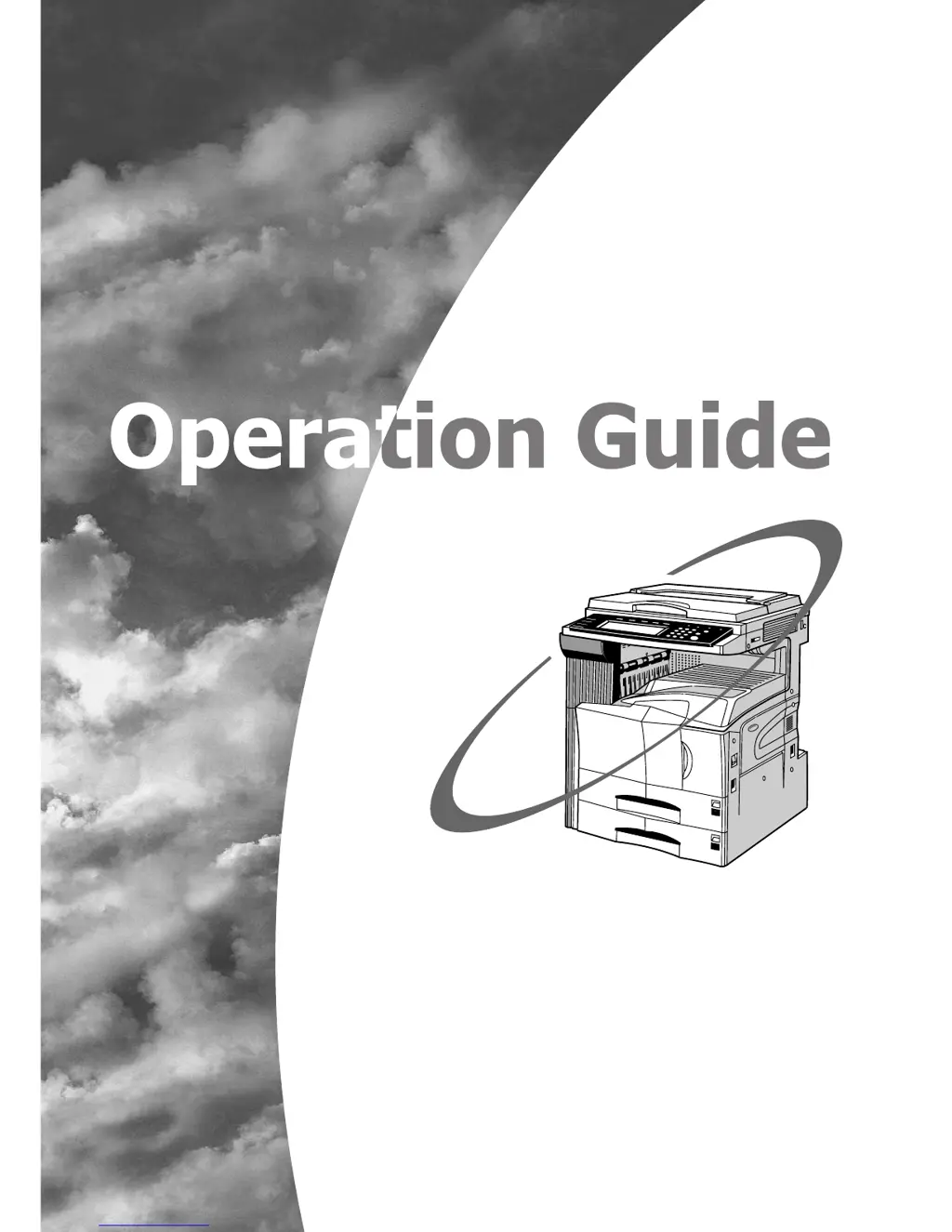
Please read the Operation Guide before using the copier
Keep it close to the copier for easy reference
Océ
OP1030
OP1040
* The above illustration includes the optional original cover.

Table of Contents

Questions and Answers

Summary

Introduction to Operation Guide

Section 1 IMPORTANT! PLEASE READ FIRST.

Essential information and cautions for first-time users, covering installation and safe operation.

Section 2 NAMES OF PARTS

Explains the names and functions of the copier's components and operation panel.

Section 4 BASIC OPERATION

Covers fundamental procedures for making simple copies, including enlargement and reduction.

Section 6 DOCUMENT AND OUTPUT MANAGEMENT FUNCTIONS

Describes procedures for managing documents, forms, and print jobs using hard disk storage.

Section 7 COPIER MANAGEMENT FUNCTIONS

Details functions for managing copier usage, settings, departments, and security.

Section 9 TROUBLESHOOTING

Provides guidance on identifying and resolving common operational problems, error messages, and paper misfeeds.

Safety of Laser Beam

1. Safety of laser beam

Explains the safety certification of the copier as a Class 1 laser product and its safe operation during normal use.

Section 4 BASIC OPERATION

1. Basic copying procedure

Outlines the fundamental steps for performing a standard copy job, including warm-up and original placement.

2. Enlarging;reducing the copy image

Explains how to adjust the copy image size using various zoom modes like Auto, Zoom, Preset, and XY zoom.

Section 5 OTHER CONVENIENT FUNCTIONS

1. Making 2-sided copies from various types of originals [2-sided copy modes]

Covers methods for creating 2-sided copies from different types of originals, including 2-sided and open-faced documents.

26. Easily add covers and insert sheets between various sets of originals in one operation [Job build mode]

Enables scanning multiple sets of originals and copying them together, with options for covers, inserts, and 2-sided copying.

Section 6 DOCUMENT AND OUTPUT MANAGEMENT FUNCTIONS

1. Document management functions

Introduces functions for scanning, saving, and managing documents on the copier's hard disk.

2. Output management functions

Utilizes the "Print status" screen to manage printing conditions and job queues.

Section 7 COPIER MANAGEMENT FUNCTIONS

1. Copy management mode

Enables management of copy usage by registering department ID-codes and setting restrictions.

(3) Editing copy management information

Details how to register, change, or delete department ID-codes and their associated restrictions.

Setting the restrictions for use

Defines available restrictions for copier functions based on department ID-codes and management settings.

Output limitation

Sets maximum limits for copies and printouts per department ID-code.

Scanning restrictions

Sets maximum limits for scanned originals per department ID-code when scanner kits are installed.

Fax transmission restrictions

Sets maximum limits for transmitted documents per department ID-code when fax kits are installed.

Copying restrictions

Sets maximum limits for copies made under a specific department ID-code.

Printing restrictions

Sets maximum limits for printouts made under a specific department ID-code.

Change restrictions for use

Allows modifying usage restrictions for the copier based on department ID-codes.

(4) Checking the copy management counts

Explains how to check total copy counts for all departments or individual departments.

Response to exceeded restriction

Sets how the copier responds when a department's usage limit is exceeded.

Default copy limit

Sets the default maximum copy limit for new department ID-codes.

Changing the management code

Allows changing the 4-digit management code used for copier administration.

Machine default settings

Details the default settings for machine operations like paper handling and energy saving.

6. Checking the total counter and printing out the counter report

Explains how to check total copy counts and print a counter report.

7. Box management default settings

Manages default settings for boxes used in document management functions.

8. Hard disk management

Accesses HDD management mode to check space and delete invalid data.

Section 8 OPTIONAL EQUIPMENT

(1) Document Processor

Describes the Document Processor's function for automatic feeding and duplex copying.

How to set originals in the Document Processor

Provides instructions on how to load originals correctly into the Document Processor.

(5) Document Finisher

Describes the Document Finisher's capabilities for sorting, stapling, and binding copies.

(7) Built-in Finisher

Details the Built-in Finisher's features for sorting and stapling copies.

(9) Hard Disk

Lists the functions and modes that require a Hard Disk for operation.

Section 9 TROUBLESHOOTING

1. If one of the following messages is displayed

Lists common error messages and their corresponding corrective actions.

3. When paper misfeeds

Provides detailed procedures for removing misfed paper from various sections of the copier.

2 Misfeed in Document Processor (optional) (JAM 70 to 76)

Guides on clearing paper misfeeds occurring in the Document Processor.

3 Misfeed in Built-in Finisher (optional) (JAM 80 to 84)

Provides instructions for clearing paper misfeeds in the optional Built-in Finisher.

4. If other trouble occurs

Offers a checklist of common troubles and their potential solutions.

Section 10 MAINTENANCE AND OPERATION INFORMATION

1. Cleaning the copier

Details procedures for cleaning the copier's exterior parts, platen, and slit glass for optimal performance.

2. Replacing the toner container and waste toner box

Guides users through the process of replacing the toner container and waste toner box, including necessary precautions.

Summary

Introduction to Operation Guide

Section 1 IMPORTANT! PLEASE READ FIRST.

Essential information and cautions for first-time users, covering installation and safe operation.

Section 2 NAMES OF PARTS

Explains the names and functions of the copier's components and operation panel.

Section 4 BASIC OPERATION

Covers fundamental procedures for making simple copies, including enlargement and reduction.

Section 6 DOCUMENT AND OUTPUT MANAGEMENT FUNCTIONS

Describes procedures for managing documents, forms, and print jobs using hard disk storage.

Section 7 COPIER MANAGEMENT FUNCTIONS

Details functions for managing copier usage, settings, departments, and security.

Section 9 TROUBLESHOOTING

Provides guidance on identifying and resolving common operational problems, error messages, and paper misfeeds.

Safety of Laser Beam

1. Safety of laser beam

Explains the safety certification of the copier as a Class 1 laser product and its safe operation during normal use.

Section 4 BASIC OPERATION

1. Basic copying procedure

Outlines the fundamental steps for performing a standard copy job, including warm-up and original placement.

2. Enlarging;reducing the copy image

Explains how to adjust the copy image size using various zoom modes like Auto, Zoom, Preset, and XY zoom.

Section 5 OTHER CONVENIENT FUNCTIONS

1. Making 2-sided copies from various types of originals [2-sided copy modes]

Covers methods for creating 2-sided copies from different types of originals, including 2-sided and open-faced documents.

26. Easily add covers and insert sheets between various sets of originals in one operation [Job build mode]

Enables scanning multiple sets of originals and copying them together, with options for covers, inserts, and 2-sided copying.

Section 6 DOCUMENT AND OUTPUT MANAGEMENT FUNCTIONS

1. Document management functions

Introduces functions for scanning, saving, and managing documents on the copier's hard disk.

2. Output management functions

Utilizes the "Print status" screen to manage printing conditions and job queues.

Section 7 COPIER MANAGEMENT FUNCTIONS

1. Copy management mode

Enables management of copy usage by registering department ID-codes and setting restrictions.

(3) Editing copy management information

Details how to register, change, or delete department ID-codes and their associated restrictions.

Setting the restrictions for use

Defines available restrictions for copier functions based on department ID-codes and management settings.

Output limitation

Sets maximum limits for copies and printouts per department ID-code.

Scanning restrictions

Sets maximum limits for scanned originals per department ID-code when scanner kits are installed.

Fax transmission restrictions

Sets maximum limits for transmitted documents per department ID-code when fax kits are installed.

Copying restrictions

Sets maximum limits for copies made under a specific department ID-code.

Printing restrictions

Sets maximum limits for printouts made under a specific department ID-code.

Change restrictions for use

Allows modifying usage restrictions for the copier based on department ID-codes.

(4) Checking the copy management counts

Explains how to check total copy counts for all departments or individual departments.

Response to exceeded restriction

Sets how the copier responds when a department's usage limit is exceeded.

Default copy limit

Sets the default maximum copy limit for new department ID-codes.

Changing the management code

Allows changing the 4-digit management code used for copier administration.

Machine default settings

Details the default settings for machine operations like paper handling and energy saving.

6. Checking the total counter and printing out the counter report

Explains how to check total copy counts and print a counter report.

7. Box management default settings

Manages default settings for boxes used in document management functions.

8. Hard disk management

Accesses HDD management mode to check space and delete invalid data.

Section 8 OPTIONAL EQUIPMENT

(1) Document Processor

Describes the Document Processor's function for automatic feeding and duplex copying.

How to set originals in the Document Processor

Provides instructions on how to load originals correctly into the Document Processor.

(5) Document Finisher

Describes the Document Finisher's capabilities for sorting, stapling, and binding copies.

(7) Built-in Finisher

Details the Built-in Finisher's features for sorting and stapling copies.

(9) Hard Disk

Lists the functions and modes that require a Hard Disk for operation.

Section 9 TROUBLESHOOTING

1. If one of the following messages is displayed

Lists common error messages and their corresponding corrective actions.

3. When paper misfeeds

Provides detailed procedures for removing misfed paper from various sections of the copier.

2 Misfeed in Document Processor (optional) (JAM 70 to 76)

Guides on clearing paper misfeeds occurring in the Document Processor.

3 Misfeed in Built-in Finisher (optional) (JAM 80 to 84)

Provides instructions for clearing paper misfeeds in the optional Built-in Finisher.

4. If other trouble occurs

Offers a checklist of common troubles and their potential solutions.

Section 10 MAINTENANCE AND OPERATION INFORMATION

1. Cleaning the copier

Details procedures for cleaning the copier's exterior parts, platen, and slit glass for optimal performance.

2. Replacing the toner container and waste toner box

Guides users through the process of replacing the toner container and waste toner box, including necessary precautions.

Oce OP1030 Specifications

Network FAX Transmission IconNetwork FAX Transmission
Transmission Resolution - Normal200 dpi x 100 dpi equivalent
Transmission Resolution - Fine200 dpi x 200 dpi equivalent
Transmission Resolution - Ultra fine400 dpi x 400 dpi equivalent
Document Size - Maximum11" x 17" [A3]

Related product manuals