Patent No. 6,766,028 - OFI Testing Equipment, Inc.
OFITE, 11302 Steeplecrest Dr., Houston, TX 77065 USA / Tel: 832-320-7300 / Fax: 713-880-9886 / www.ote.com 34
Software
Import/Export
The Import/Export feature of the ORCADA
®
Software makes it possible to
transfer a test from one PC to another.
1. Begin on the Main Screen. Choose “Export” from the “File” menu.
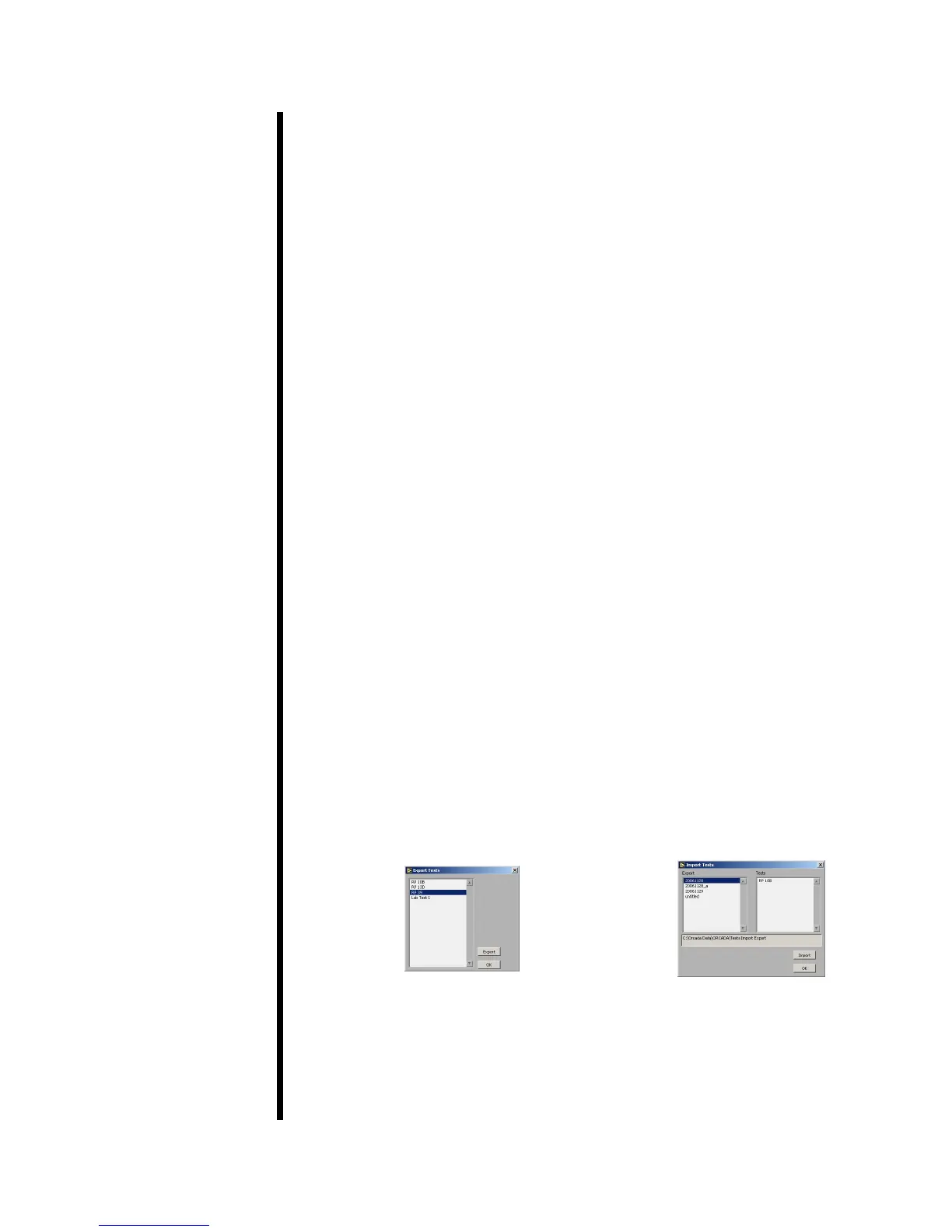
2. Select the tests you wish to export. Hold down the CTRL key to select
multiple tests.
3. Click the “Export” button. You will be asked to choose a destination and
lename and then click “OK”.
4. Copy this le to the “Tests Import Export” folder on the destination PC.
The le must be placed in the correct folder for it to be available for
import. To nd this folder, rst navigate to the folder specied in the “Data
Archive Directory” eld in the Options screen (see page 25 for details).
From there go to the “ORCADA
®
” folder and then the “Tests Import
Export” folder.
5. On the destination PC, choose “Import” from the “File” menu.
6. Choose the tests you wish to import. Hold down the CTRL key to select
multiple tests.
The “Export” eld lists all of the les that are available for import. Once
you have selected one, the “Tests” eld shows which individual tests can
be imported from that le.
Below the “Export” and “Tests” elds is a display-only eld that shows the
folder being scanned for exported tests. Make sure the tests you want to
import have been placed in that folder.
7. Click the “Import” button. The new tests will appear in the list in the upper
left-hand corner of the Main Screen.
Export Import


 To Next Page