EasyManua.ls Logo

Oki C712 - User Manual

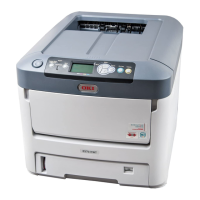
Oki C712
93 pages
Print Icon
To Next Page IconTo Next Page
Loading...
User’s Guide
C612/C712/ES6412/ES7412

Table of Contents

Other manuals for Oki C712

Questions and Answers

  • M
    Melinda ThomasAug 15, 2025
    What to do if Oki Printer shows 'Caution, unknown Consumable detected'?
    • K
      Karen McdonaldAug 15, 2025
      If the Oki Printer displays the message “Caution, unknown Consumable detected”, turn off the printer. Then, press and hold the Cancel button while turning the printer back on. After the printer starts up, release the Cancel button.
  • T
    Todd PierceSep 1, 2025
    What to do if an error message is displayed on the Oki All in One Printer operator panel?
    • D
      Deborah KellySep 1, 2025
      If an error message appears on the operator panel of your Oki All in One Printer, press [Details] and clear the error following the onscreen instructions.
  • C
    Carla OrtegaNov 7, 2025
    How to fix paper jams in Oki Printer?
    • T
      Thomas MataNov 7, 2025
      If a sheet is partially out of the Oki Printer, gently pull it out. If it doesn't come out easily, don't force it. Open the printer’s output tray fully by pressing the cover release. Check for paper on the belt unit. To remove a sheet with its leading edge at the front of the belt, lift the sheet from the belt and pull it into the internal drum cavity. For a sheet in the central belt area, separate it from the belt and withdraw it. If a sheet is entering the fuser, separate its trailing edge from the belt, push the fuser pressure release lever forward and down, and withdraw the sheet through the drum cavity. Don't pull back a sheet far into the fuser. To remove a sheet in the fuser, push the two retaining levers towards the rear to release the fuser, then withdraw the fuser unit. Replace t...
  • R
    Ryan PerezNov 19, 2025
    Why is my Oki All in One Printer unable to print?
    • J
      Julie MilesNov 20, 2025
      Your Oki All in One Printer may be unable to print due to several reasons: * The machine might be in Sleep mode or Deep Sleep mode. Press the (POWER SAVE) button to enter standby status. * The machine might be turned off. Turn the machine on. * A LAN cable or USB cable might be unplugged. Check that the cable is properly connected to both the machine and the computer. * There might be a problem with the cable. Replace it with a new one. * The machine might be offline. Press the (PRINT) button, and then select [Online]. * An error message might be displayed on the touch panel. Check the error messages or press [?] on the touch panel. * The interface setting might be disabled. Ensure consistency between the machine's settings and the network connection environment by checking ...
  • K
    Keith RamirezNov 25, 2025
    Why Oki All in One Printer is unable to copy?
    • F
      fhartmanNov 25, 2025
      There are several reasons why your Oki All in One Printer might be unable to copy: * The machine might not be turned on. In this case, turn the machine on. * The machine may be initializing; wait until initialization is complete. * The document might not be set properly; ensure the document is correctly set. * There might be no paper in the tray; load paper into the tray and ensure the paper cassette is installed. * The paper size might be incorrect; load the correct size paper. * The paper tray might not be selectable; on the touch panel, go to Device Settings, then Paper Setup > Select Tray > Copy, and select the paper tray with the loaded paper, choosing ON or ON(Prior). * The loaded paper might not be compatible with duplex printing; load appropriate paper and correctly ...

Oki C712 Specifications

General IconGeneral
Printer TypeColor Laser Printer
Print TechnologyLED
Resolution1200 x 1200 dpi
Monthly Duty Cycle100, 000 pages
Memory512 MB
Paper Capacityup to 1, 690 sheets maximum
ConnectivityUSB 2.0, Ethernet, Wi-Fi
Media Sizes SupportedA4, A5, A6, B5, Legal, Letter, Executive
Operating Systems SupportedWindows, Mac, Linux
Duplex PrintingAutomatic

Related product manuals