EasyManua.ls Logo

Olympus C-2100 Ultra Zoom - User Manual

Olympus C-2100 Ultra Zoom
212 pages
Print Icon
To Next Page IconTo Next Page
Loading...
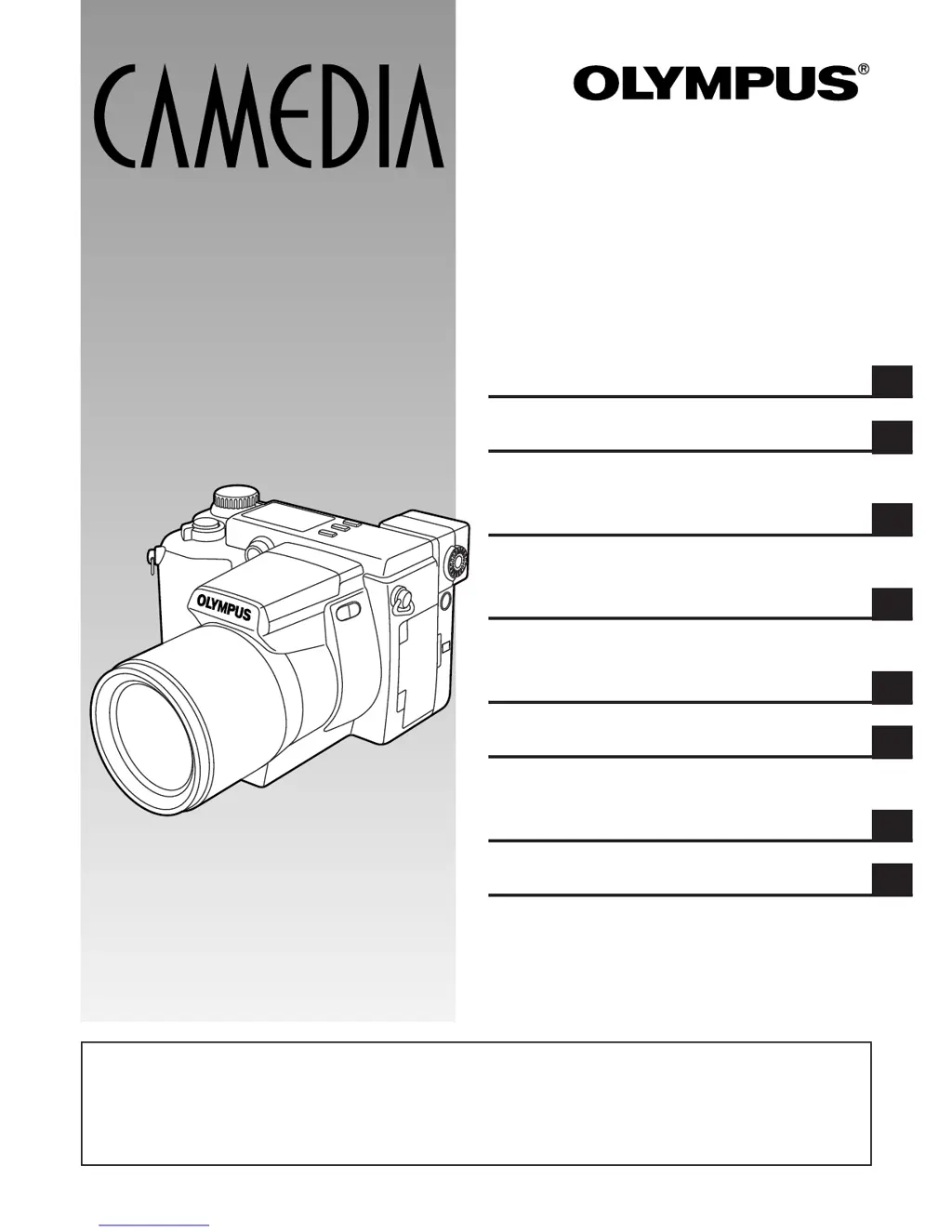
INSTRUCTIONS
C-2100 Ultra Zoom
DIGITAL CAMERA
n Before using your camera, read this manual carefully to ensure correct
use.
n We recommend that you take test shots to get accustomed to your
camera before taking important photographs.
1 GETTING STARTED
2 BASIC FUNCTIONS
3 SHOOTING FOR SPECIAL
SITUATIONS
4 USING YOUR CAMERA’S
ADVANCED FUNCTIONS
5 ADVANCED RECORDING/
DISPLAY TECHNIQUES
6 PRINT SETTINGS
7 TRANSFERRING PICTURES
TO A COMPUTER
8 MISCELLANEOUS

Table of Contents

Questions and Answers

  • R
    Roger HernandezAug 20, 2025
    What to do if no picture is taken when pressing the shutter button on Olympus C-2100 Ultra Zoom Digital Camera?
    • G
      Grant BoothAug 20, 2025
      If no picture is taken when the shutter button is pressed on your Olympus Digital Camera, consider the following: 1. Wait for the flash to finish charging. Remove your finger from the shutter button and wait until the flash charge mark stops blinking, then try again. 2. If the card access lamp is blinking after shooting, the image data is being written to the card. Wait until it stops blinking before shooting again. 3. The card may be full. Replace the card, delete unwanted pictures, or transfer data to a computer. 4. The batteries may have ran out. Replace them with new ones. 5. The mode dial may be incorrectly set. Set the mode dial to P, A, S, M, S-Prg or .
  • A
    Antonio ShortAug 22, 2025
    How to troubleshoot an Olympus C-2100 Ultra Zoom Digital Camera that does not work?
    • H
      Holly DavisAug 22, 2025
      If your Olympus Digital Camera is not working, consider the following: * Ensure the power switch is set to ON. * Check that the batteries are loaded correctly. * Replace exhausted batteries with new ones. * Keep the batteries warm if they are temporarily unable to function. * Operate the camera as required if power has shut off to conserve battery consumption. * Note that the camera will not operate while connected to a personal computer.
  • B
    Barry MooreAug 25, 2025
    How to fix out of focus pictures on Olympus C-2100 Ultra Zoom?
    • T
      Tamara CruzAug 25, 2025
      If your Olympus Digital Camera picture is out of focus, try these solutions: * Hold the camera correctly and press the shutter button to avoid camera movement. * Position the AF target mark on the subject, or use the focus lock. * Clean the lens with a soft dry cloth. * If the subject was too close, set the camera to the Macro mode. * If using Manual focus, ensure you are using the correct focal range. * Set the AF assist lamp to on if the subject was dark and the lamp was off.
  • N
    nicholas99Aug 26, 2025
    Why are my Olympus C-2100 Ultra Zoom Digital Camera pictures too dark?
    • D
      David BarryAug 26, 2025
      If the picture from your Olympus Digital Camera is too dark, consider these possible causes: * Ensure your finger is not blocking the flash. * Shoot within the flash working range, or use an external flash if the subject is out of range. * Check the flash mode before shooting, and set to Fill-In mode if the subject was too small and backlit. * Note that using Sequence mode may result in darker pictures due to higher shutter speeds.
  • K
    Kelly CaldwellAug 28, 2025
    What causes Olympus C-2100 Ultra Zoom pictures to be too bright?
    • S
      Scott RamirezAug 28, 2025
      If your Olympus Digital Camera picture is too bright, the flash mode might be set to the Fill-in flash mode. Select a different flash mode. The subject may also be excessively illuminated. If so, use spot metering and adjust the exposure compensation or change the camera position toward the subject.
  • W
    williamsdennisAug 30, 2025
    How to fix a blurry monitor on Olympus Digital Camera?
    • L
      Lisa SmithAug 30, 2025
      If the monitor is not clear on your Olympus Digital Camera, adjust the brightness. If the monitor is exposed to direct sunlight, block the sunlight.
  • J
    James ThomasSep 1, 2025
    Why do eyes appear red in Olympus C-2100 Ultra Zoom Digital Camera photos taken with flash?
    • C
      Christopher DickersonSep 1, 2025
      This red-eye phenomenon occurs with all cameras when a flash is used. It is caused by light from the flash reflecting off the retina at the back of the eye. Red-eye varies depending on the individual and the shooting conditions such as ambient lighting. To reduce this, use the Red-Eye Reducing Pre-Flash mode.
  • J
    Juan PrinceSep 3, 2025
    Why don't my pictures appear on the monitor of my Olympus Digital Camera?
    • K
      Kimberly WillisSep 3, 2025
      If pictures you have already taken do not appear on the monitor of your Olympus Digital Camera, try the following: * Set the Mode dial to the playback position. * Ensure there are pictures on the card. If not, NO PICTURE will appear on the monitor; record some pictures. * The monitor does not function when the camera is connected to a TV, disconnect it. * Press the button to switch to the monitor if the viewfinder is on but there is no display.
  • E
    eorrSep 5, 2025
    Why is the date wrong on my Olympus C-2100 Ultra Zoom photos?
    • M
      Mindy ReedSep 5, 2025
      If the date recorded with the image data is wrong on your Olympus Digital Camera, it may be because the date was not set. Set the date in the camera settings. Note that the clock adjustment is not factory-presets. If the camera has been left for approximately 1 week with the batteries removed, the date setting may be canceled; try setting the date again.
  • S
    Scott BowersSep 7, 2025
    Why does the flash not fire on my Olympus Digital Camera?
    • P
      Pamela DaughertySep 7, 2025
      If the flash does not fire on your Olympus Digital Camera, check the following: * Slide the Flash switch to raise the flash if it is pushed down. * If the subject is lighted, set the flash to Fill-In mode. * Press the DRIVE button to set to the single-picture mode, if the drive mode is set incorrectly. * Stop Panorama recording if it is in progress. * Note that the flash does not fire in the WHITE BOARD/BLACK BOARD mode.

Summary

Important safety instructions

Handling Batteries

Guidelines to prevent battery leakage, overheating, or explosion.

Handling the Camera

Precautions for safe camera operation and avoiding damage.

Camera Care and Storage

Recommendations for maintaining and storing the camera properly.

Selecting Batteries for Your Camera

Information on compatible battery types and their usage.

MAIN FEATURES

PACKAGE CONTENTS

NAMES OF PARTS

Camera

Identification of the camera's physical components and their functions.

Control panel indications

Viewfinder;Monitor indications (Picture information)

Record mode

Displays information shown in the viewfinder/monitor during recording.

HOW TO USE THIS INSTRUCTION MANUAL

1 GETTING STARTED

Attaching the strap

Instructions for securely attaching the camera strap.

Loading the batteries

Step-by-step guide for inserting batteries into the camera.

Using the AC power adapter (Optional)

Procedure for powering the camera using an AC adapter.

Inserting and ejecting SmartMedia

How to correctly insert and remove SmartMedia cards.

Formatting new SmartMedia cards

Steps to prepare a SmartMedia card for use with the camera.

Setting the mode dial

Explanation of different shooting modes and how to select them.

How to use the menu

Guide to navigating and using the camera's menu system.

2 BASIC FUNCTIONS

Turn the power on

Steps to power up the camera and initial checks.

Confirming the displays

How to check battery status and card information on the display.

TAKING PICTURES

Basic steps and techniques for capturing still images and movies.

ERASING IMAGES

Methods for deleting unwanted pictures from the camera or card.

3 SHOOTING FOR SPECIAL SITUATIONS

Taking pictures under different conditions

Techniques for capturing photos in various environments.

Using the scene program (S-Prg) mode

How to utilize preset shooting modes for specific scenarios.

Aperture priority mode

Manually setting aperture for exposure control.

Shutter priority mode

Manually setting shutter speed for motion control.

Manual mode

Complete manual control over aperture and shutter speed.

Macro mode

Instructions for close-up photography.

4 USING YOUR CAMERA’S ADVANCED FUNCTIONS

RECORDING-range;focus

Techniques for managing focus and zoom.

RECORDING-brightness;exposure

Adjusting exposure for lighting conditions.

RECORDING-color;image quality

Setting image quality and resolution for recording.

RECORDING-using the flash

Selecting and controlling flash modes for optimal lighting.

RECORDING-Others

Various other shooting functions and modes.

5 ADVANCED RECORDING;DISPLAY TECHNIQUES

RECORDING-brightness;exposure

Locking exposure settings for consistent results (AE Lock).

RECORDING-color;image quality

Adjusting color balance using White Balance settings.

RECORDING-others

Various other recording techniques.

DISPLAY-processing pictures

Adding sound memos to still pictures.

Function Settings for Easier Camera Operation ~ MODE SETUP

Customizing camera settings for user preference.

6 PRINT SETTINGS

About Print Settings

Methods for printing images via printer or photo lab.

PRINTING ALL FRAMES STORED IN A CARD~ ALL-FRAME PRINT RESERVE

Setting print data for all pictures on the card.

PRINTING SELECTED FRAMES~ SINGLE-FRAME PRINT RESERVE

Setting print data for specific selected pictures.

7 TRANSFERRING PICTURES TO A COMPUTER

METHODS OF SAVING PICTURES ON A COMPUTER

Overview of saving images via USB or card reader.

CONNECTING DIRECTLY TO A COMPUTER BY CABLE

Connecting the camera to a PC using cables.

8 MISCELLANEOUS

TROUBLESHOOTING

Solutions for common camera problems and symptoms.

USER MAINTENANCE

Guidelines for cleaning and maintaining the camera.

ERROR CODES

List of error codes and their corresponding remedies.

SPECIFICATIONS

Technical details and features of the digital camera.

Olympus C-2100 Ultra Zoom Specifications

General IconGeneral
Camera TypeDigital Camera
Image Sensor1/2.7" CCD
Effective Pixels2.1 megapixels
Optical Zoom10x
Digital Zoom2.5x
Display1.8" LCD
StorageSmartMedia card
Built-in FlashYes
External FlashYes
Flash ModesAuto, red-eye reduction, fill-in, off
Max Resolution1600 x 1200
Aperture Rangef/2.8 - f/3.5
ISO Range100, 200, 400
Shutter Speed1/800 sec
Battery4 x AA
ConnectivityUSB
Weight480g

Related product manuals