EasyManua.ls Logo

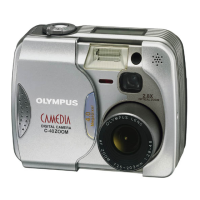
Olympus CAMEDIA C-40Zoom - User Manual

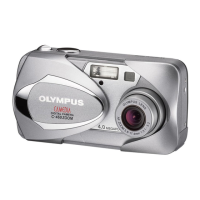
Olympus CAMEDIA C-40Zoom
203 pages
Print Icon
To Next Page IconTo Next Page
Loading...
Thank you for purchasing an Olympus digital camera. Before you
start to use your new camera, please read these instructions
carefully to enjoy optimum performance and a longer service life.
Keep this manual in a safe place for future reference.
We recommend that you take test shots to get accustomed to
your camera before taking important photographs.
REFERENCE MANUAL

Table of Contents

Questions and Answers

  • C
    chadcostaAug 19, 2025
    Why my Olympus Digital Camera does not turn on?
    • F
      Frank LopezAug 19, 2025
      There are several reasons why your Olympus Digital Camera might not be turning on. It could be due to the power being off, so try opening the lens barrier. The batteries might be loaded incorrectly, in which case you should reload them correctly. The batteries could also be exhausted, requiring you to replace them with new ones. If the batteries are too cold, keep them warm. If the camera is connected to a computer, it will not operate. If it's in sleep mode, operate the camera by pressing the shutter button or turning the mode dial. Finally, the camera might be too hot and has turned off automatically, so wait until it cools down.
  • D
    David FriedmanAug 21, 2025
    What to do if my Olympus CAMEDIA C-40Zoom Digital Camera is not taking pictures when I press the shutter button?
    • C
      cassandra14Aug 21, 2025
      If your Olympus Digital Camera isn't taking pictures when you press the shutter button, there might be a problem with the card. Consult the error code chart. The card could be full, so replace it or delete unwanted pictures. The batteries might have run out of power, so replace them with new ones. Also, check if a write-protect adhesive seal is placed on the card or if there's no card in the camera; if so, insert a new card.
  • J
    Jason ScottAug 25, 2025
    Why is my Olympus CAMEDIA C-40Zoom Digital Camera picture out of focus?
    • S
      Suzanne Barber MDAug 25, 2025
      If your Olympus Digital Camera picture is out of focus, it could be due to several reasons. You might have moved the camera when pressing the shutter button, so hold the camera correctly and press the shutter button. The AF target mark might not have been on the subject, so position it correctly or use focus lock. The lens could be dirty, so clean it with a soft, dry cloth. If using self-timer mode, press the shutter while looking into the viewfinder, not while standing in front of the camera. If using manual focus, ensure you're using the correct focal range for the distance.
  • G
    George OrtizAug 26, 2025
    Why is the flash on my Olympus CAMEDIA C-40Zoom not firing?
    • K
      Kristin BaileyAug 26, 2025
      If the flash on your Olympus Digital Camera isn't firing, it could be because the flash is set to the off mode, so press the button to select a different flash mode. If the subject is already well-lit, set the flash to Fill-In mode. If sequential shooting is on, set DRIVE to in the menus. If you are recording movies, set the mode dial to any position other than the movie mode. If panorama shooting is being performed, set PANORAMA to OFF in the menus. Lastly, if FUNCTION is set to BLACK/WHITE BOARD, set FUNCTION to OFF in the menus.
  • J
    Jessica KingAug 28, 2025
    Why are the colors of pictures taken indoors with my Olympus CAMEDIA C-40Zoom Digital Camera unnatural?
    • T
      Tommy ChapmanAug 28, 2025
      Indoor lighting can affect the colors of your pictures. To fix this, set the white balance according to the lighting. If there is no white in the subject, try to include something white in the picture or shoot using the Fill-in flash mode. Also, ensure that the white balance setting is correct for the light source.
  • A
    Adam AdamsAug 30, 2025
    Why is my Olympus CAMEDIA C-40Zoom Digital Camera picture too dark?
    • K
      Kim JohnsonAug 30, 2025
      If your Olympus Digital Camera picture is too dark, it could be because the flash was blocked by a finger, so hold the camera correctly, keeping your fingers away from the flash. The subject might be out of the flash's working range, so shoot within that range. The flash mode might be set to Off, so press the button to select a different flash mode. If the subject was too small and backlit, set the flash to Fill-In mode or use spot metering mode. Also, using sequential mode can result in darker pictures because higher shutter speeds are used.
  • A
    Anna BrownSep 1, 2025
    Why is my Olympus CAMEDIA C-40Zoom Digital Camera picture too bright?
    • M
      Matthew HintonSep 1, 2025
      If your Olympus Digital Camera picture is too bright, it might be because the flash mode was set to the Fill-in flash mode, so select a different flash mode. The subject could also be excessively illuminated, so adjust the exposure compensation or change the camera position toward the subject.
  • T
    Travis WhiteSep 3, 2025
    Why do the subject’s eyes appear red in pictures recorded with the flash on my Olympus CAMEDIA C-40Zoom Digital Camera?
    • D
      Dawn Carson MDSep 3, 2025
      The “red-eye phenomenon” occurs with all cameras when a flash is used. It is caused by light from the flash reflecting off the retina at the back of the eye. Red-eye varies depending on the individual and the shooting conditions such as ambient lighting. Use of the Red-Eye Reducing Pre-Flash mode significantly reduces this phenomenon.
  • G
    gjohnsonSep 5, 2025
    How to fix the date recorded with the image data if it is wrong in my Olympus Digital Camera?
    • C
      clarkstephanieSep 5, 2025
      If the date recorded with the image data is wrong, it may be because the date is not set. The clock adjustment is not factory-presetted, so set the date. If the camera has been left for approximately 1 hour with the batteries removed, the date setting is canceled, so set the date again.
  • M
    michael52Sep 7, 2025
    Why do pictures I have already taken not appear on the monitor of my Olympus CAMEDIA C-40Zoom?
    • M
      Michael RhodesSep 8, 2025
      If pictures you've already taken aren't appearing on the monitor, it could be because the camera is in the shooting mode, so close the lens barrier and press the button. There might be no picture in the card, in which case "NO PICTURE" appears on the monitor, so record pictures. There could be a problem with the card, so see the error code chart. Also, the monitor does not function when the camera is connected to a TV.

Summary

Chapter 1 Getting started

Loading the batteries

Guide on how to insert CR-V3 lithium battery packs or AA batteries.

Power on;off

Steps for turning the camera on and off in shooting and playback modes.

Chapter 2 Quick-start guide

Taking still pictures

Basic steps for capturing still images using the camera's AUTO mode.

Chapter 3 Using the Menus

MODE MENU

Explanation of the MODE MENU structure with tabs like CAMERA, PICTURE, CARD, SETUP.

Selecting, Setting, and Saving Functions

Process for selecting, adjusting, and saving camera settings within menus.

Chapter 4 Shooting basics

Shooting mode setting - Mode dial

Description of various shooting modes accessible via the mode dial.

Focusing

Detailed explanation of autofocus, manual focus, and focus lock.

Flash shooting

Overview of different flash modes and their usage for various lighting conditions.

Chapter 6 Adjusting Image Quality and Exposure

Record Mode

Choosing the optimal record mode (TIFF, SHQ, HQ, SQ) for image quality and file size.

White Balance

Setting white balance for accurate color reproduction under different lighting conditions.

Chapter 10 Transferring Pictures to a Computer

Chapter 12 Miscellaneous

Troubleshooting

Common problems and their corrective actions, with reference page numbers.

Error codes

List of error codes displayed on the control panel and monitor with causes and solutions.

Olympus CAMEDIA C-40Zoom Specifications

General IconGeneral
BrandOlympus
ModelCAMEDIA C-40Zoom
CategoryDigital Camera
LanguageEnglish

Related product manuals