OEV262H
5. Setting
5.3 Adjustment Using the Menus
32
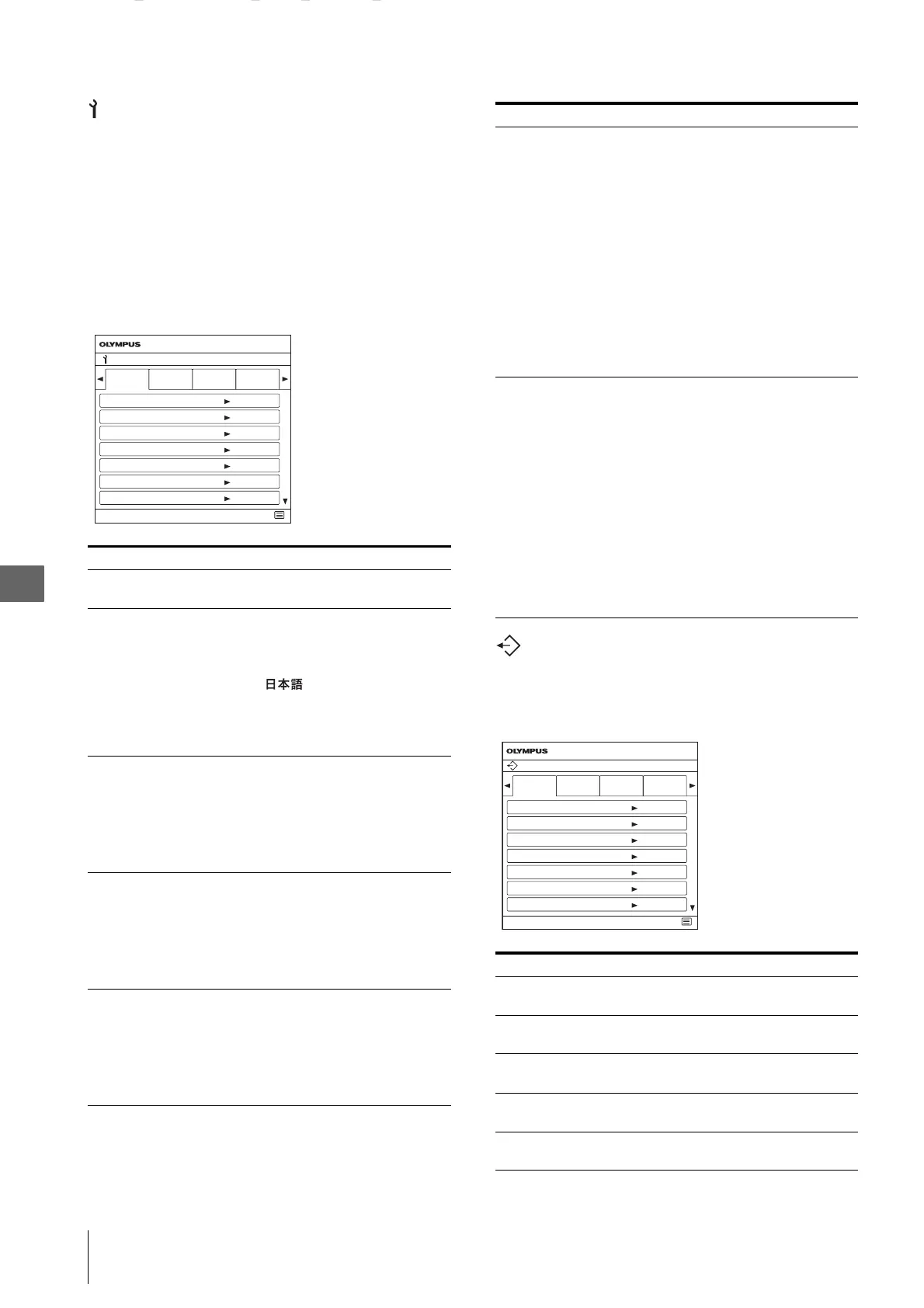
Initial Setup menu
The Initial Setup menu is used to set the following
default preset value on Preset A to J.
• Default Preset
• Language
• Port A Input Select
• Port B Input Select
• Pattern Skip
•PIP/POP
• Custom Button
Example “Default Preset” menu
Preset menu
The Preset menu is used to set the user 1 to 20 preset
setting.
Example “Load Preset” menu
Submenu Setting
Default Preset Sets the default preset. Set “Preset
A” to “Preset J.”
Language Selects the menu or message
language from among six
languages.
• English: English
• : Japanese
• Italiano: Italian
• Español: Spanish
• Deutsch: German
• Français: French
Port A Input Select Sets the input connector that is
skipped when changing the input
signal by pressing the PORT A
button. Set to “Not Skip” or “Skip”
for the SDI 1, SDI 2, DVI 1, DVI 2,
HD15, Composite, or Y/C
connector.
Port B Input Select Sets the input connector that is
skipped when changing the input
signal by pressing the PORT B
button. Set to “Not Skip” or “Skip”
for the SDI 1, SDI 2, DVI 1, DVI 2,
HD15, Composite, or Y/C
connector.
Pattern Skip Sets the pattern that is skipped
when changing the displaying
pattern by pressing the PIP/POP
button on the front panel while
using multi-image display. Set to
“Not Skip” or “Skip” for the PIP1,
PIP2, POP1, or POP2 pattern.
Initial Setup
Default
Preset
Language
Page 1/2 End
Preset A
Preset B
Preset C
Preset D
Preset E
Preset F
Preset G
Port A
Input Select
Port B
Input Select
OEV262H
PIP/POP
PIP Sub Screen
Position
POP Sub Screen
Position
PORT A/PORT B HD
Clipping Size
Sets the sub screen position for the
multi-image display (PIP). Select
from among “Lower Left,” “Upper
Left,” “Upper Right,” “Lower
Right.”
Sets the sub screen position for the
multi-image display (POP). Select
from among “Left,” “Right.”
Sets the HD clipping size for each
port when displaying multi-image
display. Select from among
“Normal,” “4:3,” “5:4,” “Square1,”
“Square2,” “Square3,” “Square4,”
“Square5.”
Custom Button Assigns the function to the
CUSTOM 1 or CUSTOM 2 button
on the front panel, and can set the
following functions to on or off.
• No Setting
• Scan Size
•Flip
• POP Sub Screen Position
•APA
• Gamma
• Mono
•Phase
• Chroma
• Brightness
• Contrast
Submenu Setting
Load Preset Loads the settings that are stored
Preset A to J.
Load User Setting Loads the settings that are stored
User 1 to 20.
Save User Setting Stores the current settings to User 1
to 20.
User Name Registers the user names to User 1
to 20.
Load Default Loads the setting data that is set for
the default preset settings.
Submenu Setting
Preset
Load
Preset
Load User
Setting
Page 1/2 End
Preset A
Preset B
Preset C
Preset D
Preset E
Preset F
Preset G
Save User
Setting
User
Name
OEV262H


 To Next Page