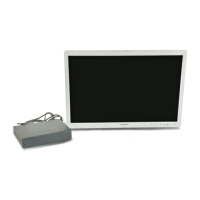
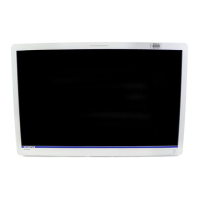
OEV262H
5. Setting
5.3 Adjustment Using the Menus
28
Input/Output Configuration
Clone Out
Port A Input Select
Port B Input Select
Input Name
AUX IN Setting
System Configuration
Control Lock
OSD Setting
Power On Setting
Power Save
Remote
Custom Button
Panel Display
Initial Setup
Default Preset
Language
Port A Input Skip
Port B Input Skip
Display Pattern Skip
PIP/POP
Custom Button
Preset
Load Preset
Load User Setting
Save User Setting
User Name
Load Default
Adjusting and changing the
settings
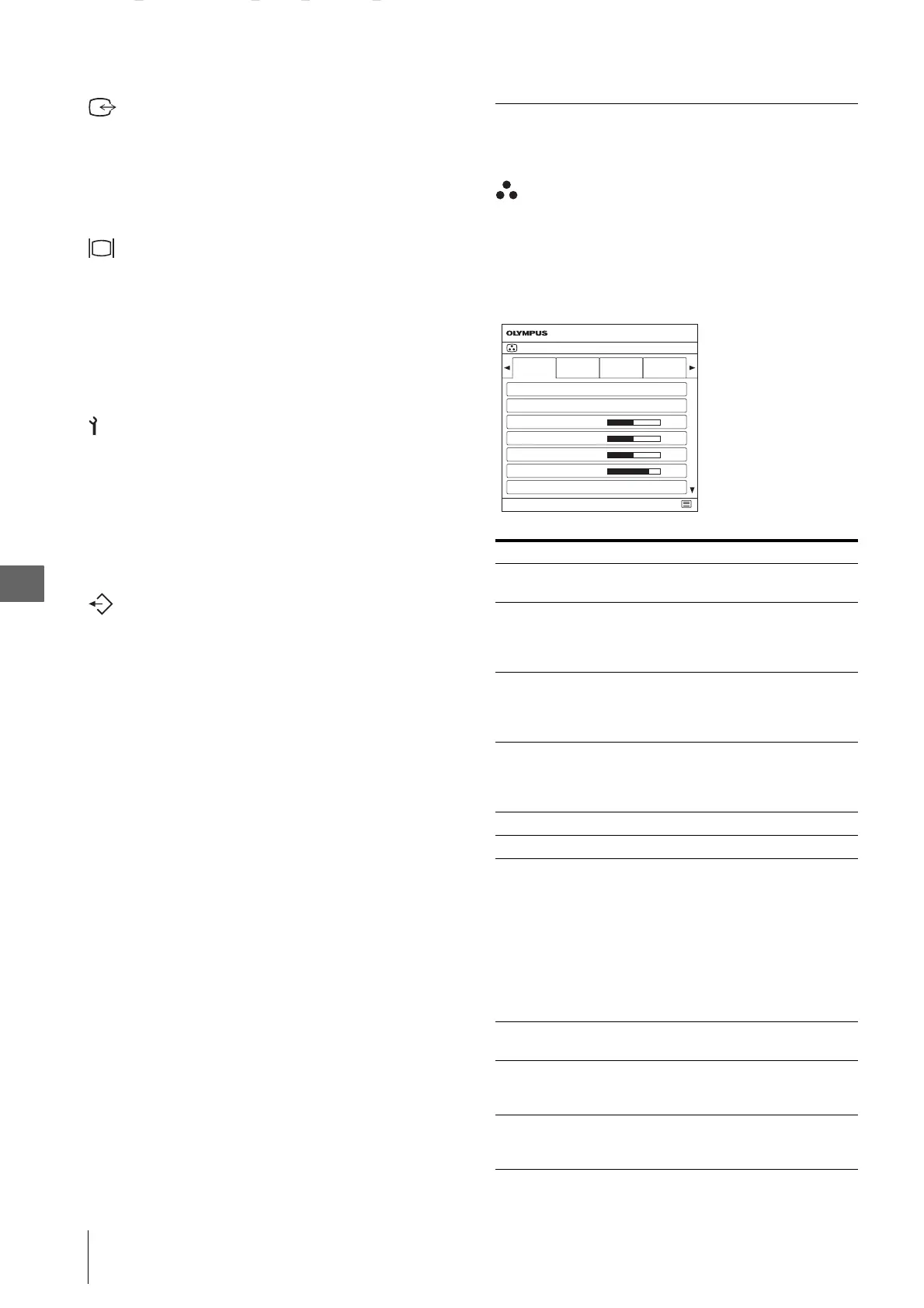
Color Tone Adjustment menu
The Color Tone Adjustment menu is used to adjust
white balance and picture quality for each input.
You need to use the measurement instrument to adjust
the white balance.
Recommended: Konica Minolta color analyzer CA-310
Submenu Setting
Color Mode Select the preset color mode from
“1” to “20.”
Gamma Select the appropriate gamma mode
from among “Endoscope,” “1.8,”
“2.0,” “2.2,” “2.4,” “2.6,”
“DICOM.”
Phase Adjusts color tones. The higher the
setting, the more greenish the
picture. The lower the setting, the
more purplish the picture.
Chroma Adjusts color intensity. The higher
the setting, the greater the intensity.
The lower the setting, the lower the
intensity.
Brightness Adjusts brightness.
Contrast Adjusts contrast.
A.I.M.E.
*
Select from among “Off,” “Mode
1,” “Mode2,” “Mode 3,” “Mode 4.”
The resolution of the image
increases virtually in the order of
“Mode 1,” “Mode2,” “Mode 3,”
“Mode 4.”
* A.I.M.E. (Advanced Image
Multiple Enhancer): increases
the resolution of the image
virtually.
Color Temperature Select the color temperature from
among “D65,” “D93.”
Gain R Offset
Gain G Offset
Gain B Offset
Adjust color temperature in detail,
and color balance (Gain).
Bias R Offset
Bias G Offset
Bias B Offset
Adjust color temperature in detail,
and color balance (Bias).
Color Tone Adjustment
SDI 1 SDI 2 DVI 1 DVI 2
Color Mode Please Select
OEV262H
Gamma Endoscope
A.I.M.E. Off
Phase
50
0 100
Chroma
50
0 100
Brightness
50
0 100
Contrast
80
0 100
End
Page 1/3


 To Next Page