LVS-7500 External System Operations Manual
LVS-7500 External System Operations Manual Page 52 of 129
Note: Ctrl+L is a keyboard shortcut for the Relearn button. After pressing Ctrl+L, the system
will accept the next image it sees within each Blemish sector and saves the image as the Golden
image. This shortcut is available only when the system is in Run mode.
After pressing Ctrl+L, a popup message will appear for users without administrative rights. The
user must enter an administrator user name and password for the command to take effect. The
golden image that is recorded is the image after the authorized user name and password is
entered.
3. Within the Blemish Settings box (see above), adjust the following fields as needed:
Field Description
BG<< >>FG
<< Background
>> Foreground
Separates the Foreground from the Background. Increasing this number will
define more print as Foreground and less as Background. Decreasing this
number will define more of the label as Background and less as Foreground. A
sensitivity of 0 will call everything Background and 100 will call everything
Foreground.
Foreground
Sensitivity
The Foreground Sensitivity setting is the system’s allowable deviation in print
color contrast after converting to gray scale. A sensitivity of 0 will accept all
variations from the original pixel’s gray scale value, while 100 will allow no
variation of the gray scale values. In other words, a setting of 0 will pass
everything that is defined as Foreground print and a setting of 100 will pass
nothing. The operator will need to adjust this setting to find an acceptable
value that does not cause false errors in the print. Foreground is shown in the
light blue color when the Display is set to Area type. Label sections can be
sent to the background or foreground through the Draw tool.
Background
Sensitivity
The Background Sensitivity works the same way as Foreground but it is meant
to find contrast differences in the label’s background. Background is shown in
the light purple color when the Display is set to Area type.
Size/Tolerance
These settings allow the user to increase or decrease the size of detected
Blemishes. It is important to test the software so that a user understands what
size Blemishes are acceptable.
Preset
Configuration
Settings
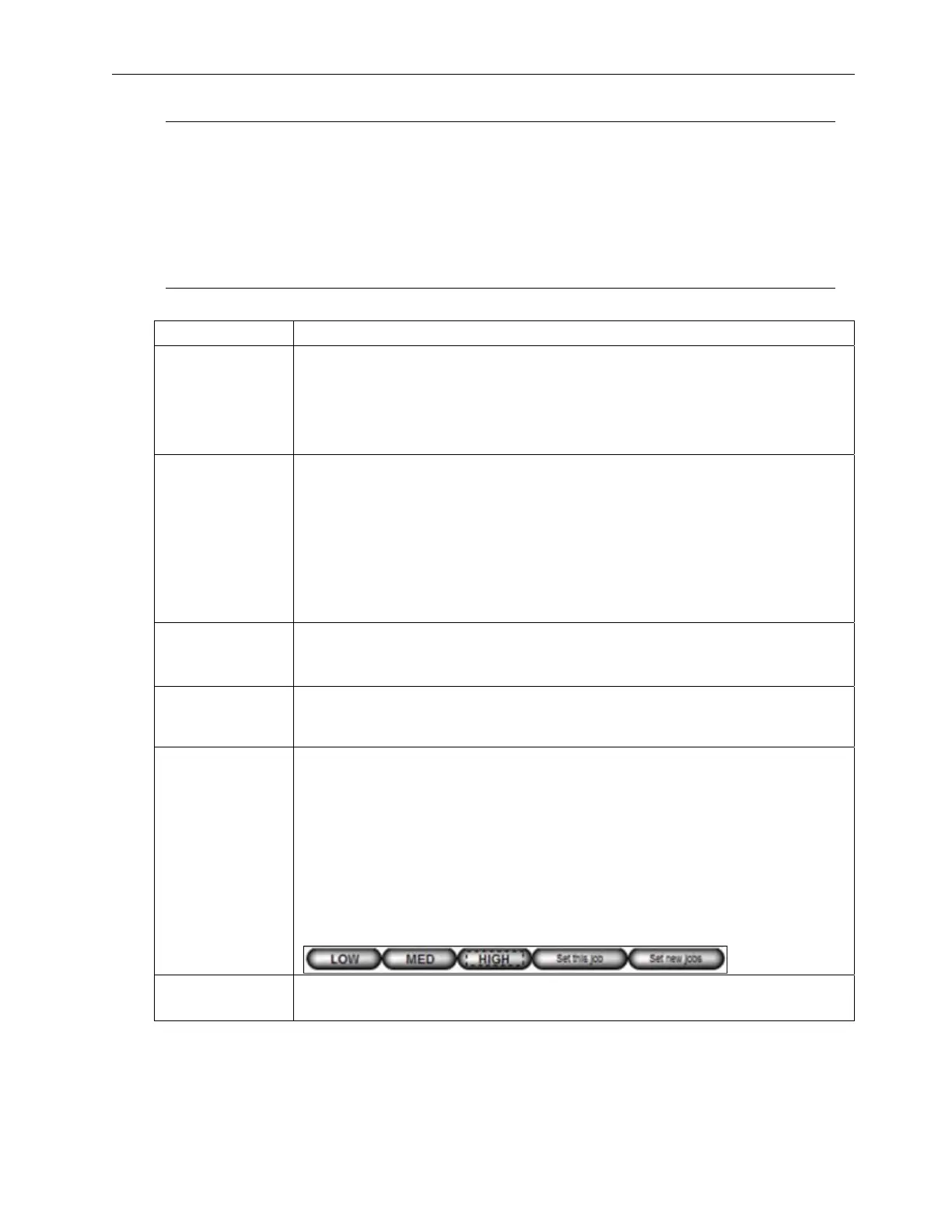
The Preset Configuration Settings buttons allow a user to adjust the following
six blemish settings and to apply the settings to a particular job or to all new
jobs created (based on administrator rights). See the “Preset Configuration
Settings” section for more information on using the Preset Configuration
Settings buttons.
1. BG<< >>FG sensitivity
2. Foreground sensitivity
3. Background sensitivity
4. Foreground Size/Tolerance
5. Background Size/Tolerance
6. Die Cut Size Tolerance
Matrix
Matrix detects the roll section between labels to insure the waste material is
removed. Matrix is shown in Blue when the Display is set to Area type.



 To Next Page