To Next Page
B
brianharrisJul 29, 2025
How to fix a low battery on Omron Aerobic?
- SShane CarterJul 29, 2025
If your Omron Pedometer displays a low battery warning or isn't working due to a worn battery, replace it with a new CR2032 battery.

How to fix a low battery on Omron Aerobic?
If your Omron Pedometer displays a low battery warning or isn't working due to a worn battery, replace it with a new CR2032 battery.
What to do if Omron Pedometer battery polarities are aligned wrong?
If your Omron Pedometer is not working, check the battery polarities (+ and -). If they are aligned in the wrong direction, insert the battery in the correct alignment.
Explains warning and caution symbols used in the manual to indicate potential hazards and their severity.
Provides safety advice for operating the pedometer, including consulting a doctor and keeping it away from children.
Do not disassemble or modify the unit; modifications void the warranty.
Avoid strong shocks, dropping the unit, or submerging it in water. Unit is not waterproof.
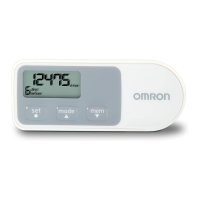
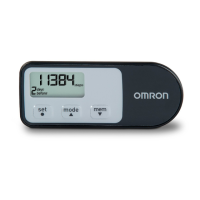
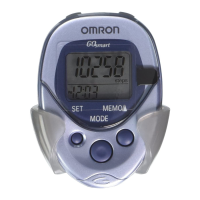
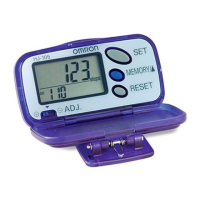
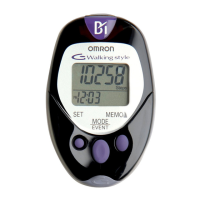
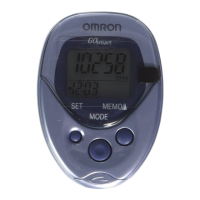
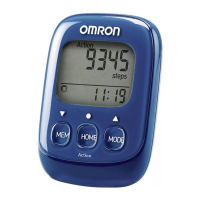
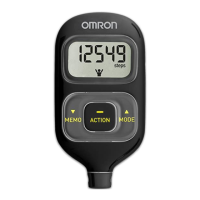
Identifies the MODE Button, Display, and MEMO Button on the front of the pedometer.
Identifies the SET Button, SYSTEM RESET Button, Clip/Battery Cover, and Battery Cover Screw.
Defines moderate intensity activity using METs and references ACSM/CDC recommendations for physical activity.
Notes that certain movements like stairs or treadmills may not be counted as moderate steps.
Instructions for initial time setup or after battery replacement using the SYSTEM RESET Button.
Details how to adjust hours and minutes using the MEMO and MODE buttons for accurate timekeeping.
Explains how to adjust the weight setting using the MEMO and MODE buttons, including 10 lb increments.
Details how to confirm the set weight by pressing the SET button, leading to height setting.
Guides users on adjusting the height setting in 1-inch increments using the MEMO and MODE buttons.
Instructions to confirm the height setting by pressing the SET button, completing the setup.
Instructs users to attach the unit to their belt or waistband, avoiding back pockets.
Emphasizes that the pedometer must be positioned horizontally to the ground for accurate step counting.
Explains that the unit counts steps after four seconds of continuous walking to avoid counting non-step movements.
Details how incorrect unit positioning (angles less than 60° or horizontal) leads to missed step counts.
Explains that shuffling, wearing sandals, or inconsistent pace in crowds can affect step counting.
Lists movements like standing/sitting, sports other than walking, or stairs as reasons for inaccurate step counts.
Notes that vibrations from vehicles like cars or trains can interfere with accurate step counting.
Mentions that very slow walking may not be counted accurately by the pedometer.
Instructs users to press the MODE button to cycle through different data displays like steps, calories, and distance.
Explains that the display automatically turns off after 5 minutes of inactivity to extend battery life.
Details the pedometer's ability to store and display up to seven days of previous activity data.
Provides instructions on how to view stored data (steps, calories, distance) by pressing the MODE and MEMO buttons.
Recommends using the system reset for unrecognized displays or to delete all data, returning settings to default.
Explains the physical action of pressing the SYSTEM RESET button on the unit's back to reset the device.
Advises replacing the battery when the Low Battery Indicator appears, noting data loss upon removal.
Step-by-step guide for removing the old battery and installing a new CR2032 battery correctly.
Warns against disassembly/modification and using abrasive cleaners, recommending a soft dry cloth.
Stresses the unit is not waterproof and should be stored in a safe, dry location away from direct sunlight and humidity.
Advises against subjecting the unit to strong shocks, dropping, or stepping on it to prevent damage.
Addresses issues like the low battery indicator blinking or nothing being displayed, linking them to battery or alignment problems.
Covers incorrect readings due to unit positioning, irregular movement, inconsistent pace, or wrong settings.
Details compliance with FCC limits for Class B digital devices and potential interference issues and solutions.
Explains the 1-year limited warranty for materials and workmanship, excluding the battery.
Provides instructions on how to contact Omron Healthcare for warranty service, including required documentation.
Details limitations on implied warranties and liability for incidental or consequential damages.
 General
| Display | LCD |
|---|---|
| Step Count | Yes |
| Distance Measurement | Yes |
| Calorie Consumption | Yes |
| Aerobic Step Count | Yes |
| Wearing Style | Clip-on |
| Battery Life | Approximately 6 months |
| Type | Pedometer |