Concise User’s Guide
10 - LED Indicators
English
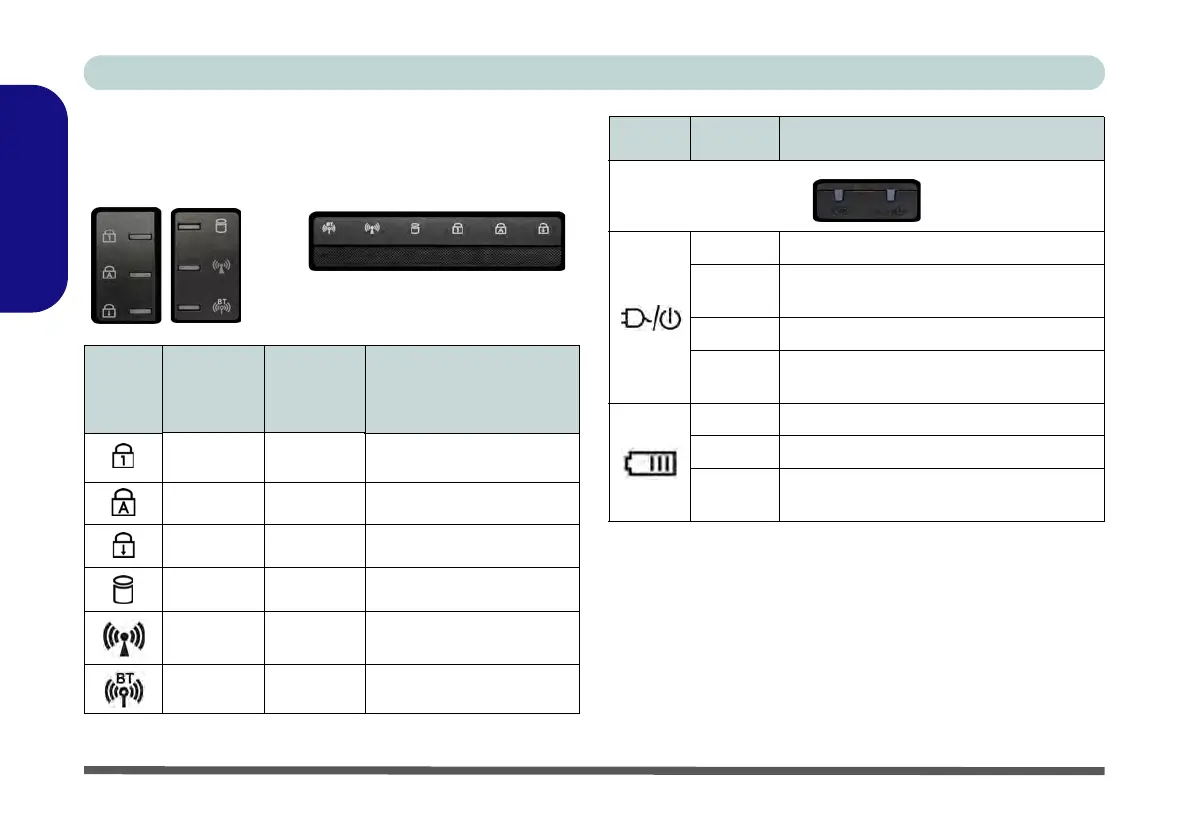
LED Indicators
The LED indicators on the computer display helpful in-
formation about the current status of the computer.
Table 4 - LED Status Indicators
Table 5 - LED Power Indicators
*The powered USB 2.0 port may be toggled on /off by
means of the Fn + Power Button key combination.
When the powered USB port is on it will supply power
when the system is off but still powered by the AC/DC
adapter plugged into a working outlet (this may not work
with certain devices - see
page 34).
Icon
Color
(Models
A & B)
Color
(Models
C & D)
Description
Blue White
Number Lock (Numeric
Keypad) Activated
Blue White Caps Lock Activated
Blue White Scroll Lock Activated
Blue White Hard Disk Activity
Blue White
Wireless LAN Module
Power Toggle
Blue Orange
Bluetooth Module Power
Toggle
Icon Color Description
Orange The AC/DC Adapter is Plugged In
Blinking
Orange*
The AC/DC adapter is plugged in and the
powered USB Port is on*
Green The Computer is On
Blinking
Green
The Computer is in Sleep Mode
Orange The Battery is Charging
Green The Battery is Fully Charged
Blinking
Orange
The Battery Has Reached Critically Low
Power Status


 To Next Page