Concise User’s Guide
30 - Bluetooth & WLAN Combo Module (Option)
English
Bluetooth Configuration
Setup your Bluetooth Device so the Com-
puter Can Find it
1. Turn your Bluetooth device (e.g. PDA, mobile phone etc.) on.
2. Make the device discoverable (to do this check your device
documentation).
To Turn the Bluetooth Module on
1. Press the Fn + F12 key combination to power on the Blue-
tooth module.
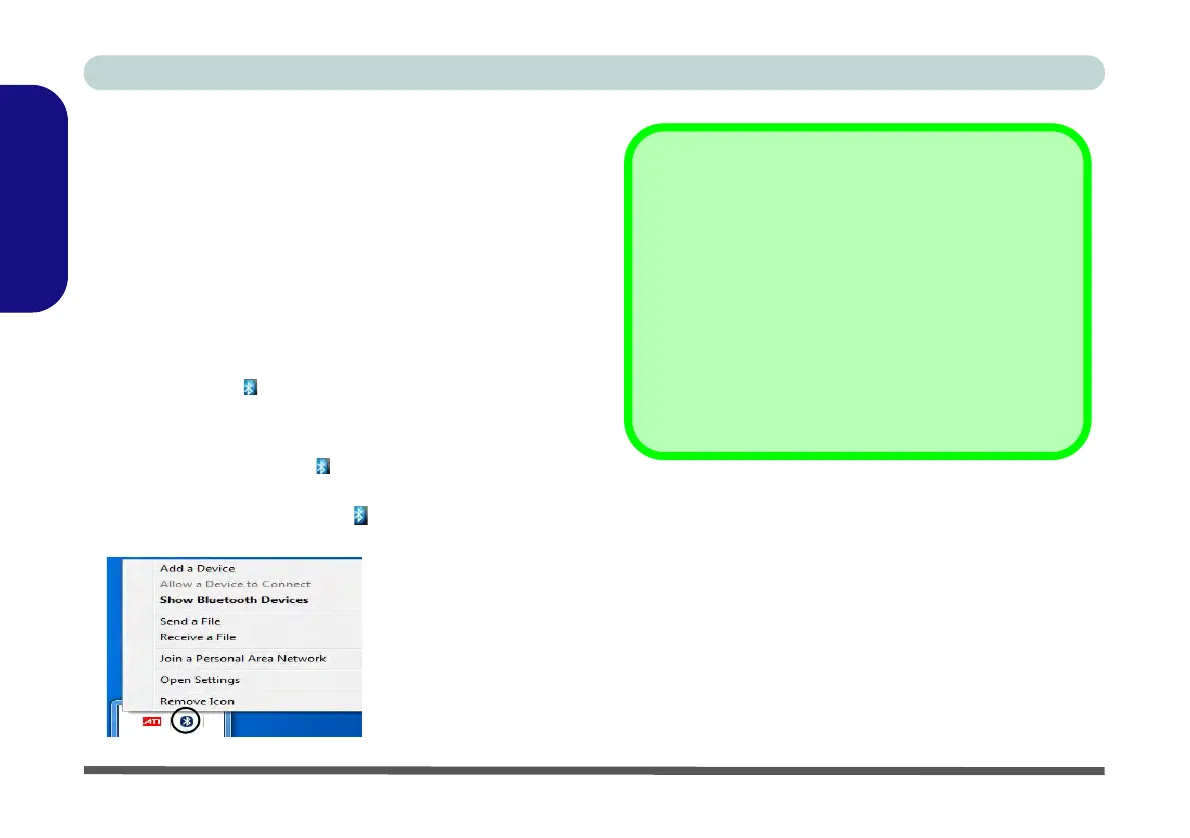
2. A Bluetooth icon will appear in the taskbar.
3. You can then do any of the following to access the Bluetooth
Devices control panel.
• Double-click the icon to access the Bluetooth
Devices control panel.
• Click/Right-click the icon and choose an option
from the menu.
Bluetooth Help
Click Start and select Help & Support and then type
Bluetooth in the Search Help box, and then click the
magnifying glass icon to find more information on Blue-
tooth transfer.
Figure 19
Click Icon Menu
High Speed Bluetooth Data Transfer
The Combination Wireless LAN & V3.0 Bluetooth
module supports high speed (V3.0) data transfer. How-
ever to achieve such transfer speeds, both devices
must support high speed data transfer.
To obtain high speed (V3.0) data transfer make sure
that the WLAN module is not turned off in the Windows
Mobility Center.
Check your Bluetooth compatible device’s documenta-
tion to confirm it supports high speed data transfer.


 To Next Page