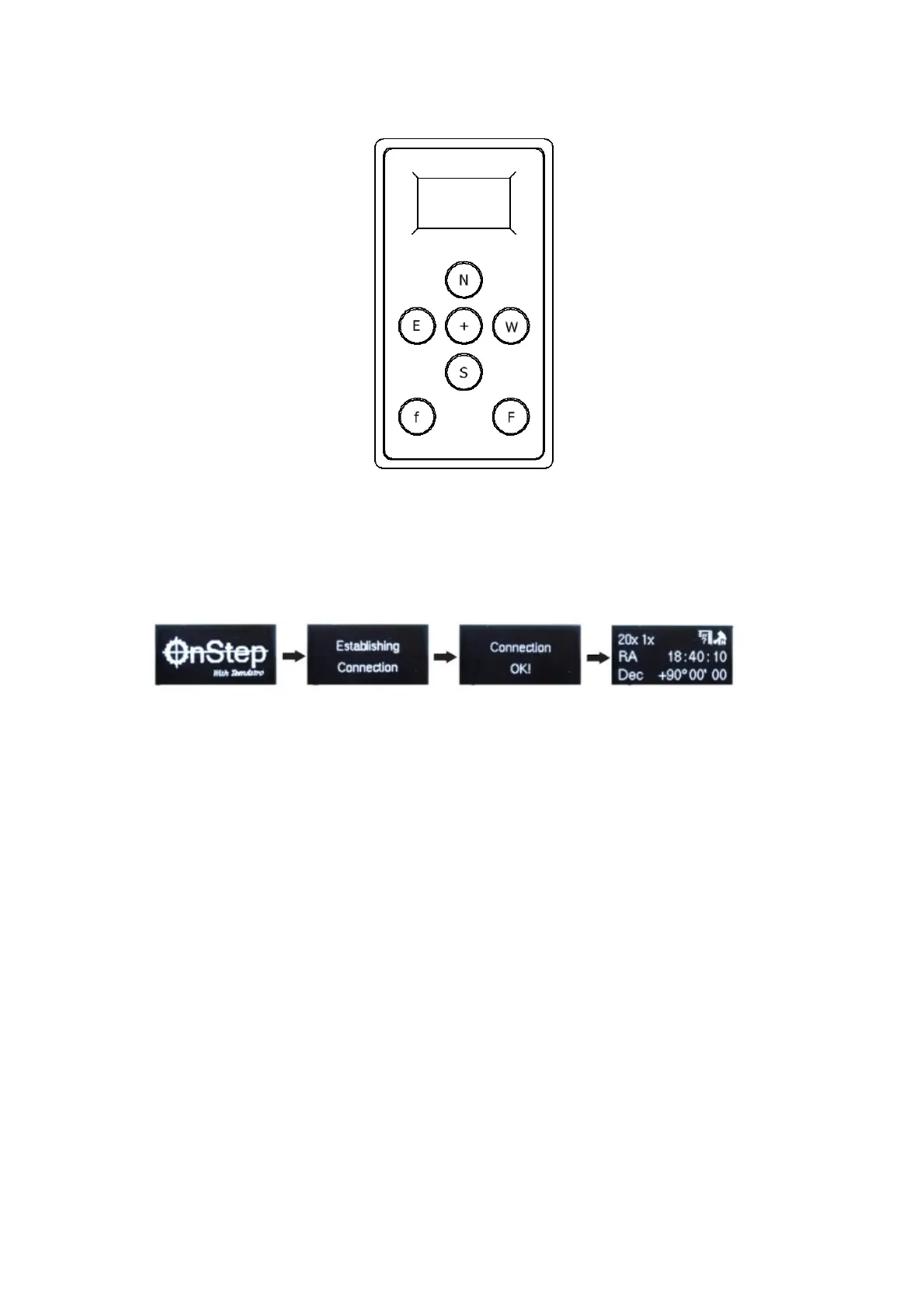
Smart Hand Controller (SHC)
5.1 Initialization Sequence
5.2 Starting Up
When the SHC is powered up an "OnStep" splash screen will appear for a few sec-
onds then it'll tell you it's trying to connect. At this point the SHC presents a signal to
OnStep on it's ST4 port to indicate that a SHC is present. After a couple of seconds
OnStep re-configures the ST4 port lines for synchronous serial comms and the SHC
will start displaying the status information across the top line (guide rate, pulse-guide
rate, and a series of icons as described below) and the RA and Dec below that.
5.3 Button Functions
N:North when slewing or Scroll Up while in Menu's
E: East when slewing or Back while in Menu's
+: Short Press = Scroll Information screen, Long Press = Main Menu, Double Click
= Feature Menu
W: West when slewing or select current option while in Menu's
S: South when slewing or Scroll Down while in Menu's
f: Decrease currently selected Feature
12


 To Next Page