34 Operation
Falcon+ Operator Manual
OPEX Corporation
4.2. Navigating the Falcon+ CertainScan Software
4.2.1. Main Interface Screen
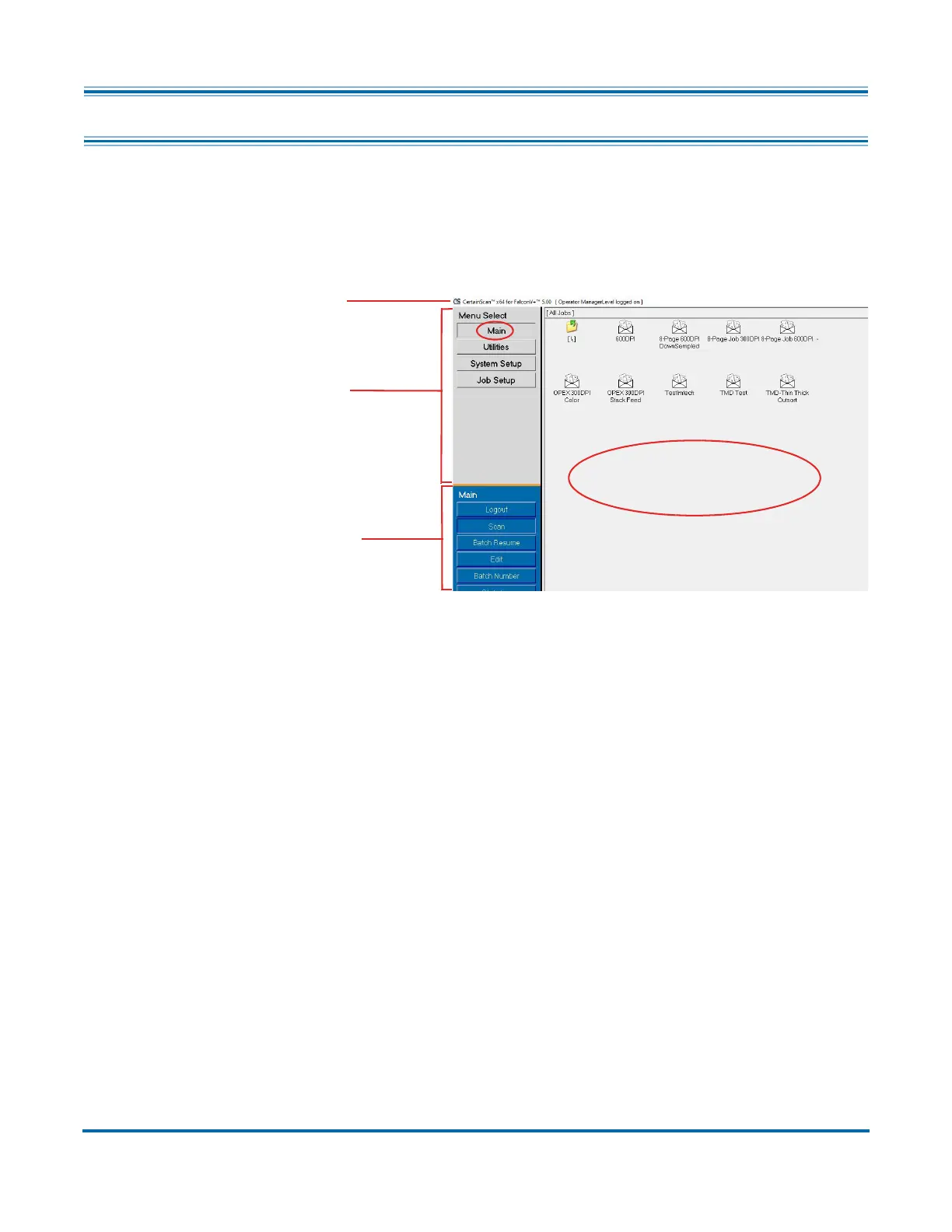
Use the CertainScan software to select jobs and scan pieces on the Falcon+
system. The CertainScan interface consists of (see Figure 4-3):
Figure 4-3: CertainScan Interface
Title bar Displays the name of the current operator and other pertinent infor-
mation. Click the Falcon+ icon in the title bar to access the Windows functions
(Restore, Move, Size, Minimize, Maximize, Close), as well as the following
menus:
- The diagnostics menu is reserved for OPEX technicians.
- The Help menu accesses the About screen, which provides version
information for the Falcon+ CertainScan software.
Menu bar Provides access to the main system functions. Select a category
from the menu bar and make selections from the main window or the menu
options bar.
Menu options The menu options provide subcategories for the selections in
the menu bar. The menu options bar will change based on the current menu
bar selection.
Main window View and adjust settings and parameters in the main window.
Main Interface Screen
Title Bar
Menu Bar
Menu Options


 To Next Page