- 12 -
8. Frequently Asked Questions
Q: Is the iVISION+ compatible to the old iVISION?
A: No, the iVISION+ is not compatible to iVISION system.
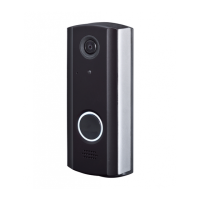
Q: If I connect existing door bell wires to the Door Camera Unit, will the bell still ring?
A: No. The input terminals on the Door Camera Unit are strictly for powering purposes.
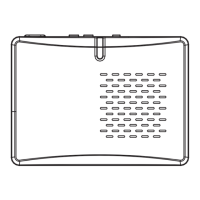
Please use Gateway Chime Unit to replace the existing doorbell.
Q: Can I download the images from the Handheld Monitor Unit to my PC?
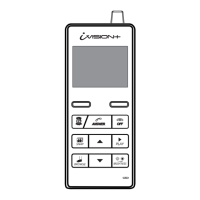
A: Yes. micro-USB cable is required to download images. (Refer to Sec. 6-3)
Q. What is the RF transmission range for iVISION+?
A: Signal reaches a maximum of three hundred ft (clear line of site).
RF signal condition may vary depending on surrounding environment and materials.
Q: How many Handheld Monitor Units can I have communicating to a Door Camera Unit?
A: One at a time. If another Door Camera Unit makes a call while answering, the call
can be only answered from the current Handheld Monitor Unit.
A: There is no volume adjustment for the Door Camera Unit.
Q: How can I adjust the volume on the Door Camera Unit?
7-3. Door Open Duration Setting*
This setting adjust a operation time of a NO/NC terminal output
on IVP-GU to 1 sec, 5 sec, 30 sec or 60 sec.
* This setting is only active while iVISION+ system is properly connected to a third
party doorlock or a garage door activator through a Gateway Chime Unit (IVP-GU).
SYSTEM CONFIGURATION
1 NUMBER OF CAPTURING IMAGE
2 TALK SWITCHING SETUP
OK BACK
3 DOOR OPEN DURATION SETUP
DOOR OPEN DURATION SETUP
1 DOOR1 OPEN DURATION
2 DOOR2 OPEN DURATION
OK BACK
By default, DOOR OPEN DURATION Setting is 1 second
*
.
* The actual duration that the third equipment operate may differ from this setting.
NOTE
(1) Enter SYSTEM SETUP menu by pressing LEFT function
key for more than 3 seconds.
(3)
Select “3 DOOR OPEN DURATION SETUP” by using UP and
DOWN keys and press LEFT function key to confirm “OK”
(4)
In DOOR1(2) OPEN SETTING screen, select a duration time
by using UP and DOWN keys and press LEFT function
key to confirm “OK”.
(2) Select “2 SYSTEM CONFIGURATION” by using UP and
DOWN keys and press LEFT function key to confirm “OK”
SYSTEM SETUP
1 DATE & TIME
2 SYSTEM CONFIGURATION
3 DEVICES IN NETWORK
4 PC CONNECTION
OK BACK
DOOR1 OPEN SETTING
DURATION: 1 SEC
OK BACK
DURATION: 1 SEC
5
30
60


 To Next Page