How to use web browser to control your projector
Turn “On” the DHCP option on projector to allow a DHCP 1.
server to automatically assign an IP address.
Open the web browser in your PC and type in the projector’s 2.
IP address (Network: LAN Settings > IP Address).
Enter the user name and password, and click “3. Login“.
The projector’s conguration web interface opens.
Making a direct connection from your computer to the
projector*
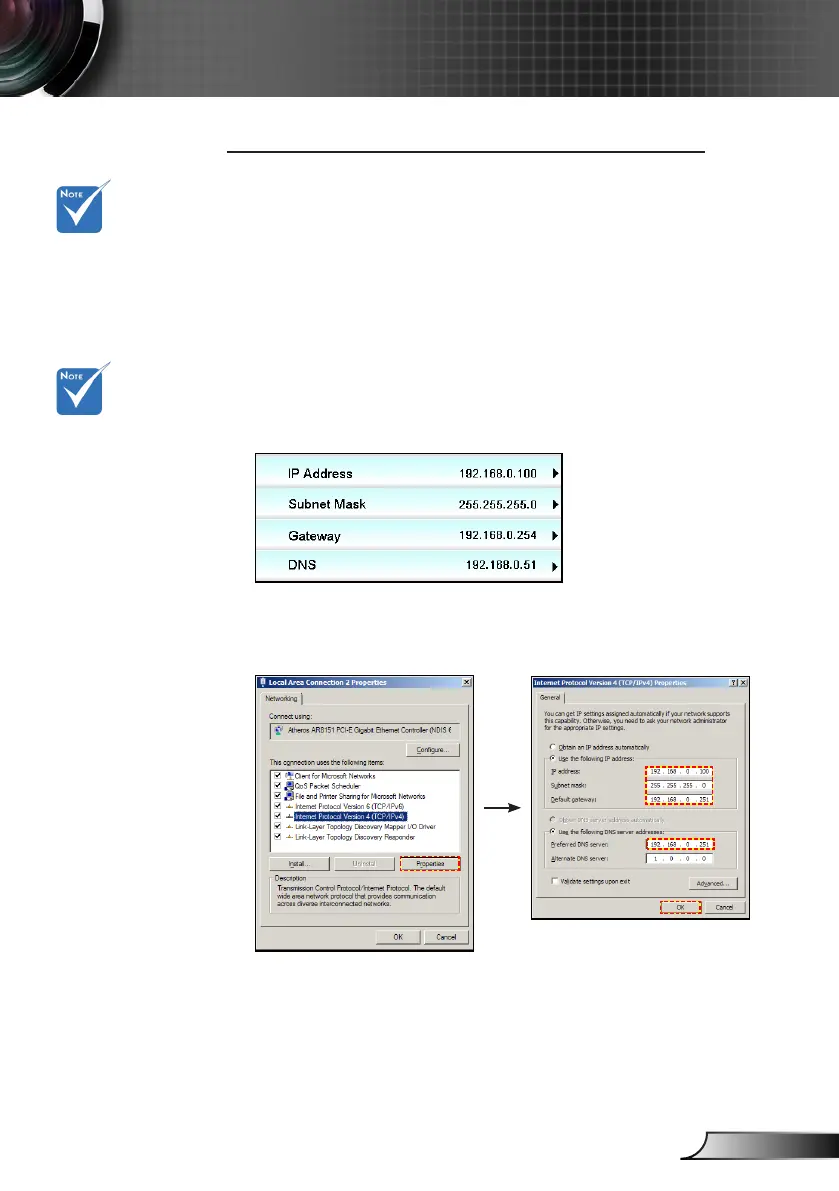
Step 1: Turn “Off” the DHCP option on project.
Step 2: Congure the IP address, Subnet Mask, Gateway, and
DNS on projector (Network: LAN Settings).
Step 3: Open Network and Sharing Center page on your PC, and
assign the identical network parameters to your PC as set on
projector. Click OK to save the parameters.
Step 4: Open the web browser on your PC and type in to the URL
eld the IP address, assigned in step 3. Then press “Enter” key.
The default user
name and pass-
word is “admin”.
*The steps in
this section base
on Windows7
operating system.



 To Next Page