User’s Manual
18
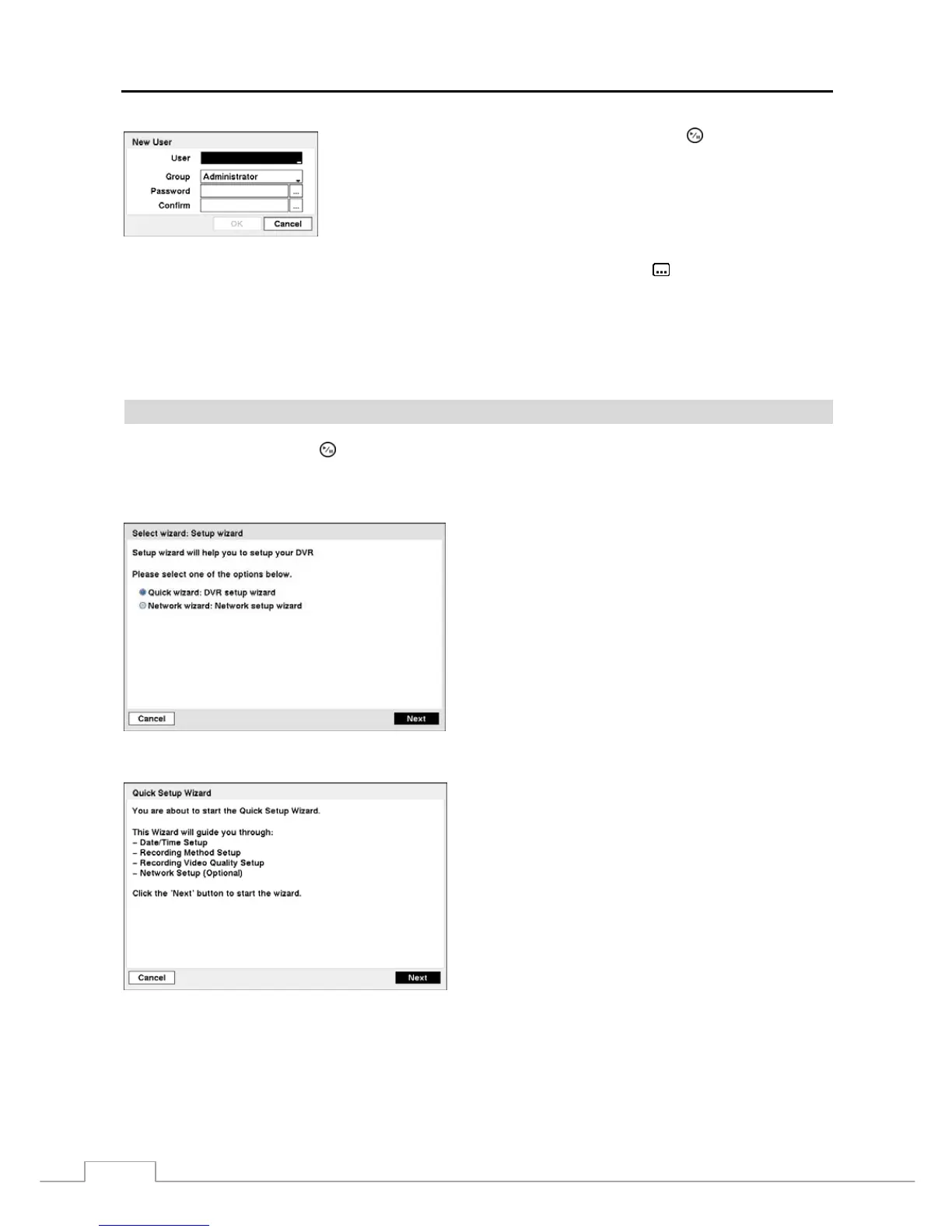
To add a User, highlight the + User… box and press the
button. A virtual
keyboard appears allowing you to enter the User Name. Enter the name and assign
the User to a Group and password. You can use camera buttons 1 to 9 on the front
panel to assign the password. The password can be up to 8 digits. You will be
asked to confirm the password.
NOTE: In addition to using the front panel buttons or the infrared remote control, you can use the virtual
keyboard to assign the password. To display the virtual keyboard click the
button using the mouse
(not supplied).
Highlighting the box beside Auto Login allows you to select a User to be automatically logged in when the DVR is
powered up. It can also be set to never automatically login a user.
Highlighting the box beside Auto Logout allows you to select from a list of times that the user will be automatically
logged out. The options are: Never, 1 min., 3 min., 5 min., 10 min., 15 min., 20 min., 25 min., 30 min. and 1 hr.
Wizard
Highlight Wizard and press the
button. The Wizard setup screen appears. The Wizard setup guides you through
configuring the system for basic operation.
NOTE: This Wizard screen can only be accessed when logged on as the admin user.
Figure 16 — Setup wizard screen.
Select either Quick wizard or Network wizard and select
the Next button to start the selected setup wizard.
NOTE: Selecting the Cancel button throughout the screens
exits the Quick Setup Wizard without saving your
changes and returns to the main setup screen.
Figure 17 — Quick Setup wizard screen.
If you selected the Quick wizard, selecting the Next button
starts the Quick Setup Wizard.



 To Next Page