User’s Manual
20
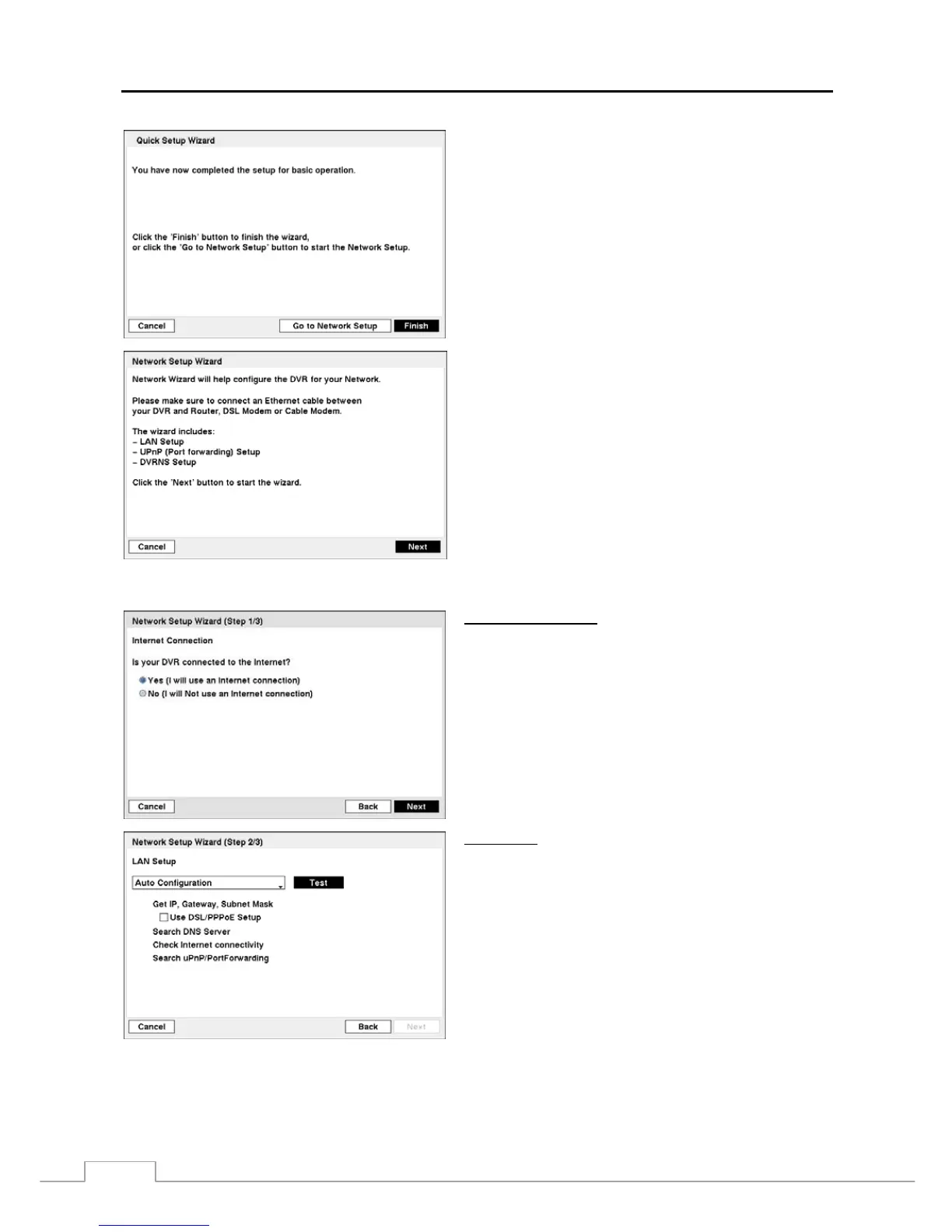
Select the Finish button to finish the Quick Setup Wizard and
select the Go to Network Setup button to start the Network
Setup.
Figure 18 — Network Setup wizard screen.
If you selected the Go to Network Setup, select the Next
button to start the Network Setup Wizard.
Internet Connection
Select whether or not your DVR is connected to the Internet.
LAN Setup
Select between Auto Configuration and Manual Configuration
for network configuration, and then select the Test button to
test the network configuration you selected.
NOTE: Selecting Auto Configuration allows the DVR to
automatically obtain LAN parameters (IP address,
Gateway, Subnet Mask and DNS Server address).
Selecting Manual Configuration allows you to set
up LAN parameters manually.
NOTE: The network configuration you set should be tested
by selecting Test, otherwise the Next button will
cannot be selected, and you cannot move to the
next step.
Use DSL/PPPoE Setup: Selecting the box allows you to
set up the DSL network. Entering the ID and password for
DSL connection is required.







 To Next Page