YOUR CONNECTIONS TO THE WEB AND WIRELESS DEVICES
WEB BROWSER
116
6
CHAPTER
3 Do any of the following to navigate
within the web page:
View a page in wide layout format (as
on your computer): Press Menu ,
select Options, and then select Wide
Page Mode.
Scroll through the page: In Optimized
Mode (the default format) press Up
or Down . In Wide Page Mode, use
all buttons on the 5-way to scroll in
any direction.
Follow a link to another web page: In
Optimized Mode, highlight the link by
pressing Left or Right and then
press Center to go to the selected
page. In Wide Page Mode, use the
stylus to select a link.
Submit a form: Enter the info and then
select the onscreen button to submit
the form. If the form doesn’t have an
onscreen button, press Return .
4 To get to the address bar and the icons
in the title bar above it, press Space and
then use the 5-way i:
Creating a bookmark
With bookmarks, you can instantly access
a web page without entering the address
every time. The web browser can store up
to 100 bookmarks or saved pages, allowing
TIP
To adjust the font size, open the Options
menu and select Font. To fit more text on the
screen, select Small. To make the text easier
to read, select Large.
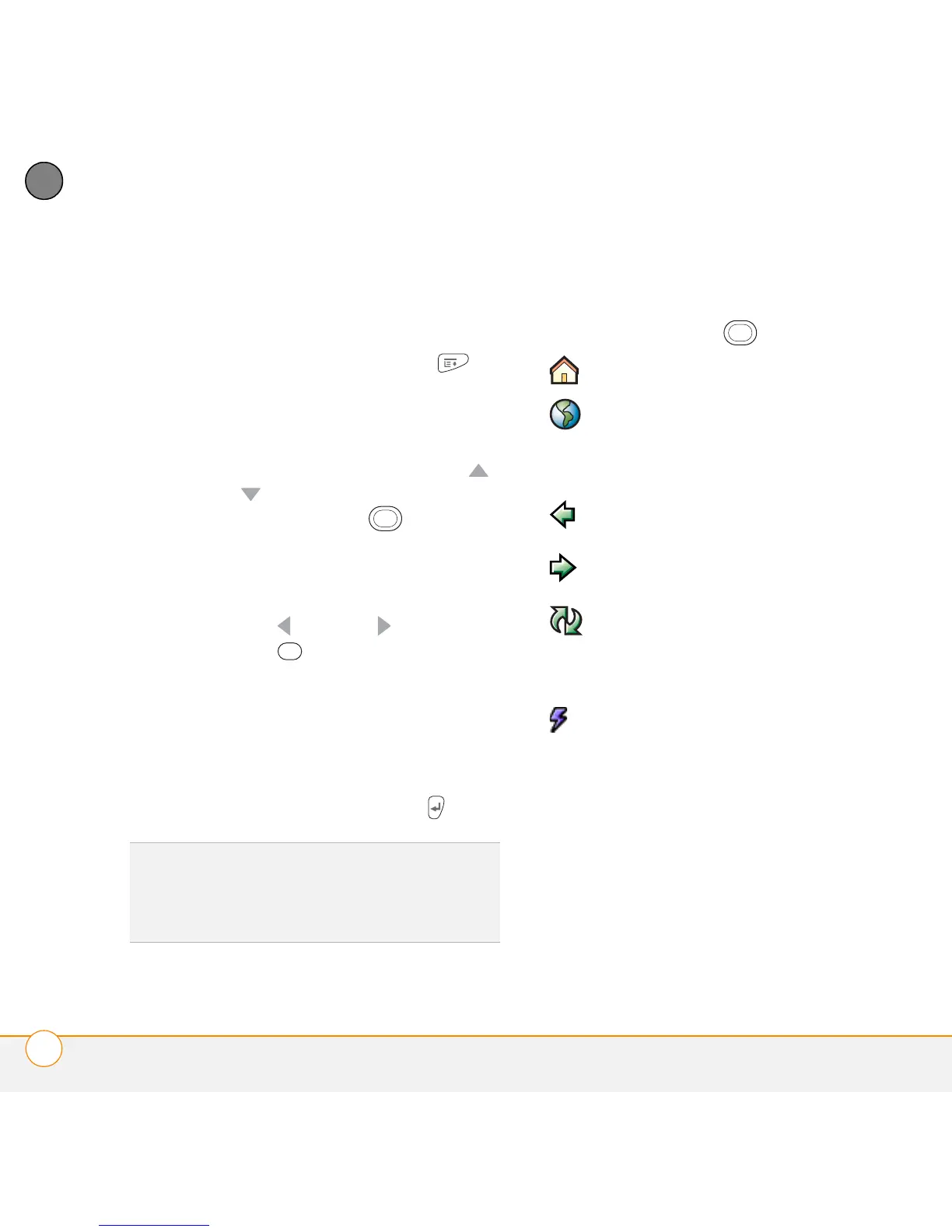
Goes to your home page.
Opens a dialog box where you
can enter a web address or view
a list of recently viewed web
pages.
Goes back in order through
pages you viewed.
Goes forward in order through
pages you viewed.
Gets the latest version of the
current web page. This is
sometimes called refreshing the
web page.
Opens a list where you can
select Fast mode (no images or
style sheets) or Normal mode
(with images and style sheets).



 To Next Page