EasyManua.ls Logo

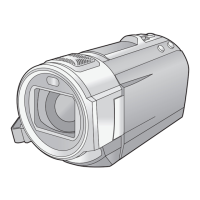
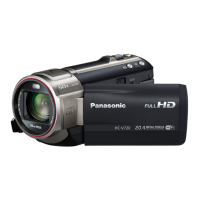
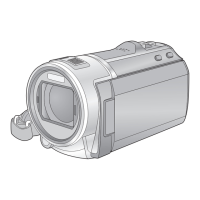
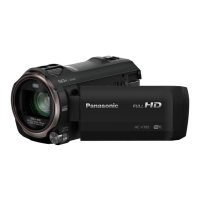
Panasonic HC-V720 - User Manual

Panasonic HC-V720
192 pages
Print Icon
To Next Page IconTo Next Page
Loading...
Operating Instructions
High Definition Video Camera
Model No.
HC-V720
HC-V727
HC-V720M
HC-V710
Please read these instructions carefully before using this product, and save this manual for future
use.
VQT4R01
until
2012/1/30

Table of Contents

Other manuals for Panasonic HC-V720

Questions and Answers

  • A
    Aaron AndrewsAug 21, 2025
    Why is my Panasonic Camcorder not detected by PC via USB?
    • S
      Sandra EverettAug 21, 2025
      If your Panasonic Camcorder is not detected by your PC when connected via USB, try these steps: Re-insert the SD card into the unit, then reconnect the USB cable. Try a different USB port on your PC. Restart your PC and the camcorder, then reconnect the USB cable. Also, ensure your operating environment is compatible.
  • C
    Curtis WilliamsAug 23, 2025
    Why does my Panasonic Camcorder turn off automatically?
    • P
      patricia48Aug 23, 2025
      Your Panasonic Camcorder might be turning off automatically because of the VIERA Link function. This happens when the camcorder turns off when you turn off the power to the TV using the TV remote control. If you are not using VIERA Link, set [VIERA Link] to [OFF].
  • R
    Robert LawrenceAug 26, 2025
    Why can't I copy scenes from my Panasonic HC-V720 SD card via USB?
    • J
      Justin JamesAug 26, 2025
      If you cannot copy scenes on the SD card of your Panasonic Camcorder by connecting to other equipment with the USB cable, the other equipment might have not recognised the SD card. Unplug the USB cable once, and reconnect it.
  • J
    Jacqueline HamiltonAug 27, 2025
    Why does my Panasonic HC-V720 Camcorder keep stopping recording?
    • J
      Joshua HarrisAug 28, 2025
      If your Panasonic Camcorder stops recording unexpectedly, consider the following: * Ensure you are using an SD card suitable for motion picture recording. * The SD card or built-in memory may need formatting using the camcorder. * If [AGS] is [ON], record in the normal horizontal position or set [AGS] to [OFF]. * Repeated recording and deletion can reduce recordable time due to data writing speed deterioration.
  • P
    phoAug 29, 2025
    What to do if my Panasonic Camcorder displays 'Error occurred'?
    • S
      Steven WaltonAug 30, 2025
      If your Panasonic Camcorder displays the error message “ERROR OCCURRED. PLEASE TURN UNIT OFF, THEN TURN ON AGAIN,” the unit has detected an error. Try turning the camcorder off and then on again to restart it. If the error persists after restarting, detach the power connected and consult the dealer from whom you purchased this unit.
  • L
    Lori SalinasSep 1, 2025
    Why is the battery indicator on my Panasonic Camcorder inaccurate?
    • D
      Daniel LeeSep 1, 2025
      The remaining battery capacity indication on your Panasonic Camcorder is an approximation. If it's inaccurate, fully charge the battery, allow it to discharge completely, and then charge it fully again.
  • A
    andrewsdylanSep 3, 2025
    How to fix auto focus on Panasonic Camcorder?
    • B
      brightchristinaSep 3, 2025
      If the Auto Focus function on your Panasonic Camcorder is not working, try switching to Intelligent Auto Mode or Intelligent Auto Plus Mode. If you're recording a scene that's difficult to focus on in Auto Focus Mode, use the Manual Focus Mode to adjust the focus.
  • R
    Rachel EdwardsSep 5, 2025
    What to do if Panasonic Camcorder doesn't recognize SD card?
    • D
      Donald LeonSep 5, 2025
      If your Panasonic Camcorder does not recognize the SD card, and the SD card was formatted on a PC, use the camcorder to format the SD card.
  • L
    Lisa HansenSep 7, 2025
    Why is the color balance off on my Panasonic HC-V720 Camcorder?
    • D
      Donna CastroSep 7, 2025
      If the color balance of images from your Panasonic Camcorder appears strange when recording in places like a gymnasium, set the White Balance setting to (Indoor mode 2). If you still cannot record clearly with the (Indoor mode 2), set it to (Manual adjustment mode).
  • J
    Jessica DixonSep 9, 2025
    Why can't I use DLNA Play on my Panasonic Camcorder?
    • J
      Jerry HunterSep 9, 2025
      To use [DLNA Play] on your Panasonic Camcorder, ensure that the television is compatible with DLNA. Also, verify that the wireless access point and the camcorder are properly connected. If needed, move closer to the wireless access point and reconnect. If a connection cannot be made between this device and a DLNA-compatible device, try to reconnect and make sure they connect properly.

Summary

Read this first

Handling of built-in memory

Provides precautions for using the camera's built-in memory storage.

Preparation

Names and Functions of Main Parts

Identifies and describes the main external parts and features of the video camera.

Power supply

Information on batteries, charging, and power connections for the unit.

Recording to a card

Instructions on how to use an SD card for recording motion and still pictures.

Turning the unit on;off

Explains the methods for powering the camera on and off.

Selecting a mode

Details how to switch between recording and playback modes.

Setting date and time

Guide to setting the camera's internal clock and world time.

How to use the touch screen

Explains basic touch operations like touch and slide on the LCD monitor.

Basic

Before recording

Provides essential tips for camera positioning and basic recording techniques.

Selecting a media to record [HC-V720 M]

Instructions for choosing between SD card and built-in memory for recording.

Recording motion pictures

Step-by-step guide on how to record motion pictures using the camera.

Recording still pictures

Instructions on how to capture still pictures with the camera.

Intelligent Auto Mode

Details the automatic modes for optimizing recording settings based on scene.

Motion picture;Still picture playback

Guide to playing back recorded motion pictures and still pictures.

Using the menu screen

Explains how to navigate and use the camera's menu system.

Using the Setup Menu

Details various settings available in the Setup menu.

Advanced (Recording)

Using the zoom

Explains how to use the zoom function for recording.

Image Stabilizer Function

Describes how to use the image stabilizer to reduce shake.

Changing the Recording Mode

Guide to selecting different recording modes like Intelligent Auto, Scene Mode.

Intelligent Auto Plus

Explains how to add manual adjustments to Intelligent Auto mode.

Manual recording

Guide to manually adjusting focus, white balance, shutter speed, and iris.

Recording with the Touch Function

Explains using touch screen icons for convenient recording functions.

Creative Control

Details various creative effects for motion picture recording.

Advanced (Playback)

Playback Operations

Covers basic operations for playing back motion pictures and still pictures.

Copy;Dubbing

Wi-Fi [HC-V720];[HC-V727];[HC-V720 M]

Wi-Fi function

Overview of the Wi-Fi function, including precautions and setup.

If the Wi-Fi connection cannot be established

It cannot connect to the wireless access point.

Troubleshooting steps for connection issues with wireless access points.

Radio waves of the wireless access point get disconnected.

Troubleshooting for intermittent or lost wireless connections.

With a PC

Others

Messages

Lists and explains major confirmation and error messages shown on the screen.

Troubleshooting

Lists common problems and their solutions, categorized by Power and Indication.

Cautions for use

Important safety and usage precautions for operating the unit.

Recording

Playback

If AVCHD scenes do not change smoothly when played back on another device

Principal reasons for not playing back smoothly

Lists common reasons for choppy playback of AVCHD scenes on other devices.

Panasonic HC-V720 Specifications

General IconGeneral
Sensor typeMOS
Total megapixels17.52 MP
Optical sensor size1/2.33 \
Effective megapixels (image)4.14 MP
Filter size46 mm
Digital zoom60 x
Optical zoom21 x
Image stabilizerYes
Focal length range2.82 - 59.2 mm
Interchangeable lens-
Focal length (35mm film equivalent)28 - 729.6 mm
Camcorder media typeMemory card
Disc types supportedNo
Compatible memory cardsSD, SDHC, SDXC
Internal storage capacity- GB
Focus adjustmentAuto/Manual
Display diagonal3 \
Display resolution (numeric)460800 pixels
Viewfinder typeNot available
Camcorder typeHandheld camcorder
Minimum illumination3 lx
On Screen Display (OSD) languagesCZE, DEU, DUT, ENG, ESP, FRE, ITA, POL, SWE, TUR
Product colorBlack
Video resolutions960 x 540, 1920 x 1080 pixels
Video formats supportedH.264, MPEG4
Maximum video resolution1920 x 1080 pixels
Image formats supportedJPG
Maximum image resolution6016 x 3384 pixels
Still image resolution(s)640 x 480, 1728 x 1152, 1920 x 1080, 3456 x 2304, 4752 x 3168
Audio systemDolby Digital 2.0/5.1
USB 2.0 ports quantity1
USB 3.2 Gen 1 (3.1 Gen 1) Type-A ports quantity0
Wi-Fi standards802.11b, 802.11g, Wi-Fi 4 (802.11n)
Battery capacity1940 mAh
Battery life (max)- h
Camera shutter speed1/2 - 1/2000 s
Weight and Dimensions IconWeight and Dimensions
Depth124.4 mm
Width60.1 mm
Height69.3 mm
Weight277 g

Related product manuals