EasyManua.ls Logo

Panasonic HC-V700M - User Manual

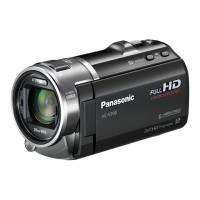
Panasonic HC-V700M
176 pages
Print Icon
To Next Page IconTo Next Page
Loading...
until
2012/2/1
For USA and Puerto Rico assistance, please call: 1-800-211-PANA(7262) or,
contact us via the web at: http://www.panasonic.com/contactinfo
For Canadian assistance, please call: 1-800-561-5505 or visit us at www.panasonic.ca
Owner’s Manual
High Definition Video Camera
Model No. HC-V700
HC-V700M
Before connecting, operating or adjusting this product, please read the instructions completely.
VQT3Y41
PCP PU
HC-V700M&V700-PPCPU-VQT3Y41_mst.book 1 ページ 2011年12月28日 水曜日 午前10時21

Table of Contents

Questions and Answers

  • M
    Michael AustinAug 20, 2025
    What to do if my Panasonic HC-V700M is turned off automatically?
    • S
      Sandra LoweAug 20, 2025
      Your Panasonic Camcorder might be turning off automatically due to VIERA Link settings. If you're not using VIERA Link, disable it in the settings. Also, the unit will turn off automatically if the USB connection cable is removed while connected to a DVD burner during copying or playback.
  • P
    Phillip BrownAug 22, 2025
    What to do if my Panasonic HC-V700M Camcorder won't operate even when it's on?
    • J
      Joseph GutierrezAug 22, 2025
      If your Panasonic Camcorder isn't operating even when turned on, remove the battery or AC adapter, wait about a minute, and then reconnect it. Wait another minute before turning the unit back on.
  • N
    nicholas03Aug 25, 2025
    Why can't I see the images on TV from my Panasonic HC-V700M Camcorder?
    • L
      Lisa FreemanAug 25, 2025
      If you can't see images from your Panasonic Camcorder on the TV, or the images are squeezed, select the correct channel on your TV that corresponds to the input used for the connection. Also, adjust the [TV ASPECT] setting to match the TV's aspect ratio and change the unit's settings depending on the type of cable used for connection.
  • M
    Michael PageAug 26, 2025
    How to fix USB connection issues with Panasonic HC-V700M Camcorder?
    • A
      Amber NelsonAug 27, 2025
      If your Panasonic Camcorder isn't detected by the PC when connected via USB, try re-inserting the SD card into the unit and reconnect the USB cable. Also, try a different USB terminal on your PC, check the operating environment, and restart both the PC and the unit before reconnecting the USB cable.
  • C
    Christina WhiteAug 28, 2025
    Why does my Panasonic HC-V700M battery run down quickly?
    • A
      Angela WilliamsAug 28, 2025
      Your Panasonic Camcorder battery might be draining quickly for a few reasons. Ensure the battery is fully charged. Keep in mind that in cold environments, battery life is reduced. Also, batteries have a limited lifespan. If a fully charged battery still drains rapidly, it likely needs replacing.
  • A
    Austin DickersonAug 30, 2025
    What to do if my Panasonic Camcorder displays 'ERROR OCCURRED'?
    • A
      Angela ReillyAug 30, 2025
      If your Panasonic Camcorder displays the error message, it means the unit has detected an error. Try restarting the unit by turning it off and then on again.
  • J
    Jonathon KaiserSep 1, 2025
    How to fix auto focus on Panasonic HC-V700M Camcorder?
    • H
      hsolisSep 1, 2025
      If the auto focus isn't working on your Panasonic Camcorder, switch to Intelligent Auto Mode. If you're recording a scene that's hard to focus on in Auto Focus Mode, use the Manual Focus Mode to adjust the focus.
  • B
    Brenda RogersSep 3, 2025
    Why does my Panasonic HC-V700M Camcorder stop recording arbitrarily?
    • K
      Karen SmithSep 3, 2025
      Your Panasonic Camcorder might stop recording arbitrarily for a few reasons: * Ensure you're using an SD card suitable for motion picture recording. * Format the SD card or built-in memory using the unit to address potential data writing speed issues. * If [AGS] is [ON], record in the normal horizontal position or set [AGS] to [OFF].
  • A
    Ariel RojasSep 5, 2025
    Why is the color balance strange on my Panasonic Camcorder?
    • E
      Eric WilsonSep 5, 2025
      If the color balance of images from your Panasonic Camcorder appears strange when recording in places like a gymnasium, set the White Balance setting to (Indoor mode 2). If the issue persists, try (Manual adjustment mode).
  • A
    Aimee HardingSep 7, 2025
    What to do if the SD card is not recognized in my Panasonic HC-V700M?
    • K
      kennethwardSep 7, 2025
      If your Panasonic Camcorder doesn't recognize the SD card, format the SD cards using the unit.

Summary

Safety Precautions

Warnings, Cautions, and FCC Compliance

Highlights critical safety warnings, cautions, FCC compliance notes, and declaration of conformity.

IMPORTANT SAFETY INSTRUCTIONS

Preparation and Basic Operations

Names and Functions of Main Parts

Identifies and describes the primary buttons, ports, and components of the video camera for user familiarity.

Power Supply and Charging

Details battery types, insertion, removal, charging, and AC adapter usage for reliable operation.

Recording Basics and Media

Explains SD card compatibility, insertion, media selection, and basic recording procedures for new users.

Playback Overview

Explains how to play back recorded motion pictures and still images using the camera interface and controls.

Advanced Recording Features

Zoom, Stabilizer, and Touch Functions

Details zoom operations, image stabilization, touch controls, and recording functions via operation icons.

Manual Recording Controls

Guides users through manual focus, white balance, shutter speed, and iris adjustments for creative control.

Advanced Playback and Content Management

Highlight Playback and Scene Editing

Explains creating highlight playback, managing favorite scenes, and deleting unwanted content from the device.

Connecting to TV and 3 D Playback

Details TV connection methods (HDMI, AV) and procedures for 3D image playback on compatible televisions.

Data Transfer and PC Connectivity

Copying and Dubbing Media

Explains copying data between memory cards, built-in memory, and using a DVD burner for backup.

PC Software and Connectivity

Guides on connecting to PC, using HD Writer AE 4.0 software, and Mac compatibility for data management.

Troubleshooting and Support

Understanding Indications and Messages

Details various display icons, status indications, and error messages for user guidance and problem identification.

Common Troubleshooting Scenarios

Provides solutions for common problems including power, recording, playback, connectivity, and other operational issues.

Specifications and Warranty

Product Specifications

Lists detailed technical specifications including recording formats, media compatibility, sensor, and dimensions.

Warranty Information and Accessories

Outlines the limited warranty terms for different regions and lists available optional accessories for purchase.

Panasonic HC-V700M Specifications

General IconGeneral
Total megapixels15.3 MP
Optical sensor size1/2.33 \
Image formats supportedJPG
Maximum image resolution- pixels
Still image resolution(s)640 x 480, 1920 x 1080, 2848 x 2136, 3200 x 1800
Digital zoom1500 x
Optical zoom21 x
Image stabilizerYes
Focal length range2.82 - 59.2 mm
Minimum aperture number-
Maximum focal length (35mm film equiv)728.7 mm
Minimum focal length (35mm film equiv)28 mm
Camcorder typeHandheld camcorder
Shooting modesAuto, Manual
Self-timer delay- s
Supported aspect ratios3:2, 4:3, 16:9
On Screen Display (OSD) languagesENG, ESP
Scene modesUnderwater
Light exposure modesAuto
Video resolutions960 x 540 pixels
Video formats supportedAVCHD, H.264, MP4, MPEG4
Maximum video resolution1920 x 1080 pixels
Audio formats supportedAAC, MP4
InterfaceUSB 2.0, HDMI
Cable typeUSB 2.0
Internal memory16 MB
Dimensions (WxDxH)55 x 119.5 x 69 mm
Aperture range (F-F)1.8 - 4
Power consumption (typical)7.7 W
Memory slots1
Camera file systemDCF 2.0, Exif 2.2
Camcorder media typeMemory card
Compatible memory cardsSD, SDHC, SDXC
Internal storage capacity- GB
Display diagonal3 \
Display resolution (numeric)460800 pixels
S-Video outNo
USB 2.0 ports quantityUSB 2.0 ports have a data transmission speed of 480 Mbps, and are backwards compatible with USB 1.1 ports. You can connect all kinds of peripheral devices to them.
USB 3.2 Gen 1 (3.1 Gen 1) Type-A ports quantity0
Product colorBlack
Battery voltage3.6 V
Battery life (max)- h
Cables includedAC, AV, USB
Weight and Dimensions IconWeight and Dimensions
Depth119.5 mm
Width55 mm
Height69 mm
Weight271 g

Related product manuals