EasyManua.ls Logo

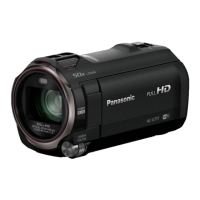
Panasonic HC-V730 - User Manual

Panasonic HC-V730
229 pages
Print Icon
To Next Page IconTo Next Page
Loading...
Operating Instructions
High Definition Video Camera
Model No.
HC-W850
Model No.
HC-V750
HC-W858 HC-V757
HC-W850M HC-V750M
HC-V730
Please read these instructions carefully before using this product,
and save this manual for future use.
SQT0164
until
2014/1/28

Table of Contents

Other manuals for Panasonic HC-V730

Questions and Answers

  • Z
    Zachary Mann DDSSep 14, 2025
    What to do if Panasonic HC-V730 Camcorder displays 'Error occurred' message?
    • G
      garrettgarySep 14, 2025
      If you encounter the error message “ERROR OCCURRED. PLEASE TURN UNIT OFF, THEN TURN ON AGAIN.” on your Panasonic Camcorder, restart the unit by turning it off and then on again. If the error persists after restarting, disconnect the power and consult the dealer from whom you purchased the unit for repair. Do not attempt to repair the unit yourself.
  • C
    Colin ChristianAug 25, 2025
    Why are images or sounds not output even when my Panasonic HC-V730 Camcorder is correctly connected to a TV?
    • A
      Alexis GreenAug 25, 2025
      If you're not getting images or sounds from your Panasonic Camcorder when connected to a TV, make sure you've selected the correct channel on your TV that matches the input used for the connection. Also, adjust the [TV ASPECT] setting to match the aspect ratio of your TV. Note that during playback mode, audio is not output from the camcorder itself, so adjust the sound on the TV.
  • T
    townsendwillieAug 25, 2025
    What to do if Panasonic HC-V730 is not detected by PC via USB?
    • M
      Manuel BondAug 26, 2025
      If your Panasonic Camcorder is not detected by your PC when connected via USB cable, re-insert the SD card into the unit and reconnect the supplied USB cable. You may also try a different USB terminal on your PC. Also, ensure you check the operating environment. Restarting both the PC and the camcorder before reconnecting the USB cable can also help.
  • A
    Adam Monroe DDSAug 26, 2025
    Why Panasonic Camcorder images/sounds are not output to TV?
    • J
      John SmithAug 27, 2025
      If your Panasonic Camcorder is correctly connected to a TV but you're not getting any images or sound, consult your TV's operating instructions to select the channel that corresponds to the input used for the connection. Also, adjust the [TV ASPECT] setting to match the aspect ratio of your TV. Note that during playback mode, audio is output from the TV and sound levels should be adjusted on the TV, not the camcorder.
  • L
    Lori JohnsonSep 15, 2025
    Why does my Panasonic Camcorder stop recording randomly?
    • D
      David NelsonSep 15, 2025
      If your Panasonic Camcorder arbitrarily stops recording, ensure that you are using an SD card suitable for motion picture recording. Also, the recordable time may have decreased due to data writing speed deterioration or repeated recording and deleting. Format the SD card or built-in memory using the unit. If [AGS] is [ON], record in the normal horizontal position or set [AGS] to [OFF].
  • B
    Brooke HendricksSep 23, 2025
    Why can't I see PDF instructions for Panasonic HD Writer?
    • W
      William AdkinsSep 23, 2025
      To view the PDF operating instructions for HD Writer AE 5.1, you will need Adobe Acrobat Reader 5.0 or later or Adobe Reader 7.0 or later.
  • J
    Jessica AndersonSep 7, 2025
    How to fix VIERA Link if it does not work on my Panasonic Camcorder?
    • J
      john55Sep 7, 2025
      If VIERA Link is not working on your Panasonic Camcorder, ensure that you are connecting with a HDMI mini cable. Touch MENU, then touch [SETUP] # [VIERA Link] # [ON]. Turn the unit off and then back on again. If the TV input does not switch automatically, switch the input using the TV remote control. Check the VIERA Link setting on the connected device.
  • B
    Beth GonzalesSep 8, 2025
    Why can't I copy scenes on the SD card by connecting my Panasonic Camcorder to other equipment with the USB cable?
    • J
      Jennifer KempSep 8, 2025
      If you cannot copy scenes on the SD card when connecting your Panasonic Camcorder to other equipment via USB, the other equipment might not have recognized the SD card. Try unplugging the USB cable and reconnecting it.
  • M
    Melissa HarrisSep 2, 2025
    How to fix Auto Focus function if it does not work on Panasonic HC-V730?
    • O
      olynchSep 2, 2025
      If the Auto Focus function is not working on your Panasonic Camcorder, switch to Intelligent Auto Mode or Intelligent Auto Plus Mode. If you're recording a scene that's hard to focus on in Auto Focus Mode, use the Manual Focus Mode to adjust the focus.
  • A
    angelarussellAug 31, 2025
    How to fix Panasonic HC-V730 battery indication problem?
    • K
      Kevin FosterAug 31, 2025
      If the remaining battery indication on your Panasonic Camcorder is not displaying correctly, fully charge the battery, discharge it completely, and then charge it again. Note that the battery capacity indication is only an approximation.

Summary

Read this first

About Recording Formats

Explains AVCHD, MP4, and iFrame recording formats.

Handling Built-in Memory

Instructions for managing the built-in memory storage.

Indemnity and Cautions

Panasonic's disclaimer regarding content loss and unit handling.

Read this first

Condensation Prevention and Care

Guidance on preventing and dealing with condensation on the lens or LCD.

Compatible Memory Cards

Details on supported SD, SDHC, and SDXC memory card types.

Conventions Used in This Manual

Explains symbols and references used throughout the operating instructions.

Preparation

Main Parts Overview

Identifies and describes the main buttons, terminals, and components of the camera.

Power Supply and Charging

Covers battery usage, charging the unit, and charging times.

Recording Media and Setup

Details on SD cards, insertion, and formatting.

Basic Operations: Power and Modes

Instructions on turning the unit on/off and switching between recording/playback modes.

Basic Operations

Before Recording

Guidance on basic camera positioning and motion picture recording.

Selecting Recording Media

Steps to choose between SD card and built-in memory for recording.

Recording Motion Pictures

Detailed steps for starting, pausing, and stopping motion picture recording.

Recording Still Pictures

Instructions for capturing still images using the camera.

Advanced Recording

Using the Zoom Function

Details on operating the zoom lever and zoom ratio.

Level Shot Function

Function to automatically correct horizontal tilt during recording.

Recording with Sub Camera (Twin Camera)

How to use the secondary camera for simultaneous recording.

Changing Recording Modes

Explains various recording modes like Intelligent Auto, Scene Mode, and Manual.

Advanced Playback

Playback Operations Overview

Basic playback controls using operation icons and direct playback.

Creating Still Pictures from Video

How to extract still images from recorded motion pictures.

Deleting Scenes and Pictures

Steps for removing unwanted recorded content.

Scene Editing Features

Explains dividing scenes for AVCHD and MP4/iFrame formats.

Copy and Dubbing

Copying Between Memory Types

Copying data between SD card, built-in memory, and USB HDD.

Copying;Playing Back with USB HDD

Instructions for connecting and using a USB HDD for storage.

Dubbing to External Devices

Methods for dubbing content to Blu-ray recorders or video devices.

Using Eye-Fi Card

Instructions for using Eye-Fi cards for wireless transfer.

Wi-Fi Functions

Wi-Fi Function Overview

General information and precautions for using the Wi-Fi feature.

Remote Control via Smartphone

Using the 'Image App' for remote camera control.

Baby Monitor Function

Using the unit as a baby monitor with smartphone notifications.

Home Monitor Function

Monitoring the recording screen remotely via smartphone.

Wi-Fi Functions

DLNA Playback

Playing back content on a DLNA-compatible TV via Wi-Fi.

Copying to PC via Wi-Fi

Transferring recorded files to a computer wirelessly.

Live Casting

Broadcasting live video via USTREAM and LUMIX CLUB.

Installing the Image App

Steps to download and install the required smartphone application.

Wi-Fi Functions

Setting Up Wi-Fi Connections

Connecting the unit to wireless access points or smartphones.

Connecting to Wireless Access Points

Step-by-step guide to connect to a wireless access point.

Direct Smartphone Connection

Methods for establishing a direct connection with a smartphone.

Connecting via SSID and Password

Manual connection to a Wi-Fi network using SSID and password.

With a PC

PC Software: HD Writer AE 5.1

Information about the PC software for managing recorded data.

PC Software Installation

Steps for installing the HD Writer AE 5.1 software on a computer.

Connecting the Unit to a PC

How to establish a connection between the camera and a PC via USB.

Using the Mac Operating System

Instructions for copying files to a Mac using the USB cable.

Others

Troubleshooting Common Issues

Solutions for common problems encountered with the camera.

Safety and Usage Precautions

Important guidelines for safe and proper use of the unit.

Disposal and Battery Information

Instructions for handling battery care and unit disposal.

Optional Accessories

Information about available optional accessories for the camera.

Others

Remote Pan Tilt Cradle

Details on using the optional remote pan tilt cradle accessory.

Remote Pan Tilt Cradle Settings

Configuration options for the remote pan tilt cradle.

About the SD Card

Precautions and procedures for handling and disposing of SD cards.

About Personal Information

Information regarding personal data stored on the unit and privacy.

Panasonic HC-V730 Specifications

General IconGeneral
Sensor TypeMOS
Optical Zoom20x
Focal Length4.08 - 81.6 mm
DisplayLCD
LCD Screen Resolution460, 800 dots
Video Resolution1920 x 1080
Image StabilizationOptical
Storage MediaSD/SDHC/SDXC Memory Card
Built-in Wi-FiYes
Internal MemoryNo
TouchscreenYes
HDMI OutputYes
USB PortYes
Battery TypeLithium-ion
Sensor Size1/2.3 inch
Effective Megapixels6.03 MP
Effective Pixels6.03 MP
Image Sensor1/2.3-inch MOS
LCD Screen Size3.0 inch
Video Recording FormatAVCHD, MP4
Frame Rate50p
MicrophoneStereo
SpeakerBuilt-in

Related product manuals