EasyManua.ls Logo

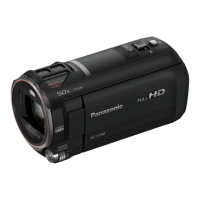
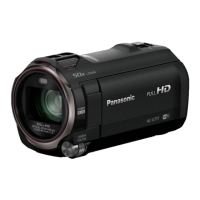
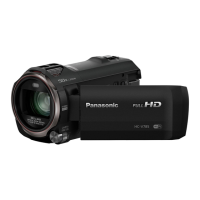
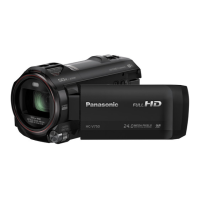
Panasonic HC-V760 - User Manual

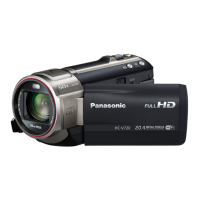
Panasonic HC-V760
256 pages
Print Icon
To Next Page IconTo Next Page
Loading...
Operating Instructions
High Definition Video Camera 4K Video Camera
Model No.
HC-V770
Model No.
HC-WX970
HC-V770M HC-WX970M
HC-V760 HC-VX870
HC-VX870M
Please read these instructions carefully before using this product,
and save this manual for future use.
SQW0252
until
2015/1/28

Table of Contents

Other manuals for Panasonic HC-V760

Questions and Answers

  • V
    Victor RobertsonSep 7, 2025
    What to do if the SD card from my Panasonic HC-V760 Camcorder is not recognised in another device?
    • P
      ppenaSep 7, 2025
      If the SD card from your Panasonic Camcorder is not recognized in another device, ensure that the device is compatible with the capacity and type of SD card (SD Memory Card/SDHC Memory Card/SDXC Memory Card) you are using. Refer to the device's operating instructions for compatibility details.
  • A
    Amy ParksAug 25, 2025
    Why is my Panasonic HC-V760 Camcorder not detected by the PC when connected via USB?
    • G
      Gloria RichmondAug 25, 2025
      If your Panasonic Camcorder is not detected by your PC when connected via USB cable: * Re-insert the SD card into the unit, then reconnect the supplied USB cable. * Try a different USB terminal on your PC. * Check the operating environment. After restarting the PC and the camcorder, reconnect the USB cable.
  • L
    Linda AndersonAug 25, 2025
    Why are images or sounds not output when my Panasonic Camcorder is connected to a TV?
    • J
      James HensleyAug 26, 2025
      If the images or sounds are not output even when your Panasonic Camcorder is correctly connected to a TV, or if the images appear squeezed horizontally: * Consult your TV's operating instructions to select the channel that corresponds to the input used for the connection. * Adjust the [TV ASPECT] setting to match the aspect ratio of your TV. * Note that during playback mode, audio is not output from the camcorder itself; adjust the sound on the TV.
  • M
    Mary GraySep 16, 2025
    What to do if I cannot use [DLNA Play] on my Panasonic HC-V760 Camcorder?
    • L
      lori76Sep 16, 2025
      To use [DLNA Play] on your Panasonic Camcorder, ensure that the television is compatible with DLNA and consult the TV's instructions. Verify that the wireless access point and the camcorder are properly connected. If there are still problems, move closer to the wireless access point and reconnect.
  • R
    Ryan Welch Jr.Sep 23, 2025
    Why doesn't my Panasonic HC-V760 recognize the SD card?
    • M
      Melissa ReidSep 23, 2025
      If your Panasonic Camcorder is not recognizing an inserted SD card, and the SD card was formatted on a PC, use the camcorder to format the SD card. (l 40)
  • K
    Kara HortonSep 12, 2025
    How to fix VIERA Link if it does not work on my Panasonic Camcorder?
    • S
      samanthamartinSep 12, 2025
      To resolve VIERA Link issues with your Panasonic Camcorder: * Connect with a HDMI micro cable (supplied). * Go to MENU, then [SETUP] # [VIERA Link] # [ON]. * Turn the unit off and then back on again.
  • D
    Darren HerreraSep 2, 2025
    What to do if my Panasonic Camcorder displays 'ERROR OCCURRED'?
    • E
      Erin PetersonSep 3, 2025
      If your Panasonic Camcorder displays the error message, it has detected an error. Restart the unit by turning it off, and then on again. If the unit is not turned off and on, it will be turned off in about 1 minute. If the error persists after restarting, repair is needed. Detach the power connected, and consult the dealer who you purchased this unit from. Do not attempt to repair the unit by yourself.
  • D
    dandersonSep 3, 2025
    What to do if my Panasonic HC-V760 won't operate even when turned on?
    • B
      Brenda WheelerSep 3, 2025
      If your Panasonic Camcorder is on but not operating, remove the battery or AC adapter, wait about a minute, and reconnect it. Wait another minute, then turn the unit on again. Note that doing this while the media is being accessed may damage the data on the media. If normal operation isn't restored, detach the power connected, and consult the dealer who you purchased this unit from.
  • C
    clarkpaulaSep 23, 2025
    Why does my Panasonic HC-V760 Camcorder image flicker or have color issues indoors?
    • K
      Kathleen ChandlerSep 23, 2025
      If you're seeing color or brightness changes, or horizontal bars in the image, or if the LCD monitor flickers indoors with your Panasonic Camcorder, it's likely due to recording under fluorescent, mercury, or sodium light. This is not a malfunction. In Motion Picture Recording Mode, use Intelligent Auto Mode/Intelligent Auto Plus Mode or set the shutter speed to 1/100 in 50 Hz areas, or 1/125 in 60 Hz areas. In FULL HD Slow Motion Mode, setting the shutter speed to 1/100 seconds reduces the intensity of the problem.
  • S
    Steven WadeAug 29, 2025
    Why does my Panasonic Camcorder turn off automatically?
    • F
      Fernando SellersAug 29, 2025
      If your Panasonic Camcorder is turning off automatically, it might be due to the VIERA Link feature. If you're not using VIERA Link, disable it in the settings by setting [VIERA Link] to [OFF].

Summary

Read this first

About the recording format for recording motion pictures

Explains various recording formats like AVCHD, 4K MP4, MP4, and iFrame.

Handling of built-in memory

Provides guidelines for using the camera's internal memory, including data backup.

About Condensation (When the lens or the LCD monitor is fogged up)

Offers advice on preventing and dealing with condensation on the lens or LCD.

Preparation

Names and Functions of Main Parts

Identifies and explains the key components and buttons of the camera.

Power supply

Details battery types, insertion, removal, and charging procedures.

Recording to a card

Explains how to use SD cards for recording, including compatibility and speed.

Turning the unit on;off

Describes methods to turn the camera on and off using the power button or LCD.

Selecting a mode

Explains how to switch between recording and playback modes, and between motion/still picture modes.

How to use the touch screen

Details how to operate the camera using the touch screen interface.

Setting date and time

Guides users through setting the camera's clock and date for accurate recording information.

Basic

Before recording

Covers basic camera positioning, holding, and motion picture recording tips.

Selecting a media to record

Explains how to choose between SD card and built-in memory for recording.

Recording motion pictures

Details the steps and screen indications for recording motion pictures.

Recording still pictures

Guides users on how to capture still pictures using the camera.

Motion picture;Still picture playback

Covers how to select and play back recorded motion pictures and still pictures.

Using the Setup Menu

Details how to access and configure various settings within the camera's setup menu.

Advanced (Recording)

Using the zoom

Explains how to use the zoom functions for recording, including zoom speed and ratio.

Level Shot Function

Describes the function that automatically corrects horizontal tilt for stable recordings.

Recording with the Sub Camera (Twin Camera)

Details how to use the sub camera for simultaneous recording or twin camera functionality.

Changing the Recording Mode

Guides users on how to select and switch between different recording modes.

Manual recording

Covers manual adjustments for focus, white balance, shutter speed, and brightness.

Advanced (Playback)

Playback Operations

Covers basic operations like skipping, slow-motion, and frame-by-frame playback.

Creating still picture from motion picture

Explains how to save a single frame from a motion picture as a still image.

Deleting scenes;still pictures

Provides methods for deleting unwanted scenes or still pictures from the media.

Convert to MP4

Details how to convert AVCHD or other scenes to MP4 format for PC and online sharing.

Watching Video;Pictures on your TV

Guides users on connecting the camera to a TV for playback using HDMI or AV cables.

Copy;Dubbing

Copying between SD card and Built-in Memory

Explains how to copy files between the camera's SD card and built-in memory.

Copying;playing back with a USB HDD

Details connecting and using a USB HDD for copying and playback.

Wi-Fi function

Using [Remote Ctrl]

Details how to control the camera remotely using a smartphone and the Image App.

Setting Up a Wi-Fi connection between this unit and a smartphone

Guides setting up direct Wi-Fi connections between the camera and smartphones.

Using [DLNA Play]

Explains how to play back scenes and pictures on a DLNA-compatible TV via Wi-Fi.

Using [Copy]

Guides users on copying scenes and still pictures from the camera to a PC via Wi-Fi.

With a PC

HD Writer AE 5.2

Introduces HD Writer AE 5.2 software for copying, editing, and managing camera data.

Operating environment

Lists the required PC specifications and OS versions for HD Writer AE 5.2.

Connecting to a PC

Guides users on connecting the camera to a PC for data transfer.

Others

Messages

Lists and explains common confirmation and error messages displayed on the unit.

Troubleshooting

Provides solutions for common operational problems, including power and performance issues.

Cautions for use

Offers important safety and usage precautions to prevent damage or malfunction.

Recording modes;approximate recordable time

Lists recording modes and their approximate recordable times for various card sizes.

About the Remote Pan Tilt Cradle

Details the setup and operation of the optional Remote Pan Tilt Cradle accessory.

Panasonic HC-V760 Specifications

General IconGeneral
Sensor TypeMOS
Sensor Size1/2.3 inch
Optical Zoom20x
Digital Zoom50x
Focal Length4.08 - 81.6 mm
LCD Screen Resolution460, 800 dots
TouchscreenYes
Focus SystemAuto / Manual
Storage MediaSD/SDHC/SDXC Memory Card
Video Resolution1920 x 1080
Wi-FiYes
NFCYes
Battery TypeLithium-ion
Aperturef/1.8-3.6
Image StabilizationHybrid O.I.S.
LCD Screen Size3.0 inch
Recording FormatAVCHD, MP4
Frame Rate60p
MicrophoneStereo
HDMI OutputYes
USB PortYes

Related product manuals