EasyManua.ls Logo

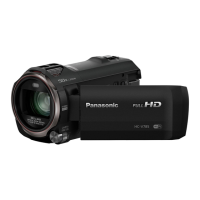
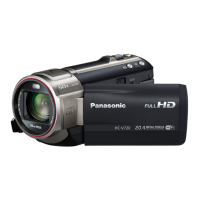
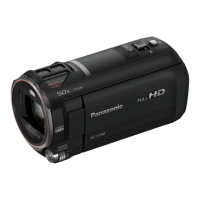
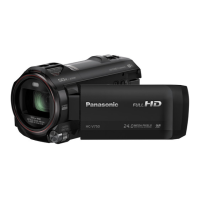
Panasonic HC-V750 - User Manual

Panasonic HC-V750
220 pages
Print Icon
To Next Page IconTo Next Page
Loading...
Owners Manual
High Definition Video Camera
Model No.
HC-W850
HC-V750
Please read these instructions carefully before using this product,
and save this manual for future use.
SQT0155
until
2014/1/28
Register online at www.panasonic.com/register (U.S. customers only)

Table of Contents

Other manuals for Panasonic HC-V750

Questions and Answers

  • N
    Nichole CastilloSep 6, 2025
    How to troubleshoot if I cannot operate my Panasonic HC-V750 from a smartphone using [Remote Ctrl]?
    • L
      Logan MurphySep 6, 2025
      To operate your Panasonic Camcorder from a smartphone using [Remote Ctrl], install the smartphone app “Image App” on your smartphone.
  • J
    Joseph Myers DDSAug 25, 2025
    Why are images or sounds not output even when my Panasonic HC-V750 is correctly connected to a TV?
    • P
      pharrisAug 25, 2025
      If you're not getting images or sounds from your Panasonic Camcorder when connected to a TV, make sure you've selected the correct channel on your TV that matches the input used for the connection. Also, adjust the [TV ASPECT] setting to match the aspect ratio of your TV. Note that during playback mode, audio is not output from the camcorder itself, so adjust the sound on the TV.
  • G
    Grant HoustonAug 25, 2025
    Why my Panasonic HC-V750 Camcorder cannot be turned on or the battery runs down quickly?
    • J
      Jennifer PattersonAug 26, 2025
      If your Panasonic Camcorder cannot be turned on, does not stay on long enough, or the battery runs down quickly, try the following: Charge the battery again to ensure it is sufficiently charged. In cold places, the battery usage time becomes shorter. The battery has a limited life. If the operating time is still too short even after fully charging the battery, it likely needs to be replaced.
  • B
    Brent RobinsonSep 15, 2025
    How to use [DLNA Play] on my Panasonic Camcorder?
    • A
      Ashley SpencerSep 15, 2025
      To use [DLNA Play] on your Panasonic Camcorder, make sure the television is compatible with DLNA, and refer to the television's instructions. Ensure that the wireless access point and the device are properly connected. If necessary, move closer to the wireless access point and reconnect. If a connection cannot be made between this device and a DLNA-compatible device, try to reconnect and ensure they connect properly.
  • A
    aodonnellSep 23, 2025
    Why won't live broadcast screen display on Panasonic Camcorder?
    • M
      Mr. Andrew WilsonSep 23, 2025
      To view the live broadcast screen on your Panasonic Camcorder, ensure that the “LUMIX CLUB” Login ID and Password have been entered correctly. Use a PC or smartphone to verify that the USTREAM account registration is complete. If issues persist, retry the live broadcast after a short wait.
  • R
    Robert CortezSep 12, 2025
    Why is the remaining battery indication not displayed properly on my Panasonic Camcorder?
    • A
      Aaron ValdezSep 12, 2025
      If the remaining battery indication on your Panasonic Camcorder is not displayed correctly, fully charge the battery, discharge it, and then charge it again. Note that the remaining battery capacity indication is an approximation.
  • A
    Amy PattersonSep 2, 2025
    What to do if scenes cannot be deleted on my Panasonic HC-V750 Camcorder?
    • J
      Jennifer MillerSep 2, 2025
      If you are unable to delete scenes on your Panasonic Camcorder, release the protect setting. Any scenes/still pictures where the thumbnails are displayed as cannot be deleted. If the scenes/still pictures are unnecessary, format the media to erase the data.
  • M
    Michael HunterSep 2, 2025
    Why are images or sounds not output even when my Panasonic Camcorder is connected to the TV by the HDMI mini cable?
    • A
      adam08Sep 3, 2025
      If you're not getting images or sounds when your Panasonic Camcorder is connected to the TV via HDMI mini cable, first check if the HDMI mini cable is connected correctly. Ensure the HDMI mini cable is fully inserted.
  • K
    Katelyn RoseSep 22, 2025
    Why no image/sound from Panasonic Camcorder via HDMI?
    • T
      Timothy BenjaminSep 22, 2025
      If the HDMI mini cable is connected to your Panasonic Camcorder and TV, but you're not getting any images or sounds, verify that the HDMI mini cable is correctly and fully inserted into both devices.
  • D
    diana21Aug 28, 2025
    What to do if the SD card is inserted in another device and it is not recognised?
    • J
      Jerome QuinnAug 28, 2025
      If an SD card from your Panasonic Camcorder isn't recognized in another device, ensure that the device is compatible with the capacity or type of SD card (SD Memory Card/SDHC Memory Card/SDXC Memory Card) that you inserted.

Summary

Read this first

Names and Functions of Main Parts

Power Supply and Battery Management

Inserting and Removing the Battery

Step-by-step guide for inserting and removing the camera's battery.

Charging the battery

Recording Media and Card Handling

Compatible Memory Cards

Lists compatible SD, SDHC, and SDXC memory card types and speed requirements.

Inserting;removing an SD card

Turning the unit on;off

Mode Selection and Switching

Switching Between Recording and Playback Modes

Details how to switch between Recording and Playback modes using the recording/playback button.

Switching Between Motion and Still Picture Recording Modes

Explains how to switch between motion and still picture recording modes via the touch screen.

Touch Screen Operation

Setting date and time

Basic Recording Preparations

Recording motion pictures

Recording still pictures

Motion picture;Still picture playback

Playback Controls and Operations

Using the menu screen

Setup Menu Navigation and Settings

Clock and World Time Setup

Guides the user through setting the date, time, and world time on the camera.

Media Formatting Procedures

Zoom Operations

Level Shot Function

Sub Camera (Twin Camera) Recording

Setting and adjusting the color balance, brightness, and focus

Changing the Recording Mode

Intelligent Auto Mode

Intelligent Auto Plus Mode

Creative Control Modes

Miniature Effect Mode

8 mm Movie Effect

Silent Movie Effect

Time Lapse Recording Setup

Scene Mode Settings

FULL HD Slow Motion Video

Stop Motion Animation Assist

Manual recording

White Balance

Manual shutter speed;iris adjustment

Manual Focus adjustment

Touch Function Recording

Image Stabilizer Functionality

AF;AE tracking

Operation Icons for Recording Functions

Fade Effects

Intelligent Contrast Control

PRE-REC Functionality

Built-in Flash Usage and Adjustment

Red-eye Reduction Feature

Self-Timer Operation

Intelligent Exposure Function

Backlight Compensation Feature

Video Light Operation

Night Mode Recording

Zoom Mode Configuration

Recording Format Selection

Recording Mode Selection

Face Framing Detection

Electronic Level Gauge

Automatic Ground Shot (AGS)

Auto Slow Shutter Function

Digital Cinema Color Feature

Wind Noise Canceler Function

Low Cut Filter for Audio

Sound Scene Select

Microphone Setup Options

Microphone Input Level Adjustment

Picture Quality Adjustments

Adjusting Picture Quality via Multi Manual Dial

Details how to adjust picture quality settings like sharpness, color, and exposure using the Multi Manual Dial.

Picture Size Settings

Aspect Ratio Settings

Playback Operations and Controls

Creating Still Pictures from Motion Video

Highlight and Time Frame Index

Repeat Playback Setting

Resuming Playback

Slow Motion Video Playback Speed

Zooming in on a still picture during playback (Playback zoom)

Playing back motion pictures;still pictures by date

Highlight Playback

Setting up the custom effect

Highlight Playback with Custom Settings

Managing Favorite Scenes for Highlight Playback

Highlight Playback Time Setting

Setting Highlight Playback Titles

Saving the Highlight Playback

Manual Edit

Adding Music to Manual Edits

Saving Manually Edited Scenes

Baby Calendar Feature

Changing the playback settings and playing back the slide show

Playing back Stop Motion Slideshows

Deleting Scenes and Still Pictures

Deleting Currently Playing Media

Explains how to delete the currently playing scene or still picture.

Deleting Media from Thumbnail Display

Explains how to delete scenes or still pictures from the thumbnail view.

Deleting part of a scene (AVCHD)

Dividing a scene (AVCHD)

Dividing a scene to partially delete (MP4;iFrame)

Protecting scenes;still pictures

Convert to MP4 Format

Slow speed conversion

Watching Video;Pictures on your TV

HDMI Mini Cable Connection

Playback using VIERA Link

USB HDD Data Transfer

USB HDD Copying and Playback Preparation

Outlines preparations and requirements for using a USB HDD for data transfer.

USB HDD Formatting Procedure

Simple File Copy to USB HDD

Copying Selected Files to USB HDD

Playing back the USB HDD

Dubbing with a Blu-ray disc recorder, video device, etc.

Dubbing in high-definition picture quality

Dubbing in standard picture quality

Using the Eye-Fi card

Eye-Fi Direct Mode Usage

Selecting Files for Eye-Fi Transfer

Wi-Fi Function Overview and Precautions

Wi-Fi Function: Link to Cell

Link to Cell Setup Preparations

Guides on installing the smartphone app and checking device compatibility for Link to Cell.

Direct Wi-Fi Connection Setup

Wireless Access Point Connection Setup

Link to Cell: Direct Connection Operation

Link to Cell: Wireless Access Point Connection

Functions available for remote operations

Wi-Fi Function: Baby Monitor

Baby Monitor Setup Preparations

Guides on checking access points, installing the app, and setting up Wi-Fi for Baby Monitor.

Baby Monitor Operation and Capabilities

Wi-Fi Function: Home Cam

Home Cam Setup Preparations

Guides on checking access points, installing the app, and setting up Wi-Fi for Home Cam.

Smartphone Operations During Home Monitoring

Changing the home monitor settings of this unit

Wi-Fi Function: DLNA Play

DLNA Play Setup Preparations

Guides on checking access points, DLNA compatibility, and setting up Wi-Fi for DLNA Play.

Playing back on a TV

Wi-Fi Function: Copy to PC

PC Copy Setup Preparations

Guides on checking access points and connecting PC to Wi-Fi for file transfer.

Creating a shared folder (destination folder) on the PC

Copying to a PC

Wi-Fi Function: Live Cast

Preparations before using [Live Cast]

Broadcasting live

Live Cast E-mail Delivery Settings

Live Cast Image Quality Settings

Saving Live Broadcasts to USTREAM

Simultaneous Broadcast and Record Image Quality

Live Broadcast Audio Settings

Install the “Image App”

Wi-Fi Connection Setup Guide

Using the [Wi-Fi Easy Setup] to set up a connection

Connecting to a wireless access point

Wi-Fi PIN Code Connection

Searching for Wireless Access Points

Setting up a connection manually

Direct Smartphone Wi-Fi Connection

Connecting by entering an SSID and Password

Connecting from the history

If the Wi-Fi connection cannot be established

Wi-Fi Setup Menu Navigation

LUMIX CLUB Service Integration Guide

Managing LUMIX CLUB Login ID and Password

Registering Smartphone Login ID to Unit

Deleting LUMIX CLUB Account and Login ID

Using WEB services

HD Writer AE 5.1 Software

Copying Data to PC with HD Writer AE 5.1

Copying Data to Disc with HD Writer AE 5.1

HD Writer AE 5.1 Capabilities Overview

Conversion Assist Function Details

PC Operating Environment Requirements

HD Writer AE 5.1 System Requirements

Details the system requirements (OS, CPU, RAM, Display) for HD Writer AE 5.1.

HD Writer AE 5.1 Software Installation

Uninstalling HD Writer AE 5.1 Software

Connecting to a PC

Copying Still Pictures to PC

Launching HD Writer AE 5.1

Mac Compatibility and Usage

Copying Still Pictures to Mac

Guides on copying still pictures from the unit to a Mac using drag-and-drop.

On-Screen Indications Reference

Recording Mode Indications

Details indications shown on the screen during motion and still picture recording modes.

Playback Status Indications

Wi-Fi Connection Status Icons

USB HDD Connection Status Icon

Messages

About recovery

Troubleshooting Common Issues

Troubleshooting Power Issues

Addresses power-related problems like unit not turning on or battery issues.

Power Error Messages and Battery Indication

Troubleshooting Recording Problems

Troubleshooting Recording Image Issues

Troubleshooting Playback Issues

Troubleshooting with Other Products

Troubleshooting with Other Products (USB & VIERA Link)

Troubleshooting PC Connections (USB & HD Writer)

Troubleshooting Wi-Fi Connectivity

General Cautions for Unit Usage

Battery Care and Handling

SD Card Disposal and Formatting

Personal Information Handling and Privacy

Recording modes;approximate recordable time

Approximate number of recordable pictures

Remote Pan Tilt Cradle Overview

Connecting the Remote Pan Tilt Cradle

Guides on connecting the camera unit to the optional Remote Pan Tilt Cradle.

Using the Remote Pan Tilt Cradle

Remote Pan Tilt Cradle settings

Panasonic HC-V750 Specifications

General IconGeneral
BrandPanasonic
ModelHC-V750
CategoryCamcorder
LanguageEnglish

Related product manuals