EasyManua.ls Logo

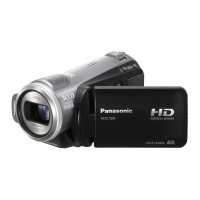
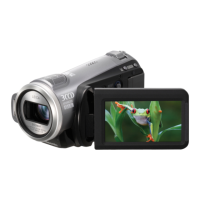
Panasonic HDC-SD90 - User Manual

Panasonic HDC-SD90
168 pages
Print Icon
To Next Page IconTo Next Page
Loading...
until
2011/1/24
For USA and Puerto Rico assistance, please call: 1-800-211-PANA(7262) or,
contact us via the web at: http://www.panasonic.com/contactinfo
For Canadian assistance, please call: 1-800-561-5505 or visit us at www.panasonic.ca
Owners Manual
High Definition Video Camera
Model No.HDC-SD90P/PC
HDC-TM90P/PC
Before connecting, operating or adjusting this product, please read the instructions completely.
VQT3J56
HDC-SD90&TM90-P-VQT3J56_mst.book 1 ペー 011年1月13日 木曜日 午前9時18分

Table of Contents

Other manuals for Panasonic HDC-SD90

Questions and Answers

  • B
    bterrySep 23, 2025
    Cannot import AVCHD scenes with iMovie’11 on Panasonic HDC-SD90, what to do?
    • M
      matthewstommySep 23, 2025
      If you cannot import AVCHD scenes with iMovie’11 on your Panasonic camcorder, and both AVCHD scenes and iFrame scenes are recorded on a media, first copy all the iFrame scenes data to iMovie’11, delete all the iFrame scenes data on the media, and then import the AVCHD scenes with iMovie’11.
  • B
    bennettbrittanyAug 23, 2025
    Why does my Panasonic HDC-SD90 battery run down so quickly?
    • P
      pauldonaldAug 23, 2025
      There are several reasons why your Panasonic camcorder battery might be draining faster than expected. Ensure the battery is fully charged. Keep in mind that battery life is shorter in cold environments. The battery itself might be nearing the end of its lifespan and needs replacing if it still drains quickly after a full charge.
  • S
    scott30Aug 25, 2025
    What to do if my Panasonic HDC-SD90 cannot be operated?
    • M
      Michael EdwardsAug 25, 2025
      If your Panasonic camcorder is on but not responding, try these steps: remove the battery or AC adapter, wait for about a minute, and then reconnect it. Wait another minute before turning the unit back on. If the issue persists, disconnect the power and contact customer support.
  • M
    Mackenzie WellsAug 26, 2025
    What to do if my Panasonic HDC-SD90 Camcorder displays 'ERROR OCCURRED'?
    • J
      Jason JohnsonAug 26, 2025
      If your Panasonic camcorder displays the error message “ERROR OCCURRED. PLEASE TURN UNIT OFF, THEN TURN ON AGAIN.”, restart the unit by turning it off and then on again. If the error message continues to appear after restarting, disconnect the power and contact consumer support for repairs.
  • A
    Alisha HaleAug 27, 2025
    Why does my Panasonic Camcorder turn off automatically?
    • P
      Paul JonesAug 28, 2025
      Your Panasonic camcorder might be turning off automatically due to the VIERA Link function. If you're not using VIERA Link, disable it in the settings. Also, if the camcorder is connected to a DVD burner and the USB cable is removed while copying or playing back images, it will turn off automatically.
  • N
    Nicole YoungSep 17, 2025
    What to do if the USB cable is disconnected, and an error message will appear on the PC of my Panasonic HDC-SD90?
    • D
      Donald BrooksSep 17, 2025
      To safely disconnect the USB cable from your Panasonic camcorder and avoid error messages on your PC, double-click the icon in the task tray and follow the on-screen instructions.
  • J
    Julie RodriguezSep 14, 2025
    When connecting to other equipment with the USB cable, why can't I copy scenes on the SD card of my Panasonic HDC-SD90 Camcorder?
    • B
      bradyjoannaSep 14, 2025
      If you cannot copy scenes on the SD card by connecting your Panasonic camcorder to other equipment with the USB cable, the other equipment might not have recognized the SD card. Try unplugging the USB cable and reconnecting it.
  • J
    Jennifer BondSep 15, 2025
    Why is my Panasonic Camcorder SD card not recognized?
    • R
      roger02Sep 15, 2025
      If your Panasonic camcorder doesn't recognize the SD card, and the SD card is formatted on a PC, it may not be recognized by this unit. Use this unit to format SD cards.
  • J
    john02Sep 6, 2025
    How to fix Panasonic Camcorder images squeezed horizontally?
    • J
      Jacqueline DavisSep 6, 2025
      If the images on your TV appear squeezed horizontally when your Panasonic camcorder is connected, consult your TV's operating instructions to select the correct input channel. Also, adjust the [TV ASPECT] setting on your camcorder to match your TV's aspect ratio, and ensure the camcorder's output setting matches the connected cable type.
  • L
    Lee MorganSep 3, 2025
    How to fix Panasonic Camcorder auto focus?
    • W
      William HobbsSep 3, 2025
      If the auto focus function on your Panasonic camcorder isn't working, try switching to Intelligent Auto Mode. Alternatively, if you're recording a difficult-to-focus scene in Auto Focus Mode, switch to Manual Focus Mode and adjust the focus manually.

Summary

Things You Should Know

Safety Precautions

Important safety guidelines to follow before operating the unit.

IMPORTANT SAFETY INSTRUCTIONS

Accessories

Quick Guide

Inserting the battery

Step-by-step instructions for installing and removing the battery.

Charging the battery

Procedure for connecting the AC adapter and charging the battery.

Parts identification and handling

Recording to a card

Cards that you can use with this unit

Details on compatible SD card types and their specifications for recording.

Selecting a mode

How to use the touch screen

Touch

Basic operation of touching the screen to select icons or pictures.

Before recording

Basic camera positioning

Guidance on holding the camera correctly for stable recording.

Recording motion pictures

Recording still pictures

Intelligent Auto Mode

Motion picture;Still picture playback

Zoom in;out function

Extra Optical Zoom

Functionality for high-quality zoom without picture degradation.

Image Stabilizer Function

Changing Image Stabilizer Mode

How to adjust the image stabilizer for different recording situations.

Recording functions of operation icons

Recording functions of menus

[SCENE MODE]

Automatically sets optimum shutter speeds and apertures for different scenes.

Manual recording

White balance

Manual shutter speed;iris adjustment

Manual focus adjustment

Recording 3 D video

Playback Operations

Motion picture playback using operation icon

How to control motion picture playback using on-screen icons.

Highlight Playback

Deleting scenes;still pictures

Watching Video;Pictures on your TV

Playback using VIERA Link

3 D video playback

Copying between SD card and Built-in Memory [HDC-TM90]

Connecting a DVD burner to copy to; play back a disc

Preparing for copying;playing back

Steps to prepare for copying or playing back discs with a DVD burner.

Managing the copied disc

What you can do with a PC

HD Writer AE 3.0

Software for PC data transfer, editing, and management.

Operating environment

Operating environment for HD Writer AE 3.0

System requirements for installing and running HD Writer AE 3.0 software.

Installation

Connecting to a PC

Starting HD Writer AE 3.0

Indications

Recording indications

Icons and symbols displayed on the screen during recording.

Messages

About recovery

Troubleshooting

Power

Troubleshooting steps for power-related issues.

Cautions for use

About this unit

General cautions regarding the unit's use and environmental factors.

About 3 D viewing

About the SD card

About condensation

Causes of condensation

Factors that can cause condensation to form on the unit.

Recording modes;approximate recordable time

Approximate number of recordable pictures

Specifications

Optional accessories

Limited Warranty (ONLY FOR U.S.A. AND PUERTO RICO)

Warranty (For Canadian Customers)

Panasonic HDC-SD90 Specifications

General IconGeneral
Filter size41.5 mm
Digital zoom1500 x
Optical zoom21 x
Image stabilizerYes
Focal length range2.82 - 59.2 mm
Focal length (35mm film equivalent)28 - 729 mm
Sensor typeMOS
Total megapixels3.32 MP
Optical sensor size1/4.1 \
Effective megapixels (movie)2.61 MP
InterfaceUSB 2.0
Video out1
Power requirementsAC/DC, 3.6 - 5.0 V
Power consumption (typical)7.7 W
Display diagonal3 \
Maximum video resolution1920 x 1080 pixels
Image formats supportedJPG
Still image resolution(s)2592 x 1944
Audio systemDolby Digital
Camera shutter speed1/25 - 1/8000 s
Shutter speed (photo)1/25 s
Shutter speed (video)1/8000 s
Minimum illumination1 lx
USB 2.0 ports quantityUSB 2.0 ports have a data transmission speed of 480 Mbps, and are backwards compatible with USB 1.1 ports. You can connect all kinds of peripheral devices to them.
Compatible memory cardsSD, SDHC, SDXC
Product colorBlack, Grey
Bundled softwareHD Writer AE 3.0
Weight and Dimensions IconWeight and Dimensions
Depth118.5 mm
Width50.5 mm
Height63 mm
Weight244 g

Related product manuals