EasyManua.ls Logo

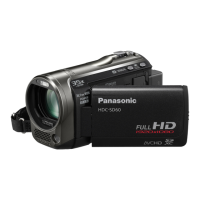
Panasonic HDC-SD80 - User Manual

Panasonic HDC-SD80
140 pages
Print Icon
To Next Page IconTo Next Page
Loading...
until
2011/1/17
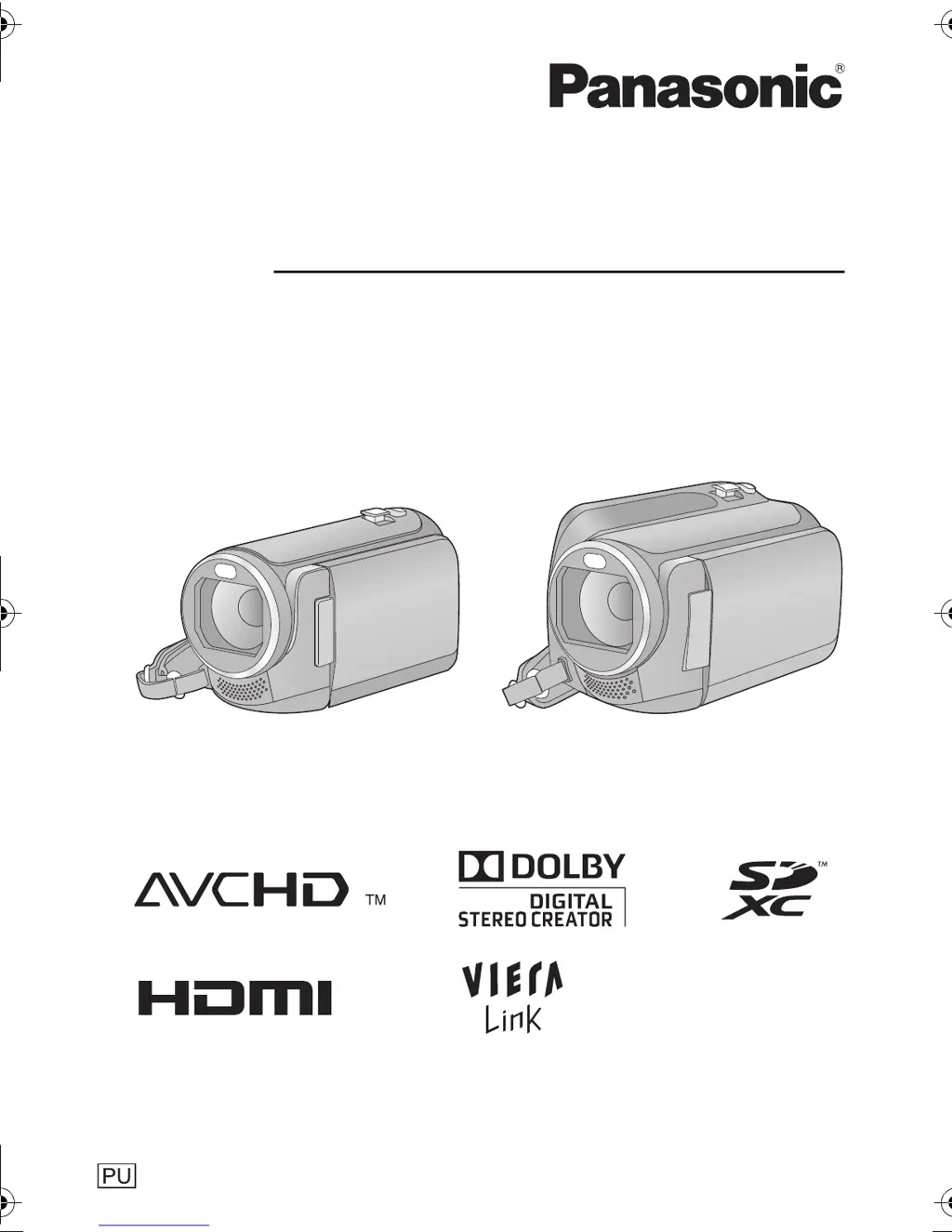
Operating Instructions
High Definition Video Camera
Model No.HDC-SD80
HDC-TM80
HDC-HS80
Before connecting, operating or adjusting this product, please read the instructions completely.
VQT3J17
HDC-SD80_TM80_HS80-PU-VQT3J17_eng.book 1 ページ 2011年1月5日 水曜日 午後1時51

Table of Contents

Other manuals for Panasonic HDC-SD80

Questions and Answers

  • O
    odavisSep 23, 2025
    What to do if I cannot import AVCHD scenes with iMovie’11 from my Panasonic Camcorder?
    • W
      Whitney SanchezSep 23, 2025
      In such a case, first copy all the iFrame scenes data to iMovie’11, delete all the iFrame scenes data on the media, and then import the AVCHD scenes with iMovie’11.
  • F
    fjonesAug 23, 2025
    Why won't my Panasonic Camcorder turn on or stay on?
    • S
      Steven LinAug 23, 2025
      Charge the battery again to ensure it is sufficiently charged. In cold places, the battery using time becomes shorter. The battery has a limited life. If the operating time is still too short even after the battery is fully charged, the battery has worn out and needs to be replaced.
  • C
    christine23Aug 25, 2025
    How to fix remaining battery indication if it is not displayed properly on Panasonic HDC-SD80 Camcorder?
    • C
      Crystal BryantAug 25, 2025
      If the remaining battery capacity indication is not displayed correctly, fully charge the battery, discharge it and then charge it again.
  • T
    Tracy BrooksAug 26, 2025
    What to do if my Panasonic Camcorder displays “ERROR OCCURRED. PLEASE TURN UNIT OFF, THEN TURN ON AGAIN.”?
    • E
      Erin PattersonAug 26, 2025
      The unit has automatically detected an error. Restart the unit by turning it off and on. If the error is repeatedly displayed even after restarting, repair is needed. Detach the power connected, and consult the dealer who you purchased this unit from. Do not attempt to repair the unit by yourself.
  • B
    Bethany SmithAug 27, 2025
    What to do if Panasonic Camcorder cannot be operated or does not operate normally?
    • D
      Diane OchoaAug 27, 2025
      Remove the battery or AC adaptor, wait about 1 minute and then reconnect the battery or AC adaptor. Then about 1 minute later, turn on the unit again. If normal operation is still not restored, detach the power connected, and consult the dealer who you purchased this unit from.
  • M
    Maria DominguezSep 18, 2025
    Why can't I see the PDF operating instructions for HD Writer AE 3.0 with my Panasonic HDC-SD80?
    • C
      Christian SandersSep 18, 2025
      You will need Adobe Acrobat Reader 5.0 or later or Adobe Reader 7.0 or later to read the PDF operating instructions for HD Writer AE 3.0.
  • M
    Michelle BeckerSep 15, 2025
    What to do if Panasonic HDC-SD80 is not detected by the PC when connected by the USB cable?
    • C
      Cheryl CampbellSep 15, 2025
      After re-inserting the SD card into the unit, reconnect the supplied USB cable. Select another USB terminal on the PC. Connect the supplied USB cable again after restarting the PC and turning on this unit again.
  • R
    Richard WarrenSep 16, 2025
    What to do if an error message appears on the PC when the USB cable is disconnected from Panasonic HDC-SD80?
    • J
      Joseph GarrettSep 16, 2025
      To disconnect the USB cable safely, double-click the icon in the task tray and follow the instructions on the screen.
  • J
    Joshua MartinSep 6, 2025
    Why does the color or brightness change or horizontal bars appear on my Panasonic HDC-SD80?
    • G
      Gregory CrossSep 7, 2025
      This is not a malfunction. In Motion Picture Recording Mode, record in Intelligent Auto Mode or set the shutter speed to 1/60 in areas where the power supply frequency is 60 Hz, or 1/100 in areas of 50 Hz.
  • S
    Susan GreenSep 3, 2025
    Why does my Panasonic HDC-SD80 arbitrarily stop recording?
    • W
      Wayne BlackSep 4, 2025
      Use an SD card that can be used for motion picture recording. The recordable time may have shortened due to the deterioration of the data writing speed or repeated recording and deletion, using the unit, format the SD card, built-in memory or HDD. If [AGS] is [ON], record in the normal horizontal position or set [AGS] to [OFF]. If the unit is exposed to strong vibrations or shocks while recording on HDD, recording may stop to protect the HDD. Recording data on an SD card is recommended in these places.

Summary

Preparation and Initial Setup

Power Supply and Battery Management

Information on using power adapters, batteries, and charging procedures.

Basic Camera Operations

Recording Motion Pictures

Step-by-step guide to start and stop recording video content.

Recording Still Pictures

Instructions for capturing still photographs.

Intelligent Auto Mode Explained

Explanation of the camera's automatic scene and exposure adjustment.

Playback Operations Guide

How to play back recorded motion pictures and still pictures.

Advanced Recording Features

Zoom and Image Stabilization Controls

Controls for zooming and reducing camera shake during recording.

Manual Recording Adjustments

Fine-tuning focus, white balance, shutter speed, and iris manually.

Recording Modes and Settings

Selecting recording formats, zoom ratios, and scene modes for optimal results.

Advanced Playback Features

Important Information and Troubleshooting

Troubleshooting Common Issues

Solutions for problems related to power, recording, playback, and connectivity.

Cautions for Safe Use

Guidelines for proper handling, cleaning, and avoiding damage to the unit.

Panasonic HDC-SD80 Specifications

General IconGeneral
Digital zoom2000 x
Optical zoom34 x
Image stabilizerYes
Focal length range2.38 - 81 mm
Focal length (35mm film equivalent)33.7 - 1240 mm
Sensor typeMOS
Total megapixels1.5 MP
Optical sensor size1/5.8 \
Effective megapixels (movie)1.3 MP
InterfaceUSB 2.0
Video out1
Power requirementsAC/DC, 3.6 - 5.0 V
Power consumption (typical)7.7 W
Display diagonal2.7 \
Maximum video resolution1920 x 1080 pixels
Image formats supportedJPG
Still image resolution(s)1856 x 1392
Audio systemDolby Digital
Camera shutter speed1/25 - 1/8000 s
Shutter speed (photo)1/25 s
Shutter speed (video)1/8000 s
Minimum illumination1 lx
USB 2.0 ports quantityUSB 2.0 ports have a data transmission speed of 480 Mbps, and are backwards compatible with USB 1.1 ports. You can connect all kinds of peripheral devices to them.
Compatible memory cardsSD, SDHC, SDXC
Product colorBrown
Bundled softwareHD Writer AE 3.0
Weight and Dimensions IconWeight and Dimensions
Depth109 mm
Width51.5 mm
Height59 mm
Weight192 g

Related product manuals