11
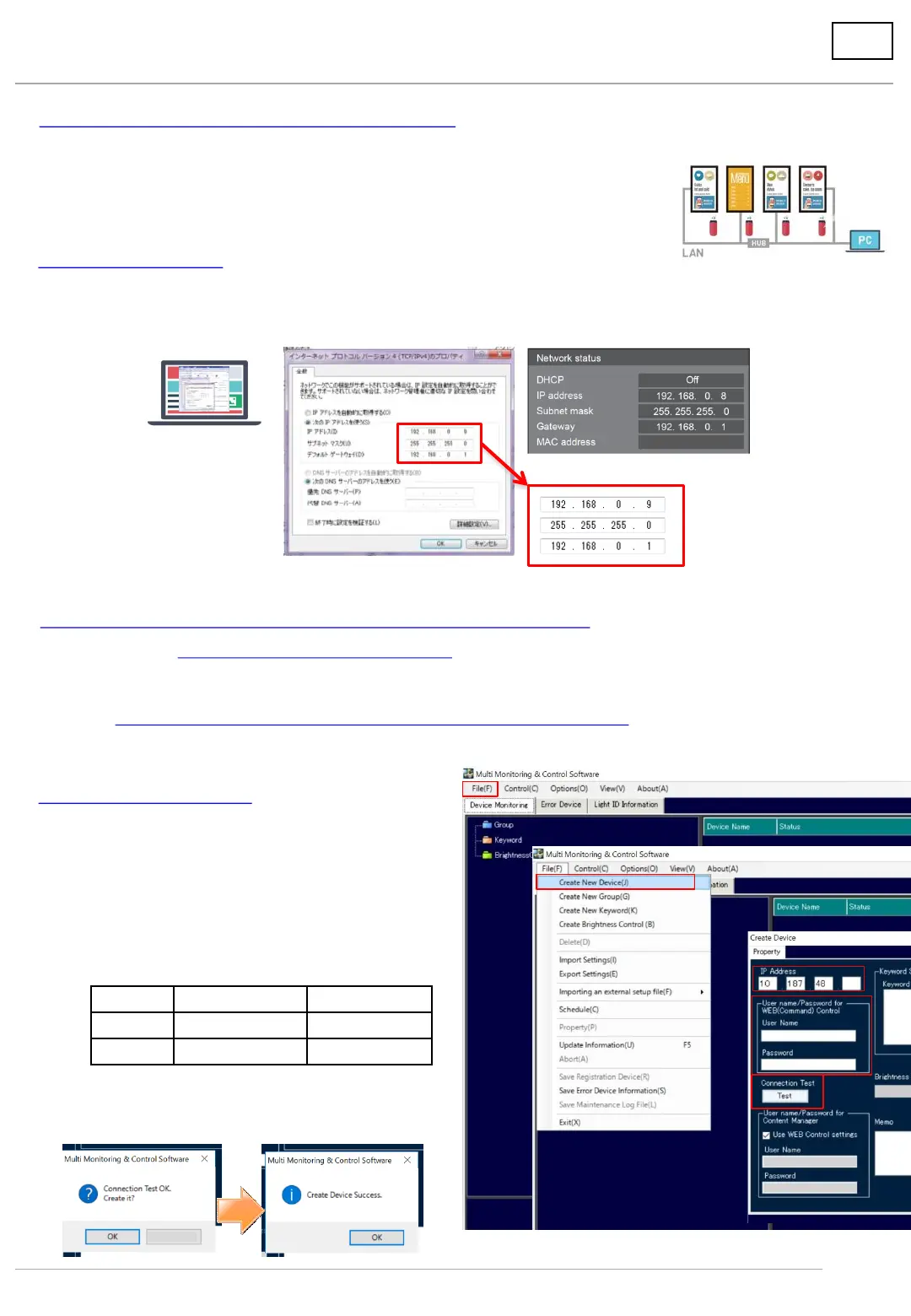
2. Connect display and PC with a LAN cable.
(1) Connect the PC that will run MMCS, and the display to be used, with the LAN cable.
(2) When using multiple displays, connect them via HUB.
(3) Plug the USB memory into the display beforehand.
Access [Network and sharing center] and set the IP address of the wired LAN.
Set the IP address to be in the same network as that shown on the network status of the display.
3. Set up computer.
Network status of the main display
Personal computer
4. Activate Multi Monitoring & Control Software (MMCS).
(1) Download Multi Monitoring & Control Software (MMCS) from the Website
and install it on the computer.
(2) Activate MMCS.
Download from here
⇒https://panasonic.net/cns/prodisplays/download/software/index.html
5. Register the display.
(1) Click [File].
(2) Click [Create New Device].
⇒Device creation screen will appear.
*After MMCS is activated, it will take a little time
before [Create New Device] becomes active.
(3) Enter the IP address to be used for the display.
(4) Enter the user name and password.
Default settings
(5) Click Test.
(6) When successfully completed, the following message
will appear. Click OK.
6. Deliver content on USB memory via LAN
6.1 Deliver content
*****
(1)
(2)
(3)
(4)
(5)
*****
*****
**
Except for SF2 series SF2 series
User name admin1 dispadmin
Password panasonic @Panasonic
Example
Cancel




 To Next Page