7. Convert PowerPoint data to still/moving images
17
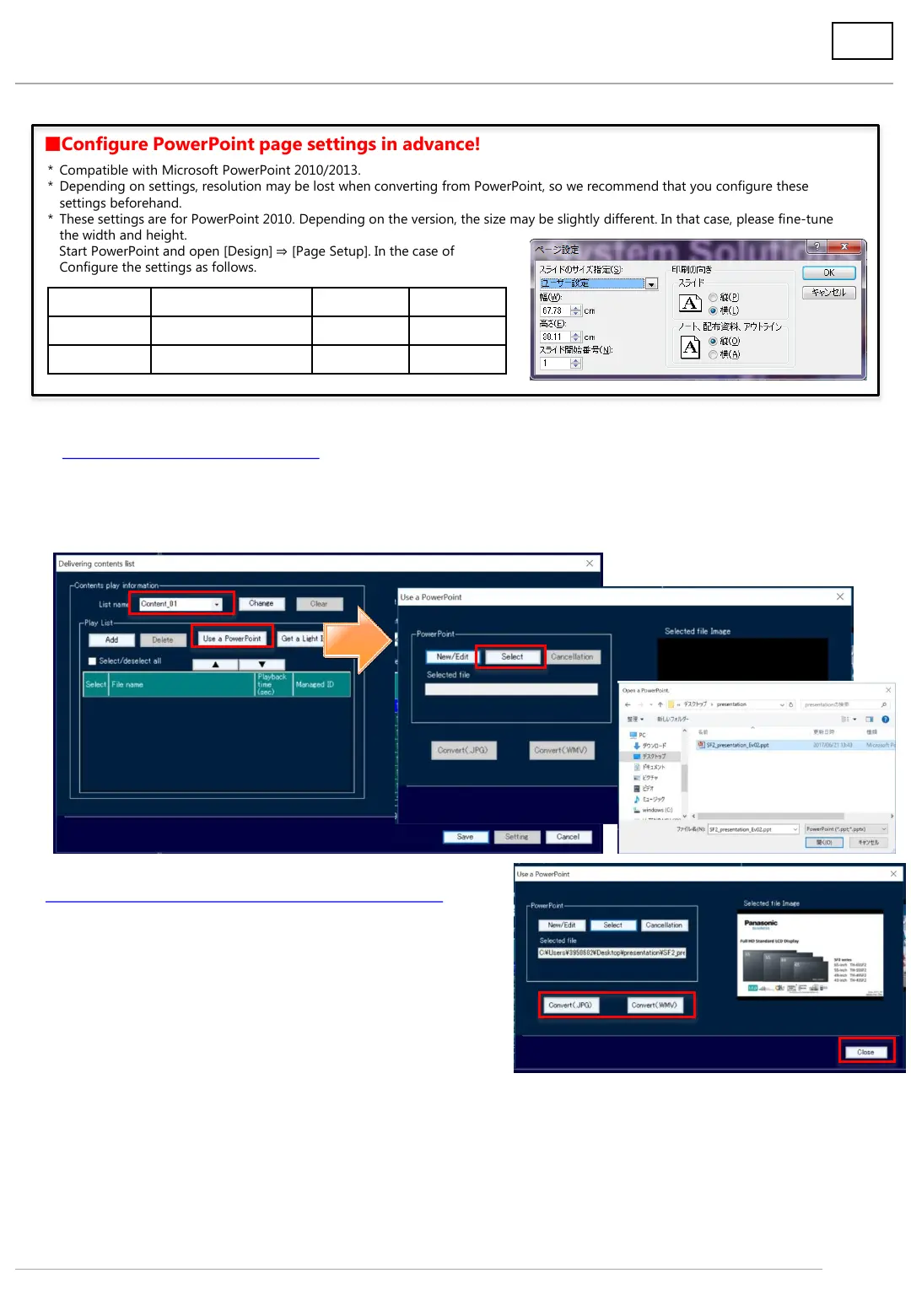
1. Import PowerPoint data.
(1) Select [Content list name] to save the converted PowerPoint data.
(2) Click [Use a PowerPoint].
(3) Click [Select], select the PowerPoint data to be converted, and click [Open].
* Compatible with Microsoft PowerPoint 2010/2013.
* Depending on settings, resolution may be lost when converting from PowerPoint, so we recommend that you configure these
settings beforehand.
* These settings are for PowerPoint 2010. Depending on the version, the size may be slightly different. In that case, please fine-tune
the width and height.
Start PowerPoint and open [Design] ⇒ [Page Setup]. In the case of
Configure the settings as follows.
Configure PowerPoint page settings in advance!
Slide size Slide size settings (S) Width (W) Height (E)
16:9 User setting 67.73cm 38.11cm
4:3 User setting 50.80cm 38.10cm
Files created with PowerPoint can be converted to still or moving images and delivered as content.
(Caution) If there is a PowerPoint file being edited, please save it in advance.
2. Convert the imported PowerPoint data.
(1) To convert to a still image: Click [Convert (.JPG)].
To convert to a moving image: Click [Convert (.WMV)].
(2) When conversion is completed, a [Process complete] message
will be displayed under the image.
(3) Click [Close] to close the screen.
(4) The converted data will be displayed on the content list.
Click [Save] to save to USB memory.
Even when not saving to USB memory, click [Save] to save the content list.
(The explorer screen will open, but close it without performing any operations.)
* When converting to still images, animation effects, etc. will be discarded.
* When converting to moving images, conversion may take time depending on set conditions such as animation effects,
number of slides, etc.
(1)
(2)
(3)
(1)
(3)








 To Next Page