4. Set up the display
6
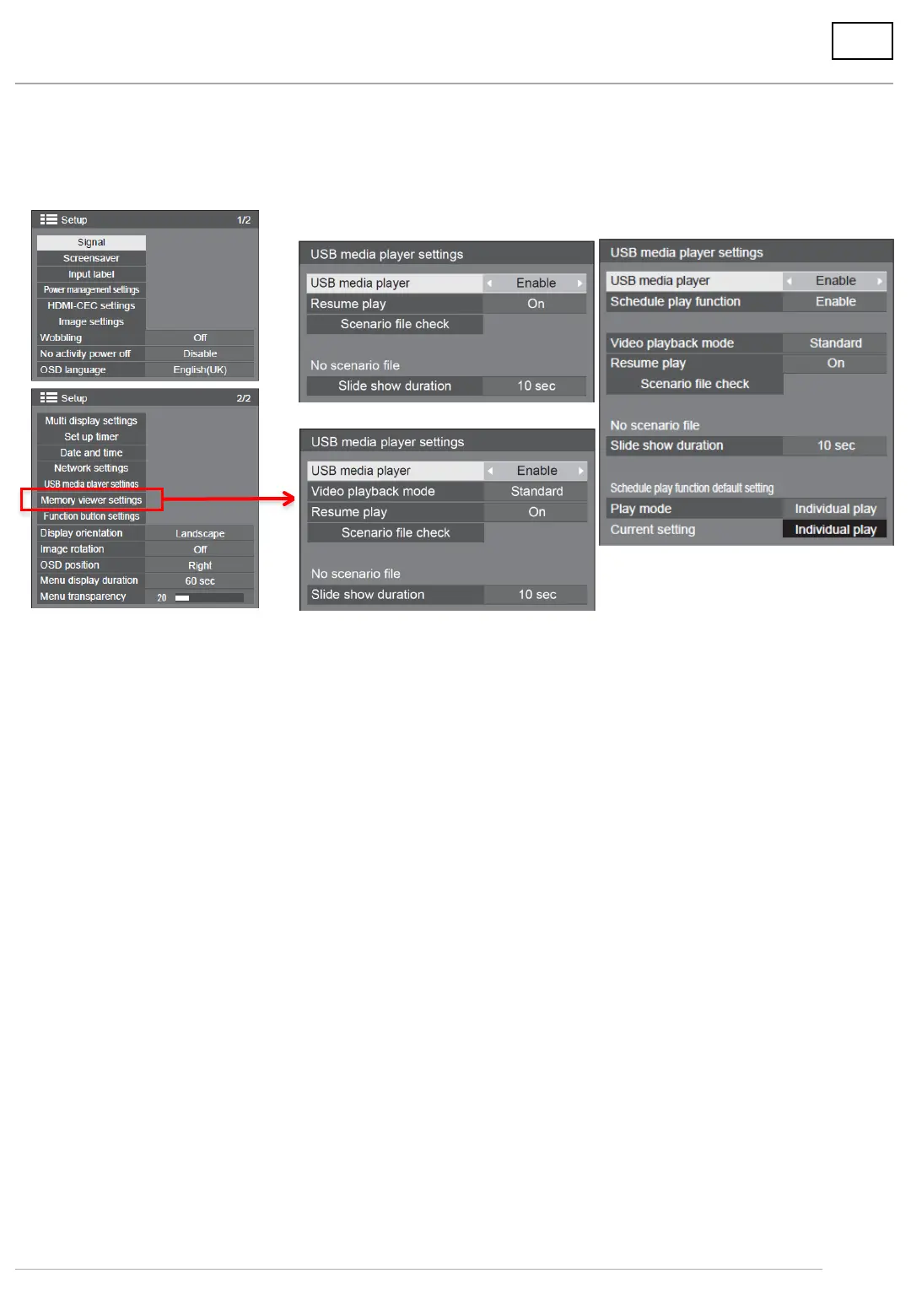
Select [Setup] → [USB media player settings] on the second page with the
remote control.
(1) USB media player *Factory setting is [Enable].
Set [USB media player] to [Enable].
(2) Schedule play function (SF2 series only) *Factory setting is [Disables].
Enables/Disables the schedule playback function using “Content Management Software”.
If the schedule file which made by “Content Management Software” is stored in USB memory,
it should be set to [Disables].
(2) Video playback mode (SF2 series, 65/75/84EF1, VF1 only) *Factory setting is [Standard].
Sets the video playback mode.
Standard: Plays without a black image at the joint between video files.
Adjust : Plays with a black image (approx. 2 seconds) inserted at the joint between video files.
*Depending on format, some moving image files may not make correct transitions between files.
In this case, set to [Adjust].
(3) Resume play *Factory setting is [On].
[On]: When the media player finishes by being switched off, the content playing at the finish time
will be played next time it is switched on.
[Off]: First content is always played in alphanumeric order by file name.
*This function does not work when the display is turned off or the USB memory is unplugged.
(4) Slide show duration *Factory setting is [10 sec].
Select the display duration for still images. From 10 – 600 sec.
For moving image files, the duration of the moving image playback is prioritized.
For 65/75/84EF1, VF1
Except for 65/75/84EF1, VF1
For SF2 series




 To Next Page