7.6. Audio and Video Connection
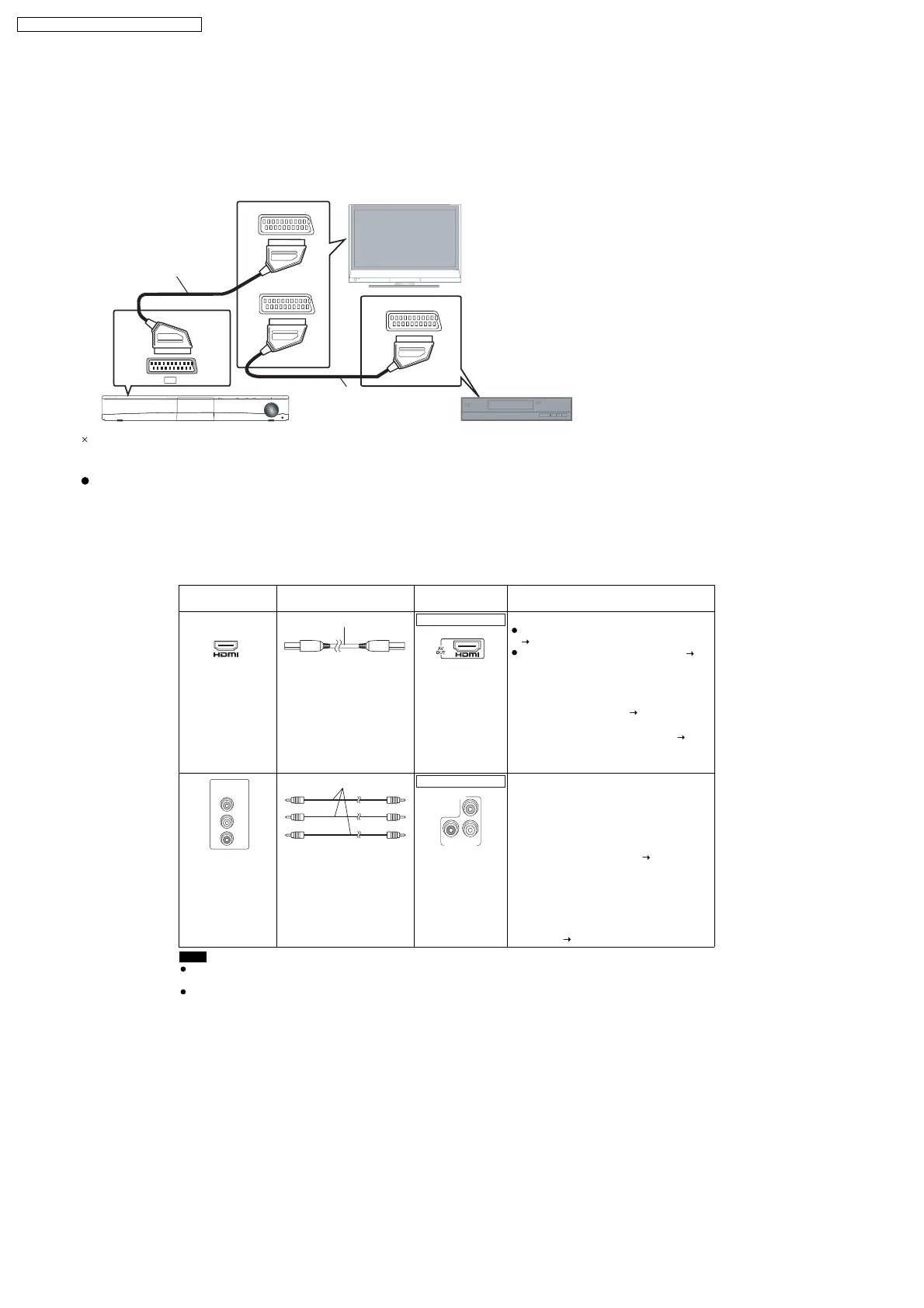
7.6.1. Basic Setup
AV1
AV2
AV OUT
AV
VOLUME
This Unit
TV
(not included)
Scart Cable
(not Included)
Set top box or video cassette recorder
(not included)
Basic Setup Example
This connection will also enable you to play TV audio through your home theater system
Select the appropriate audio out (e.g., Monitor) on the TV.
Scart Cable
(not Included)
When both the HDMI cable and scart cable are
connected, there will be no RGB output from the
SCART (AV) terminal.
7.6.2. Connecting to a Television with HDMI & Component Video Out Terminal
Note
Do not make the video connections through the video cassette recorder.
Due to copy guard protection, the picture may not be displayed properly.
Only one video connection is required. Choose one of the video connections above depending on your TV.
TV terminal
Cable required
(not included)
This unit terminal
Features
HDMI cable
[Note]
Non-HDMI-compliant
cables cannot be utilized.
It is recommended that
you use Panasonic s HDMI
cable. Recommended part
number:
RP-CDHG15 (1.5 m),
RP-CDHG30 (3.0 m),
RP-CDHG50 (5.0 m), etc.
HDMI
This connection provides the best picture quality.
Set
VIDEO PRIORITY
to ON
(
26, HDMI menu
).
Set VIDEO FORMAT in Menu 4 (HDMI) ( 22).
VIERA Link HD AVI Control
If your Panasonic TV is
VIERA Link
compatible, you can operate it
synchronising with home theater
operations or vice versa ( 28, Using the
VIERA Link HDAVI Control
TM
).
Make the extra audio connection ( 11)
when you use
VIERA Link
HDAVI
Control
function.
Panasonic televisions
with 576/50i-50p, 480/
60i-60p input terminals
are progressive
compatible. Consult
the manufacturer if you
have another brand of
television.
Video cables
Connect to
terminals of the
same colour.
This connection provides a much purer
picture than the SCART (AV) terminal.
When making this connection, select VIDEO/
YPbPr or S-VIDEO/YPbPr in
VIDEO OUT
SCAR T
in VIDEO menu. If
RGB 1/NO
OUTPUT
or
RGB 2/NO OUTPUT
is
selected, no signal is output from the
component video terminals. ( 24)
To enjoy progressive video
Connect to a progressive output
compatible television.
Set VIDEO OUT (I/P) in VIDEO
menu to PROGRESSIVE and then
follow the instructions on the menu
screen ( 24, VIDEO menu).
AV IN
COMPONENT
VIDEO IN
PB
PR
Y
COMPONENT VIDEO OUT
P
B
P
R
Y
COMPONENT VIDEO OUT
22
SA-PT860E / SA-PT860EB / SA-PT860EG



 To Next Page