EasyManua.ls Logo

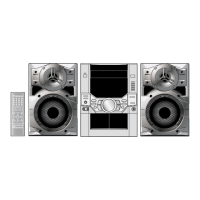
Panasonic SC-VK62D - User Manual

Panasonic SC-VK62D
96 pages
Print Icon
To Next Page IconTo Next Page
Loading...
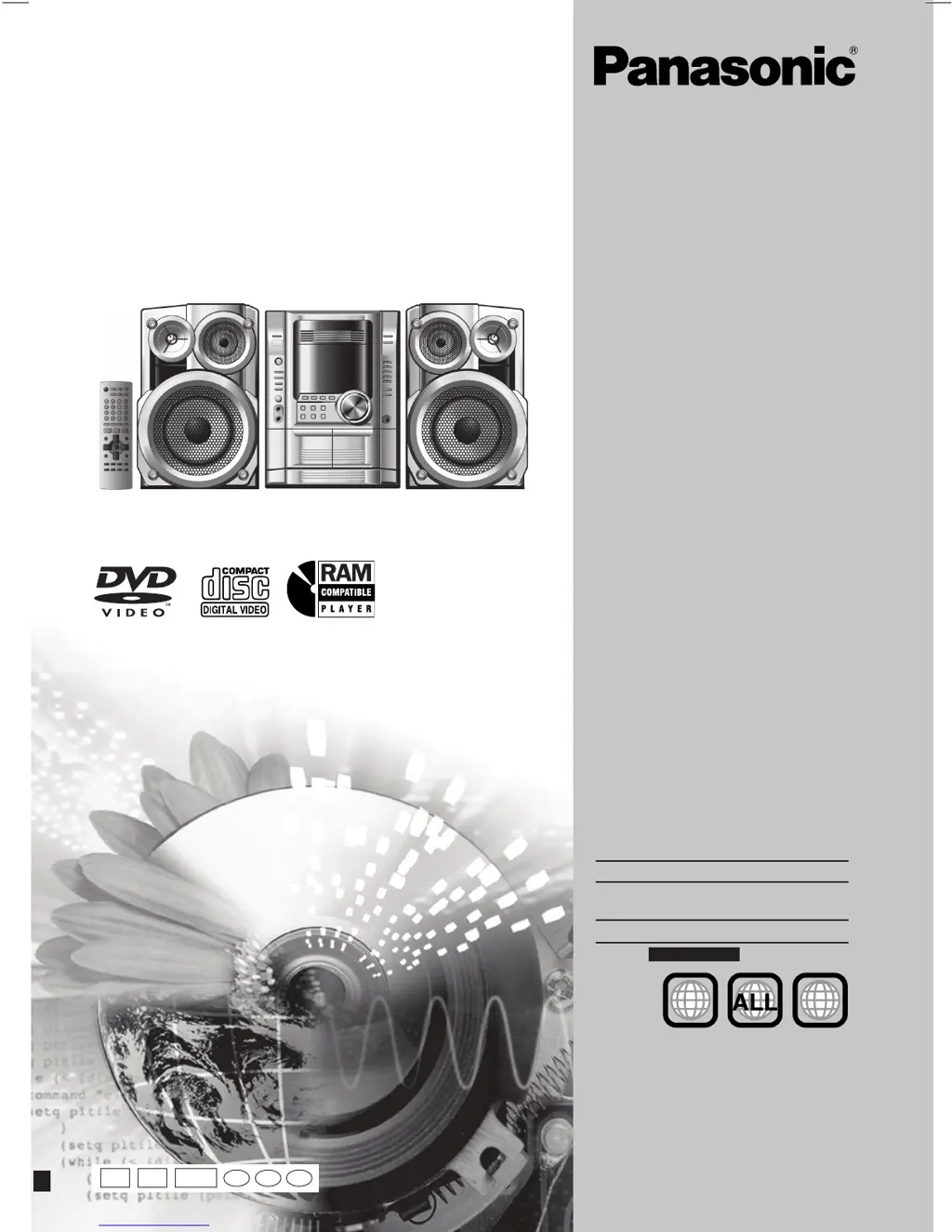
Operating Instructions
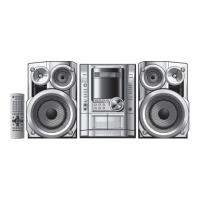
DVD Stereo System
Model No. SC-VK62D
Before connecting, operating or adjusting the product,
please read the instructions completely.
Please keep this manual for future reference.
Region number
The player plays DVD-Video marked with labels
containing the region number or "ALL".
Region Number
The Middle East, South Africa,
2
Saudi Arabia and Kuwait
Southeast Asia 3
Example: Southeast Asia
2
3
5
3
RQT8092-1G
L0205KW1045
GC GCSGS
En Pe Ar

Questions and Answers

  • B
    blankenshipsarahAug 13, 2025
    How to fix ghosting when progressive output is on Panasonic SC-VK62D Stereo System?
    • S
      Sarah HansonAug 13, 2025
      If you're experiencing ghosting with progressive output on your Panasonic Stereo System, it may be due to the editing method or material used on the DVD-Video. This problem should be corrected if you use interlace output. Change “Video Output Mode” in Picture Menu to “480i (or 525i)” or “576i (or 625i)”. You can also press [SHIFT]+[PROGRESSIVE] so “PRG” is displayed.
  • C
    Courtney MccannAug 20, 2025
    Why does my Panasonic SC-VK62D have sound distorted or no sound at all?
    • M
      Madison JohnsonAug 21, 2025
      Distorted or absent sound from your Panasonic Stereo System can stem from several causes. When playing WMA files, noise may occur. Some audio effects might not function properly with certain discs. If you hear humming, ensure other appliances and fluorescent lights are kept away from the unit's cables. Also, a pause in sound can occur when changing the play speed. To mitigate interference, keep other appliances and cords away from this unit’s cables.
  • C
    cmaldonadoAug 25, 2025
    What to do if my Panasonic Stereo System picture is distorted?
    • D
      Donald DonovanAug 25, 2025
      Picture distortion on your Panasonic Stereo System can arise from several factors. Some distortion is normal during SEARCH. Ensure the unit is connected directly to the television, not through a video cassette recorder. The video systems used by the unit and television might differ; the system used on the disc may not match your television. For Southeast Asia, use a multi-system or NTSC television; for other regions, use a multi-system or PAL television. Restore the zoom ratio to “x1.00”. Set “Subtitle Position” in Display Menu to “0”. The zoom function may not work well, especially in dark scenes and may not work depending on the type of disc, so turn off TV’s zoom function. Also, separate the antenna wire of the television from the unit if it is too close.
  • J
    Jerry SmithAug 28, 2025
    What to do if my Panasonic SC-VK62D Stereo System says “This disc may not be played in your region”?
    • S
      sara15Aug 28, 2025
      If your Panasonic Stereo System displays “This disc may not be played in your region”, it means you can only play DVD-Videos if their region number is the same or includes the same region number as the unit, or if the DVD-Video is marked “ALL”. Confirm the region number for the unit on the back of the main unit. If there is no on-screen display, select “On” in “On-Screen Messages” in the “Display” tab. If you see “Cannot display group xx, content xx”, the operation is prohibited by the unit or disc, or you are trying to display incompatible contents.
  • S
    Stacy YoungSep 1, 2025
    Why can't I access the setup menu on my Panasonic SC-VK62D?
    • E
      erika30Sep 1, 2025
      To access the Setup menu on your Panasonic Stereo System, select “DVD/CD” as the source. Also, cancel program and random play.
  • H
    haley13Sep 4, 2025
    Why is the subtitle position wrong on my Panasonic SC-VK62D?
    • J
      Julie BrownSep 5, 2025
      To correct the subtitle position on your Panasonic Stereo System, adjust the position using the “Subtitle Position” setting in the Display Menu. If there are no subtitles displayed, ensure that you display the subtitles.
  • J
    Jacob HartSep 8, 2025
    Why can't I add markers on my Panasonic SC-VK62D Stereo System?
    • H
      harrisonmelissaSep 8, 2025
      You cannot add markers with DVD-RAM on your Panasonic Stereo System. Additionally, if the disc’s elapsed play time doesn’t appear on the unit’s display, you cannot add markers.
  • K
    kimberly68Nov 15, 2025
    What to do if my Panasonic SC-VK62D Stereo System has no response when buttons are pressed?
    • K
      Kari FitzpatrickNov 15, 2025
      If your Panasonic Stereo System isn't responding to button presses, it might be due to a few reasons. Lightning, static electricity, or another external factor could be interfering with the unit. Try turning the unit off and then back on. Condensation may have formed; in this case, wait 1 to 2 hours for it to evaporate. If using a remote control, depleted batteries can cause this issue, so replace them with new ones. Also, ensure the remote control mode matches the main unit mode. If the problem persists and you have forgotten your ratings password, while stopped and “DVD/CD” is the source, press and hold [L, STOP] on the main unit and [h10] on the remote control until “Initialized (or Initialised)” disappears from the television. Turn the unit off and on again. All settings will return to...

Summary

Operating Instructions

DVD Stereo System

Specifies the type of audio system.

Model No. SC-VK62 D

Identifies the specific model number of the system.

Dear customer

CAUTION!

WARNING:

Safety precautions

Placement

Instructions on where to position the unit for optimal use and safety.

Voltage

Guidance on using the correct voltage power sources.

Power cord protection

Safety measures for handling and protecting the power cord.

Foreign matter

Precautions against foreign objects and liquids entering the unit.

Service

Advice on when and how to seek professional servicing for the unit.

Accessories

Simple setup

STEP 1 Positioning

Instructions on how to position the speakers correctly.

STEP 2 Video connections

Details on how to connect the unit to a television.

STEP 3 Speaker, radio and power supply connections

STEP 4 The remote control

STEP 5 QUICK SETUP

STEP 6 Setting the time

Disc information

Discs that can be played

Lists compatible disc formats with their specifications.

Disc handling precautions

Guidelines for proper handling and care of discs.

Video systems

Information on PAL and NTSC video system compatibility.

Control reference guide

Main unit

Explains the buttons and indicators on the main unit.

Center console

Details the controls located on the center console of the unit.

Remote control

Discs - Basic play

Check the disc location

How to check which disc is in which tray.

Stop

How to stop disc playback and resume it.

Skip;Search;Slow-motion play

How to navigate within a disc during playback.

Discs - Convenient functions

Reviewing titles to play (ADVANCED DISC REVIEW)

How to browse and select titles for playback.

Disc information

How to view information about loaded discs.

Displaying current playback condition (QUICK OSD)

How to view the current playback status.

Quick replay

How to quickly replay a few seconds of audio.

Discs - Using navigation menus

Playing data discs

How to play WMA, MP3, and JPEG files.

Playing items in order (Playback Menu)

How to play content sequentially using the playback menu.

Playing from the selected item (Navigation Menu)

How to play content from a selected item using the navigation menu.

Searching by content or group title

How to search for specific content or group titles.

Discs - Program;Random play

Starting program;random play

How to select between program and random play modes.

Program play (up to 32 items)

How to program up to 32 tracks for playback.

Random play

How to play tracks in a random order.

Discs - Using on-screen menus

Main Menu

How to access and navigate the main menu.

Other Settings

How to access and adjust various other settings.

Discs - Changing the player settings

Disc tab

Settings related to disc playback like audio and subtitle language.

Menus

How to change the language for disc menus.

Ratings

How to set parental control ratings for DVD-Video playback.

The radio

AM allocation setting

How to adjust AM tuning steps.

Preset tuning

Methods for pre-setting radio stations.

Manual tuning

How to manually tune into radio stations.

Cassette tapes

Playback

How to play cassette tapes.

Recording

How to record audio onto cassette tapes.

Enjoying karaoke

Adjusting the echo effect

How to adjust the echo effect for karaoke.

To record your karaoke performance

How to record a karaoke performance.

Sound field and sound quality

Advanced Surround

How to activate and use the Advanced Surround feature.

Multi Re-master - Enjoying more natural sound

How to use Multi Re-master for enhanced audio.

Sound field control

How to select different sound field presets.

Using the Manual Equalizer (MANUAL EQ)

How to manually adjust audio equalization.

Using the timers

The play;record timer

How to set timers for automatic playback or recording.

The sleep timer

How to set the unit to turn off automatically after a set time.

Other functions

Muting the volume

How to temporarily lower the volume.

Auto-off function

How to enable the auto-off feature to save power.

Dimming the display

How to adjust the brightness of the unit's display.

Using other equipment

Using headphones

How to connect and use headphones.

Operating a television

How to control a television using the remote.

Using other equipment

Optional antenna connections

How to connect external antennas for better radio reception.

Home Theater-Enjoying more powerful sound

How to connect to an amplifier for a surround sound experience.

Digital output

Settings for digital audio output via the OPTICAL OUT terminal.

Glossary

Troubleshooting guide

Power

Troubleshooting steps related to power issues.

Unresponsive or inoperable function

Solutions for when buttons or functions do not work.

Specific operation undesirable or unexpected

Addresses issues with specific playback or menu functions.

Sound

Troubleshooting steps for audio-related problems.

Troubleshooting guide

Picture abnormal or un-viewable

Solutions for picture quality issues.

Listening to the radio

Troubleshooting steps for radio reception problems.

Unit displays

Troubleshooting steps related to the unit's display.

Television displays

Troubleshooting steps related to television display issues.

Memory reset (Initialization)

How to reset the unit's memory to factory settings.

Specifications

Tray;disc handling procedure

Opening;closing a disc tray

How to operate the disc tray.

Inserting a disc correctly

Proper method for inserting discs into the tray.

Maintenance

For a cleaner, crisper sound (cassette deck)

Maintenance advice for the cassette deck heads.

Control reference guide

Main unit

Explains the buttons and indicators on the main unit.

Center console

Details the controls located on the center console of the unit.

Disc information

Discs that can be played

Lists compatible disc formats with their specifications.

Discs that cannot be played

Lists incompatible disc formats.

Disc handling precautions

Guidelines for proper handling and care of discs.

Video systems

Information on PAL and NTSC video system compatibility.

QUICK SETUP

Setting the time

DEMO function

STEP 3 Speaker, radio and power supply connections

STEP 4 The remote control

Simple setup

Location

Instructions on how to position the speakers correctly.

STEP 2 Video connections

Details on how to connect the unit to a television.

Safety precautions

Placement

Instructions on where to position the unit for optimal use and safety.

Voltage

Guidance on using the correct voltage power sources.

Power cord protection

Safety measures for handling and protecting the power cord.

Foreign matter

Precautions against foreign objects and liquids entering the unit.

Service

Advice on when and how to seek professional servicing for the unit.

Accessories

Dear customer

CAUTION!

WARNING:

Operating Instructions

DVD Stereo System

Specifies the type of audio system.

Model No. SC-VK62 D

Identifies the specific model number of the system.

Panasonic SC-VK62D Specifications

General IconGeneral
TypeMini Hi-Fi System
BluetoothYes
CD PlayerYes
FM RadioYes
USB PlaybackYes
Number of Discs1
TunerFM
Preset Stations30
Playable MediaCD, CD-R, CD-RW, MP3
Speakers2
Weight3.5 kg
Speaker Configuration2.1 Channel

Related product manuals