English
38
[Enhance level] Switches the effect range for
sharpness.
[High]:
Large effect
[Low]:
Small effect
[Gamma] Adjusts gamma.
[2.0], [2.2], [2.4], [2.6], [DICOM]
Small tilt - Large tilt
Note
●
When [DICOM] is selected in [Picture mode],
[Gamma] is fixed to [DICOM].
When the items other than [DICOM] are selected
in [Picture mode], [DICOM] cannot be set for
[Gamma].
[Colour
temperature]
Adjusts colour tone.
[3200K], [4000K], [5000K],
[6500K], [7500K], [9300K],
[10700K], [Native], [USER1],
[USER2]
Note
●
Emphasizes red when the numerical value of
[Colour temperature] is small, and emphasizes
blue when it is big.
●
[Native] is a colour tone of the panel element, and
[Gamma] is fixed to 2.2 or equivalent.
●
When [DICOM] is selected in [Picture mode], only
[6500K] and [9300K] can be selected.
●
When [Native] is selected, [Gamma] cannot be
adjusted.
User setting of [Colour
temperature]
2 kinds of detailed [Colour
temperature] settings can be
stored.
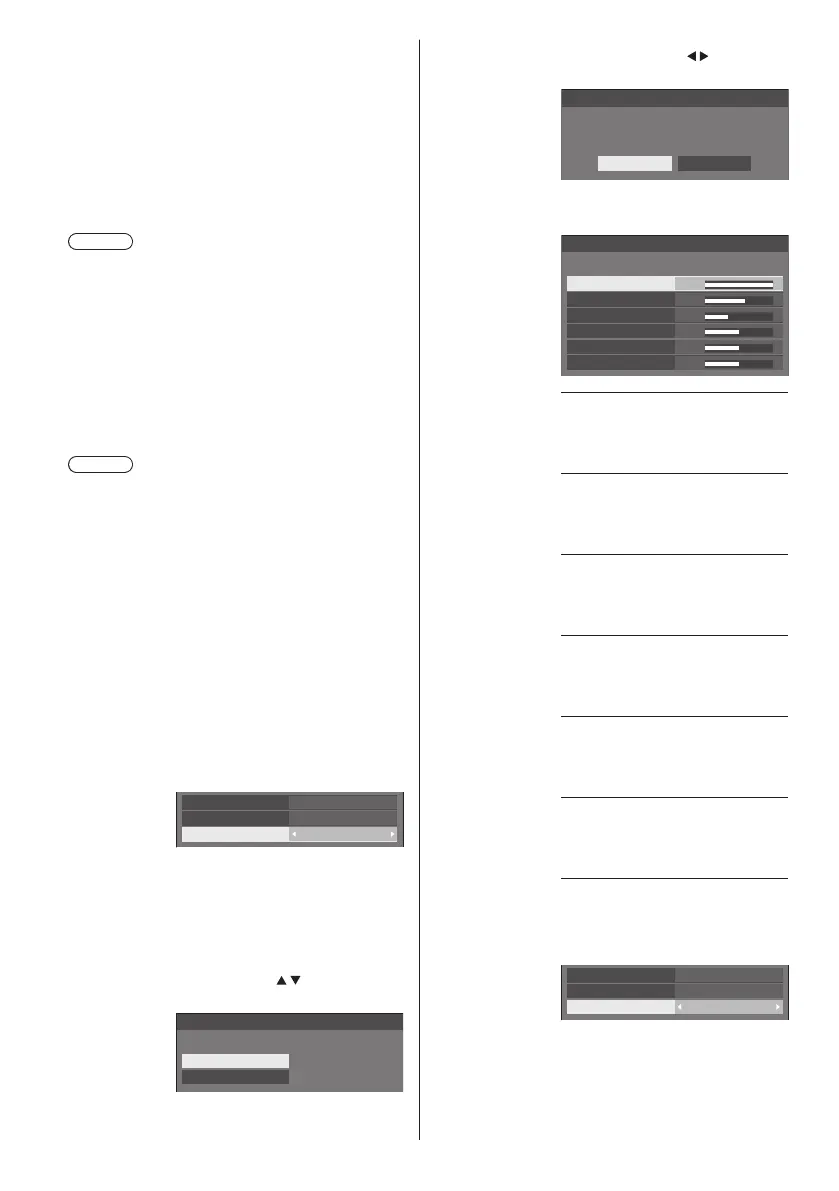
1 Press <ENTER> while setting
[Colour temperature].
2.2
6500K
HighEnhance level
Gamma
Colour temperature
Example:
When [Colour temperature] is
[6500K], it is possible to reflect
the set point, [6500K], to the set
point of [USER1] and [USER2].
2 Select the user to memorise
settings with
and press
<ENTER>.
Adjust colour temperature
Change to 6500K
USER1
USER2
3 Select [Yes] with and press
<ENTER>.
Adjust colour temperature
Overwrite colour temperature “USER1”?
Yes No
4 Set each item on detail settings
screen.
150
255
64
0
0
0
Adjust colour temperature
USER1
R gain
G gain
B gain
R bias
G bias
B bias
[R gain]
Adjusts the white balance for light
red areas.
0 to 255
[G gain]
Adjusts the white balance for light
green areas.
0 to 255
[B gain]
Adjusts he white balance for light
blue areas.
0 to 255
[R bias]
Adjusts he white balance for dark
red areas.
-127 to 128
[G bias]
Adjusts he white balance for dark
green areas.
-127 to 128
[B bias]
Adjusts he white balance for dark
blue areas.
-127 to 128
The settings are saved for he user.
When you return to [Picture] menu,
the user you have set is selected for
[Colour temperature].
2.2
USER1
HighEnhance level
Gamma
Colour temperature




 To Next Page