English
52
■ [Network control]
Set when controlling with the unit’s LAN terminal.
[On]:
Controls via LAN using the LAN terminal of he
Display. The power indicator lights orange when
he power is turned off with the remote control
(standby).
[Off]:
Invalidates control with LAN terminal.
(In this case, the power consumption of Standby
condition (when the power is turned off with the
remote control) will be slightly reduced.)
Note
●
When using the LAN control function for “Using
Network Function” (page 68 - 75), set this function
to [On]. Even if [Off] is selected, the HDMI
communication via a twisted pair cable transmitter
is possible while the power is on.
■ [Display name]
The name of the Display that is shown on the network
can be changed.
■ [LAN setup]
Detailed network settings for the LAN established via
he LAN terminal of the Display or twisted pair cable
transmitter can be configured.
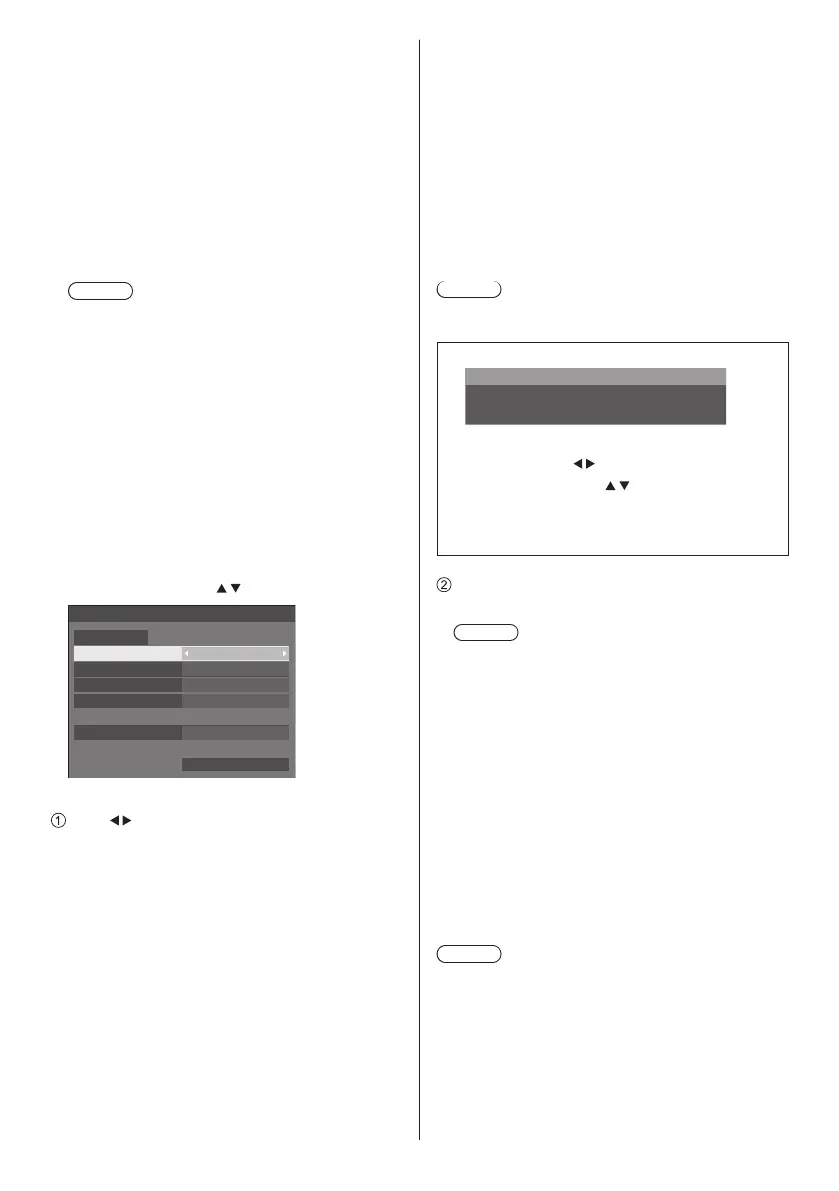
Select [LAN setup] wi h
and press <ENTER>.
192.168. 0. 8
255.255.255. 0
192.168. 0. 1
1024
--:--:--:--:--:--
LAN setup
Save
DHCP Off
IP address
Subnet mask
Gateway
Port
MAC address
[DHCP], [IP address], [Subnet mask], [Gateway]
Press to set [On] / [Off] of [DHCP] and press
<ENTER>.
When [Off] is selected, IP address and other settings
can be set manually.
[DHCP]:
(DHCP client func ion)
[On]:
Obtains an IP address automatically when a
DHCP server exists in the network the Display is
going to be connected.
[Off]:
When a DHCP server does not exist in the
network the Display is going to be connected,
set [IP address], [Subnet mask] and [Gateway]
manually.
[IP address]:
(IP address display and setting)
Enter an IP address when DHCP server is not used.
[Subnet mask]:
(Subnet mask display and setting)
Enter a Subnet mask when DHCP server is not
used.
[Gateway]:
(Gateway address display and setting)
Enter a gateway address when DHCP server is not
used.
Note
●
When [DHCP] is set to [On], the IP address, etc. will
be displayed in grey.
Entering numbers
I
192. 168. 000. 008
IP address
1. Select the address and press <ENTER>.
2. Select digits with
.
3. Change numbers with
.
4. Press <ENTER>.
You can cancel the change by pressing
<RETURN>.
Select [Save] and press <ENTER>.
Save the current network Setup.
Note
●
To use a DHCP server, make sure the DHCP
server is started.
●
Contact your network administrator for details on
[IP address], [Subnet mask] and [Gateway].
●
Shipping condition
[DHCP]: Off
[IP address]: 192.168.0 8
[Subnet mask]: 255.255.255.0
[Gateway]: 192.168.0.1
[Port]
Set the port number used for command control.
Select [Port] and press <ENTER> to set the number.
●
The available setting range is 1024 - 65535.
●
Entering numbers (see page 52)
Note
●
When the PJLink protocol is used, he port setting is
not necessary.
[MAC address]
Displays the MAC address of this unit.




 To Next Page