15
Getting Started
Creating a Google account
After finishing learning how to use the phone:
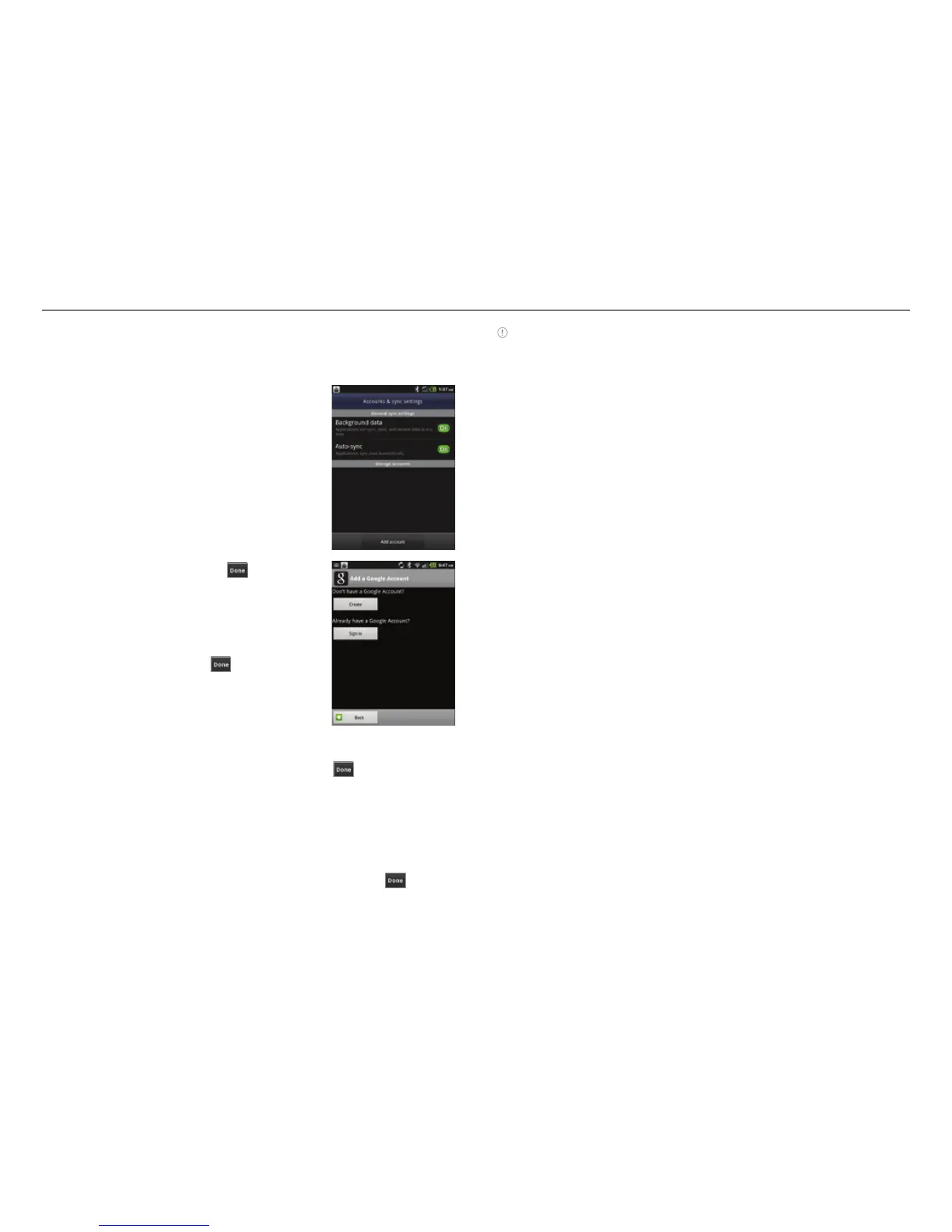
1. Tap Settings > Accounts & sync >
Add account.
2. Tap Google > Next.
3. Tap Connect to Wi-Fi if you have not
connected the phone to the Wi-Fi
network and follow the instructions.
4. Tap Create.
5. Enter your first name, last name, and
user name for the account, and if you
finish entering them, tap
> Next.
The user name should be more than
6 or less than 30 characters. You can
also select an alternative.
6. Enter a password and enter it again to
confirm , and then tap
. You should
enter at least 8 characters.
7. Tap Next.
8. Select and tap a security question
and enter an answer.
9. Enter a secondary email address and tap
> Create.
10. Tap I agree, Next for the Google Terms of Service.
11. Tap Try again if your password is too weak for a password or
contains invalid c haracters.
12. Repeat the steps 6 to 10.
13.
Enter the characters that appear on screen and tap
>
Next.
14. Tap Back up data with my Google Account if you want to
backup your data.
15. Tap Finish setup.
Note Steps for connecting to Wi-Fi network and Google location
service might not appear if you have already done with them.
Forgot your password for Google account?
If you have forgotten your password for Google account, reset
it at the Google website.
1. Open your web browser on your computer and go to
https://www.google.com/accounts/recovery.
2. Enter the email address or username that you use to sign in
to your Google account and click Submit.
3. Enter the characters that you see on the screen and click
Continue.
4. Select an option about recovering your account and click
Continue.
5. Take necessary steps for each option:
x Enter the answer for security questions if you have
selected Answer your security question. This option
will not be available if you have signed in to your Google
account within last five days.
x Check your email account you provided when
you created your Google Account and follow the
instructions if you have selected Email to @
****
.
x Fill in the form for Google Accounts Help if you have
selected I no longer have access to these, and click
Submit on the bottom of the window.



 To Next Page