41
Entertainment
The phone offers a variety of tools for entertainment purposes.
Using the camera
Take pictures with the built-in camera. They can be saved and
sent via multimedia messages.
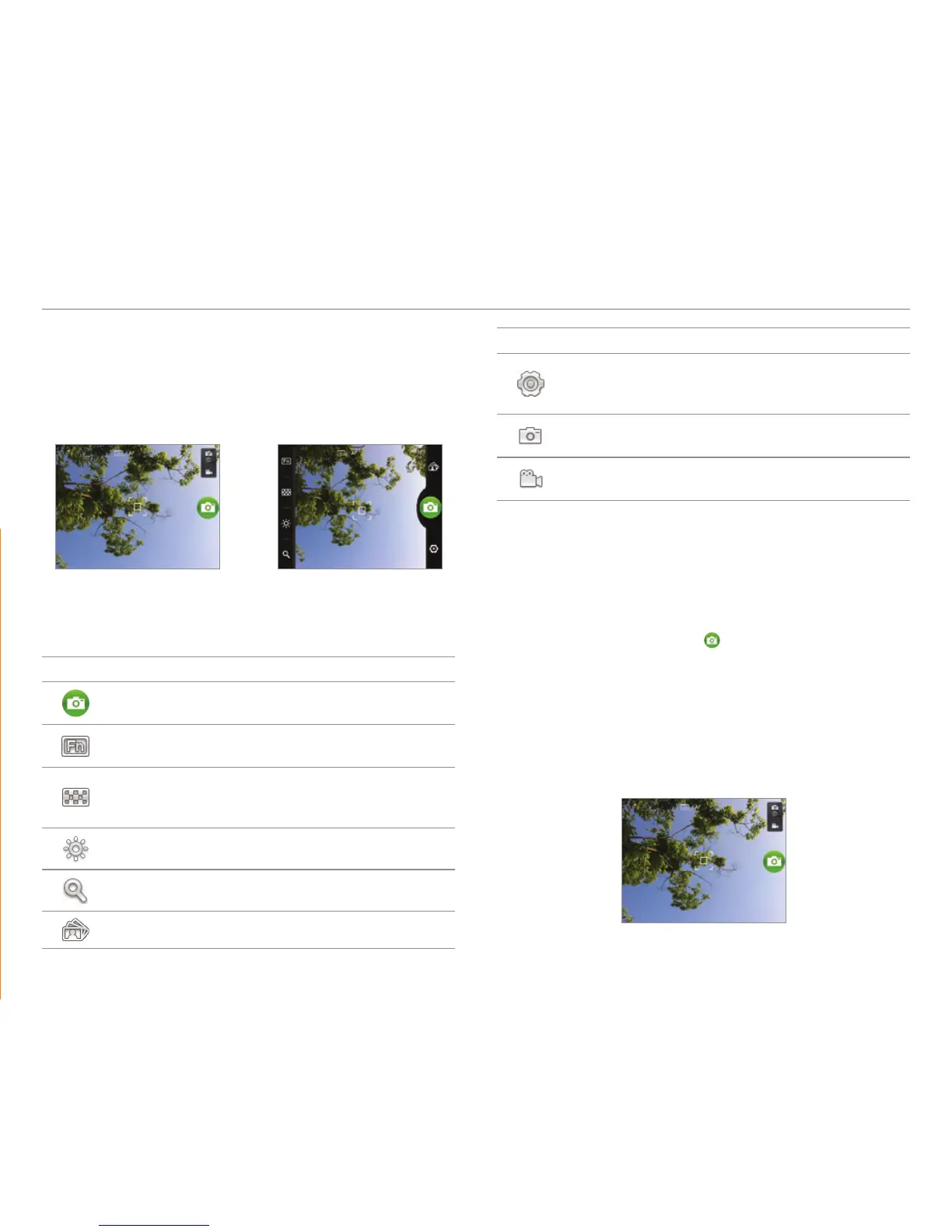
Tap any area on the screen to display the camera menu
options.
Camera menu options
Icon Name Description
Shutter Takes a picture
Function
Adds special functions: White
Balance, Filter, and timer
Effect
Adds special effects: Single shot,
Multi shot, Division shot, and
Instant
Brightness Adjusts brightness
Zoom Zooms the object in or out
Gallery Views saved pictures
Icon Name Description
Setting
Changes settings: Resolution,
Shutter Sound, Focus mode, Store
location, Save picture to
Camera
mode
Changes to the camera mode
Camcorder
mode
Changes to the camcorder mode
Taking pictures
1. Tap Camera. The screen changes to landscape mode by
default.
2. Tap on the screen and select options if necessary. Option
buttons disappear in a few seconds.
3. Focus on the object and tap
. The shutter sound occurs
and the picture is saved automatically.
4. Tap Share, Set as or Delete.
x Share : Uploads the saved picture via Bluetooth,
Facebook, Gmail, Messaging, Picasa or Twitter.
x Set as: Set as Contact icon or Wallpaper.
x Delete: Deletes the saved picture.
5. Press C if you want to take another picture.
Focusing on the object



 To Next Page