53
Personal Information
This chapter explains how to manage contacts and to
communicate via memos.
Managing contacts
Viewing contacts information
1. Tap Contacts
from the applications menu
.
2. Select and tap a contact for more information.
Note To view the contact menu items simply, press and hold a
contact. The phone displays View, Edit, Share, Options, Add to
favorites, and Delete.
Creating contacts
1. Tap Contacts
from the applications
menu
.
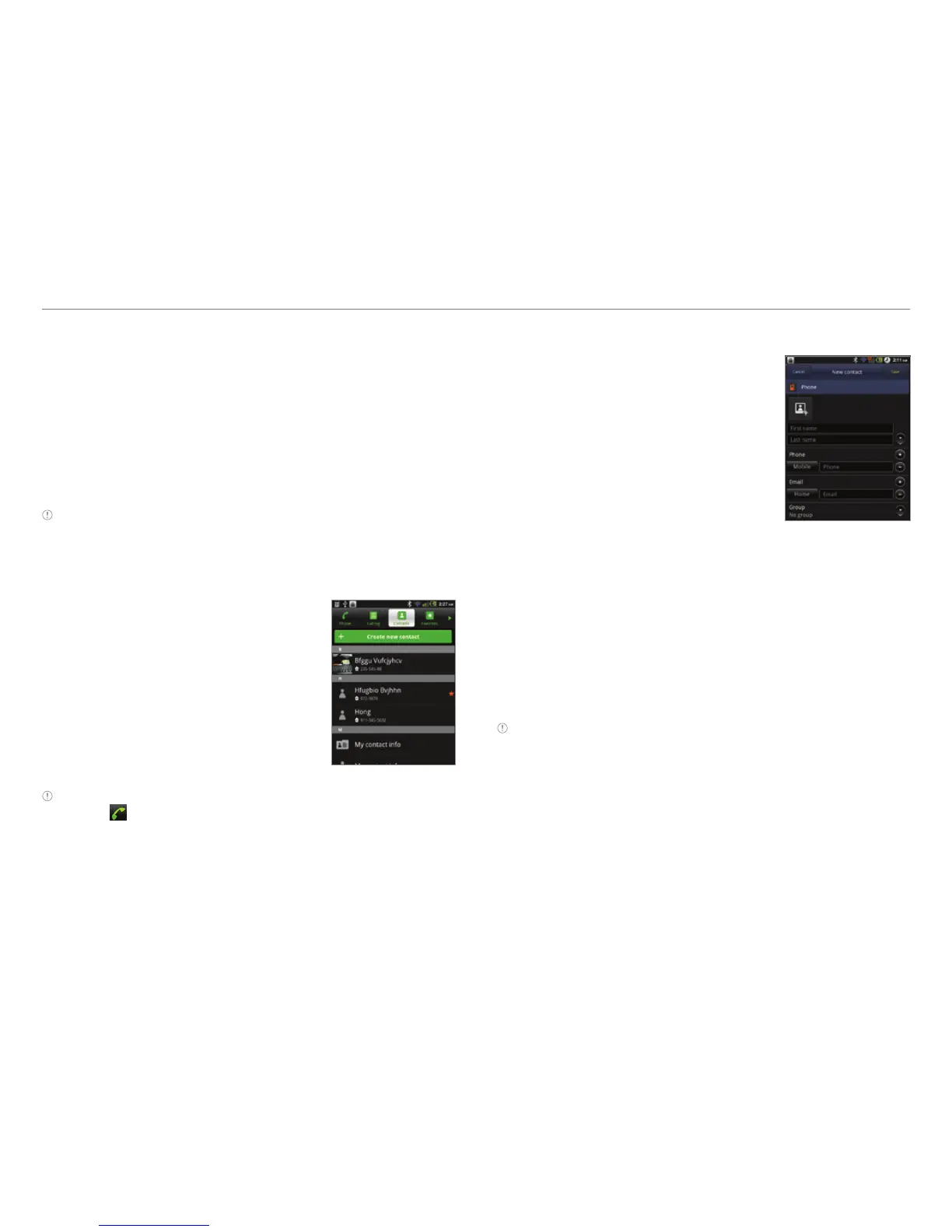
2. Tap Create new contact.
3. Enter related information and tap
Save.
Note You can create a contact by entering the telephone number
first. Tap
, enter a telephone number, press n and tap Add to
contacts > Create new contact.
Editing contacts
1. Tap Contacts
from the applications
menu
.
2. Press and hold a contact to edit,
and tap Edit.
3. Edit information and tap Save.
Sharing contact details
1. Tap Contacts
from the applications menu
.
2. Press and hold a contact to share and tap Share.
3. Tap Bluetooth, Gmail or Messaging.
Setting contact options
1. Tap Contacts
from the applications menu
.
2. Press and hold a contact, and tap Options.
Note You cannot find option menu when you press and hold a SIM
contact.
3. Tap Ringtone, select and tap a ringtone for the contact and
tap OK.
4. Tap Incoming calls if you want to send incoming calls from
the contact to voicemail directly.



 To Next Page