57
Personal Information
Using a memo
Write a memo with your finger, the keypad or your voice. Make
sure to insert a microSD card to use the memo.
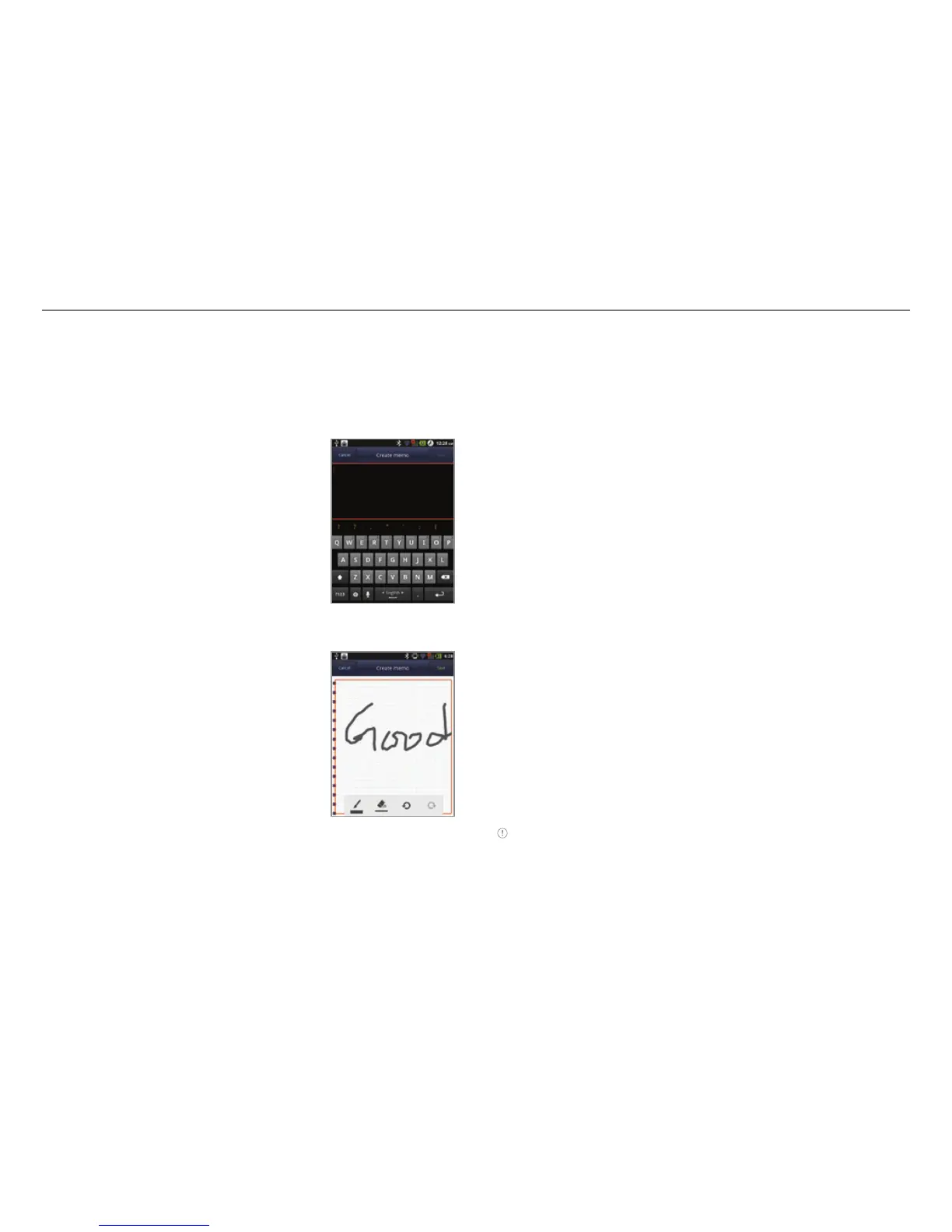
Creating a new text memo
1. Tap Handy Memo
from the
applications menu
.
2. Enter a memo. If there are saved
memos, tap Create new > Text
memo.
3. Tap Save.
Drawing a new handy memo
1. Tap Handy Memo
from the
applications menu
.
2. Press n and tap Hand drawing
memo. If there are saved memos,
tap Create new > Hand drawing
memo.
3. Draw a memo with your finger and
adjust the thickness of the pencil
and the eraser.
4. Tap Save.
Adding effects
Editing a memo
1. Tap Handy Memo
from the applications menu
.
2. Press and hold a memo to edit and tap Edit.
3. Edit the memo and tap Save.
Sharing a memo
1. Tap Handy Memo
from the applications menu
.
2. Press and hold a memo to share, and tap Share.
3. Tap Bluetooth, Messaging, or Gmail. The Share list can
differ depending on the applications you are using.
Deleting a memo
1. Tap Handy Memo
from the applications menu
.
2. Press and hold a memo to delete, and tap Delete.
3. Tap Yes.
Using Memo widget
1. Press and hold an empty space on the home screen.
2. Tap Widgets > Pantech Widgets > Memo.
3. Select the text or drawing memos and tap Done.
4. Tap the memo widget on the home screen. The expanded
view appears. Flick or drag left or right to move to the
previous or next page.
Note Memo widget gives you up to 500 memos.



 To Next Page