45
Entertainment
Recording videos for a certain period of time
1. Tap on the screen while in the camcorder mode.
2. Tap
and tap Duration.
3. Select and tap a time duration and tap Done.
4. Tap
. The video will record for the selected duration.
Adding special functions
1. Tap on the screen or press n while in the camcorder
mode.
2. Tap
and select a special function.
3. Tap Done.
Note The camcorder mode does not support Effect and GPS.
Adjusting brightness
1. Tap on the screen while in the camcorder mode.
2. Tap
.
3. Drag
to the left to reduce brightness, or to the right to
increase brightness.
Zooming in/out
1. Tap on the screen while in the camcorder mode.
2. Tap
.
3. Drag
to the left to zoom out, or to the right to zoom in.
Changing settings
1. Tap on the screen while in the camcorder mode.
2. Tap
.
3. Tap Resolution and adjust the resolution from 176x144
(MMS) to 1280x720.
4. Tap Video Encoder > MPEG4 or H.264.
5. Tap Shutter Sound if you want to make a sound when
taking a video. The check box is selected by default.
6. Tap Save video to if you want to record a video with the
saving location.
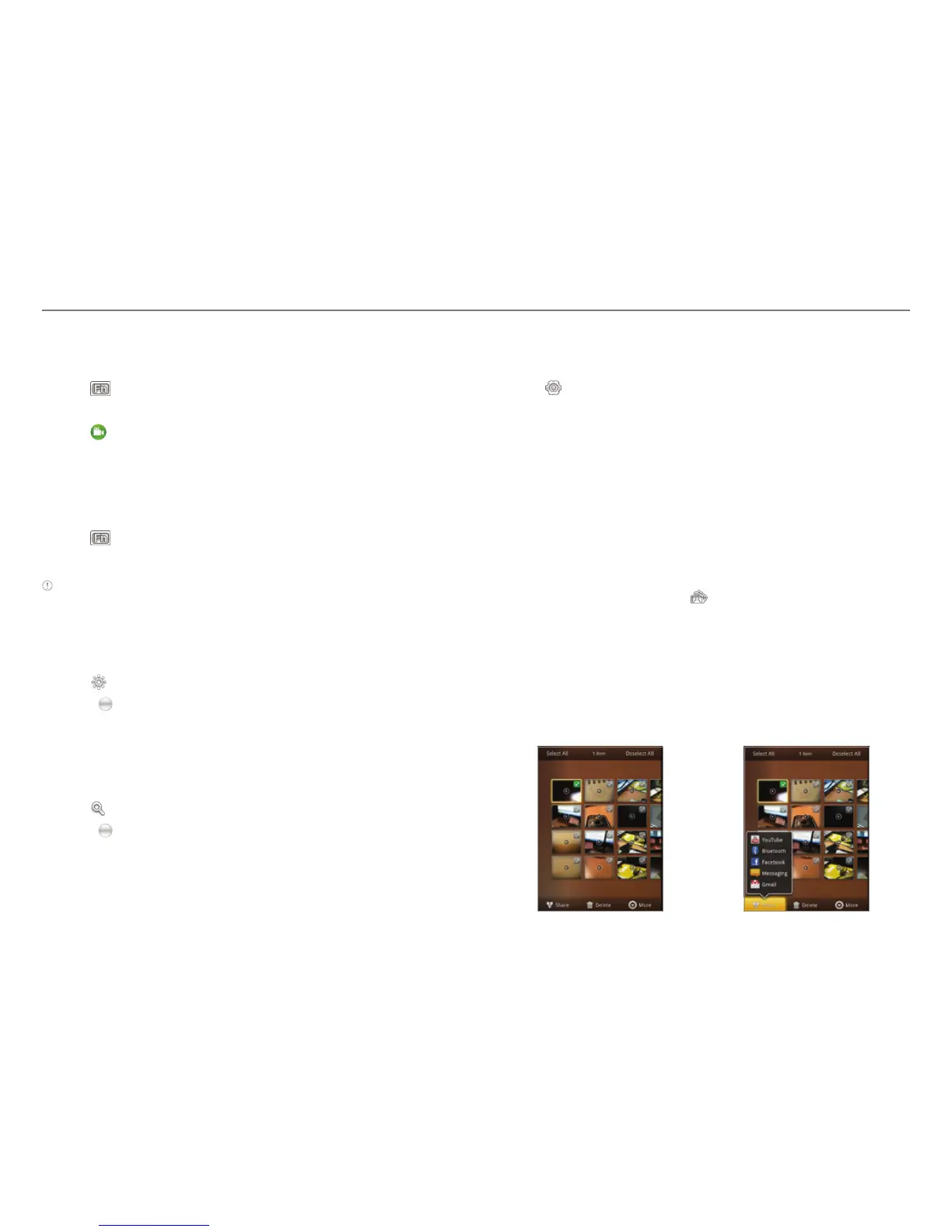
Sharing videos
1. Tap on the screen and tap while in the camcorder mode,
or tap Gallery in Applications.
2. Tap on the first video on the screen.
3. Press and hold a video to share. If you want to share all
videos, tap Select All. You can also select a few videos.
4. Tap Share.
5. Tap YouTube, Bluetooth, Facebook, Messaging, or Gmail.
Selecting a video Sharing a video



 To Next Page