61
Documents
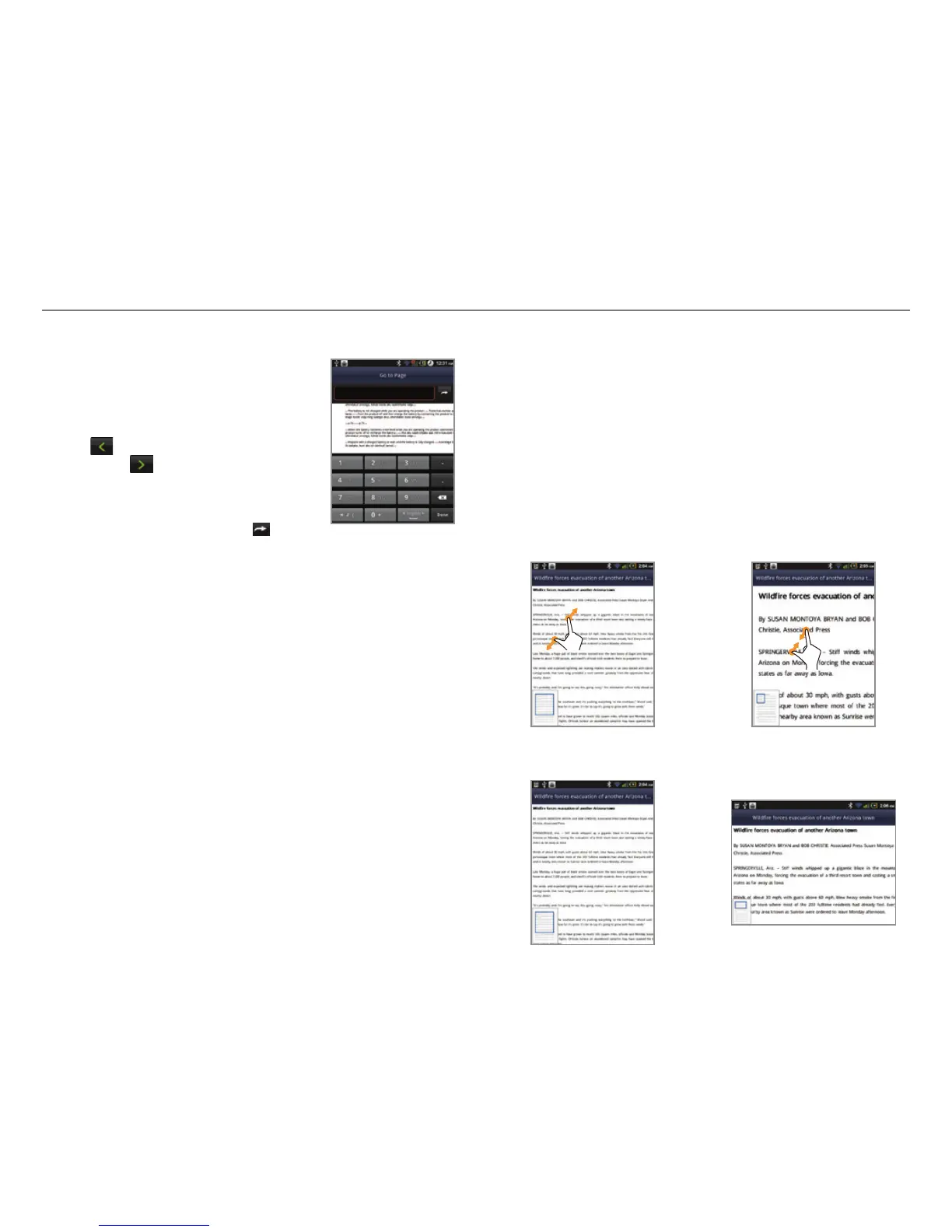
Moving to a page in a document
1. Tap Document Viewer
from the
applications menu
.
2. Open a document and tap on the
screen.
3. Tap
to move to the previous
page. Tap
to move to the next
page.
4. Press n and tap Go to Page.
5. Enter the page to go and tap
.
Sharing documents
1. Tap Document Viewer
from the applications menu
.
2. Select and tap a folder where you have stored documents.
3. Press and hold a document to share, and tap Share.
4. Tap Bluetooth, Gmail, or Messaging.
Deleting documents
1. Tap Document Viewer
from the applications menu
.
2. Select and tap a folder where you have stored documents.
3. Press and hold a document to delete, and tap Delete > Yes.
Renaming documents
1. Tap Document Viewer
from the applications menu
.
2. Select and tap a folder where you have stored documents.
3. Press and hold a document to rename, and tap Rename.
4. Enter the new name and tap Save.
Adding recent documents as Widget
1. Press and hold an empty space on the home screen.
2. Tap Widgets.
3. Tap Pantech Widgets.
4. Tap Recent Documents.
Handling documents view
Zooming in/out with two fingers
Pinch two fingers to zoom in/out as the shown figures.
Rotating the document viewer



 To Next Page