27
Communication
Entering a message using voice
1. Tap Messaging
from the applications menu
.
2. Tap New Message and tap in the body of the text.
3. Tap
in the virtual keyboard and speak your message.
4. Tap Send.
Note You can also send a voice message by pressing n and taping
More > Voice mail.
Entering a message using the keyboard
Use different keyboard settings for different characters.
1. Tap Messaging
from the applications menu
.
2. Tap New message and tap in the body of the text.
3. Tap
to select and enter letters for the message.
x When
is selected, the next letter entered is
capitalized.
x When
is selected, all letters entered are capitalized.
4. Tap
if you want to enter a number or/and common
symbols. Tap
> if you want to enter complicated
symbols.
Capital letters Numbers and
common symbols
Complicated
symbols
Creating a message using Swype
1. Tap Messaging
from the applications menu
.
2. Tap New message and tap on the empty space.
3. Press and hold in the message field.
4. Tap Input method > Swype.
5. Drag your finger on the screen and enter a message.
Note If you want to change the text input method, press and hold in
the message field and tap Input method > Android keyboard.
If you want to set Android keyboard options, refer to page 101.
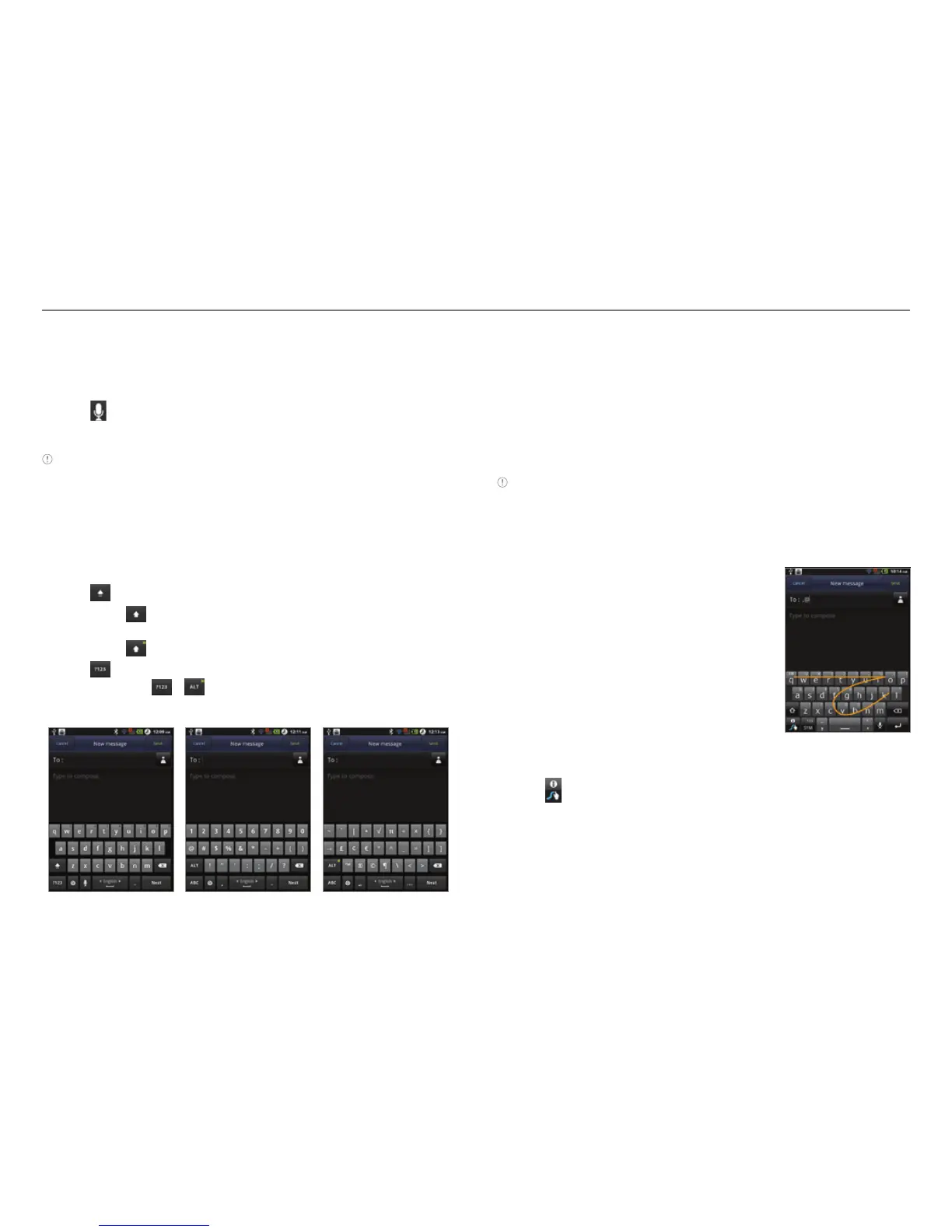
About Swype
Swype is a fast and easy way to enter
a message. For example, drag your
finger on the screen keyboard as
shown and input “Quick.”
Entering “Quick”
Setting Swype options
1. Tap > Options.
2. Tap Language if you want to change the language for
Swype.
3. Tap Word prediction if you want to see predicted words
while you enter a message.
4. Tap Audio feedback if you want to turn on sounds from
Swype.



 To Next Page