84
Tools
Editing a drawing
1. Tap Sketch Pad
from the applications menu
.
2. Press and hold the drawing to edit, and tap Edit.
3. Edit the drawing and tap Save.
Saving to the Gallery
1. Tap Sketch Pad
from the applications menu
.
2. Press and hold the drawing to save to the gallery, and tap
Save to gallery.
Sharing a drawing
1. Tap Sketch Pad
from the applications menu
.
2. Press and hold the drawing to share, and tap Share.
3. Tap Bluetooth, Facebook, Gmail, Messaging, Picasa, or
Twitter.
Changing the view mode
1. Tap Sketch Pad
from the applications menu
.
2.
Press
n
and tap Thumbnail view if you want to see
drawings only.
3. Press n and tap List view. You can see the file name and
file format of the drawings.
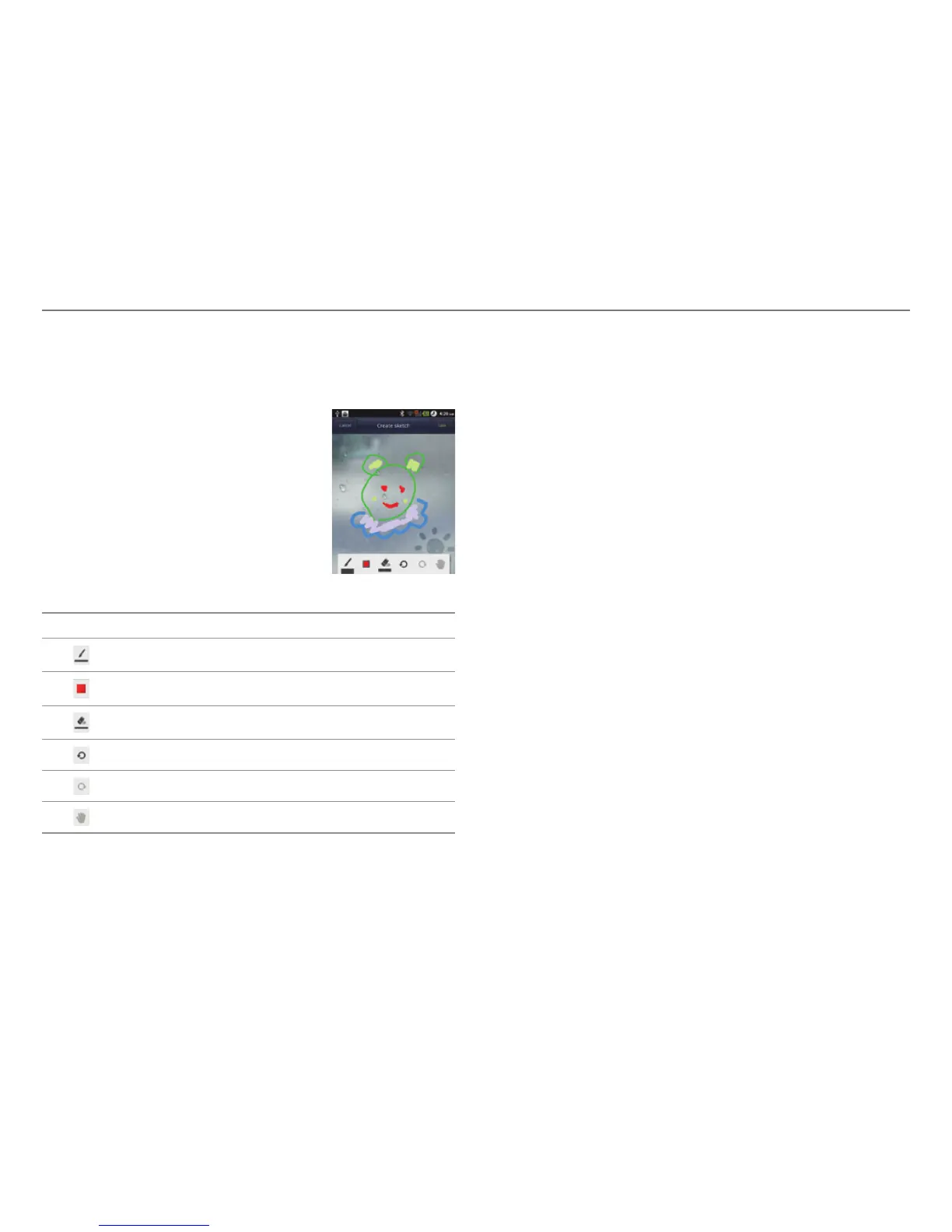
4. Select the size and color of the brush and the size of the
eraser.
5. Press n and tap Background if you want to select as
background of the drawing.
6. Press n and tap Import image
if you want to select a photo as
background of the drawing.
7. Tap Save and enter the name of the
drawing to save.
8. Tap Save.
Sketch Pad icons
Icon Description
Set the size of the Pen
Set the color of the Pen
Set the size of the eraser
Undo the previous drawing
Redo the next drawing
Move canvas
Deleting a drawing
1. Tap Sketch Pad
from the applications menu
.
2. Press and hold the drawing to delete, and tap Delete.
3. Tap Yes.



 To Next Page