5
Before getting started
2. Pull the battery out using the hooks on its back.
In order to keep the battery for the MiniDrone in optimum condition, never leave it
half-inserted in its compartment.
Downloading the application
Connect to the App Store
SM
or Google Play
TM
and download the free FreeFlight3
application.
Turning the Jumping Night Drone on/off
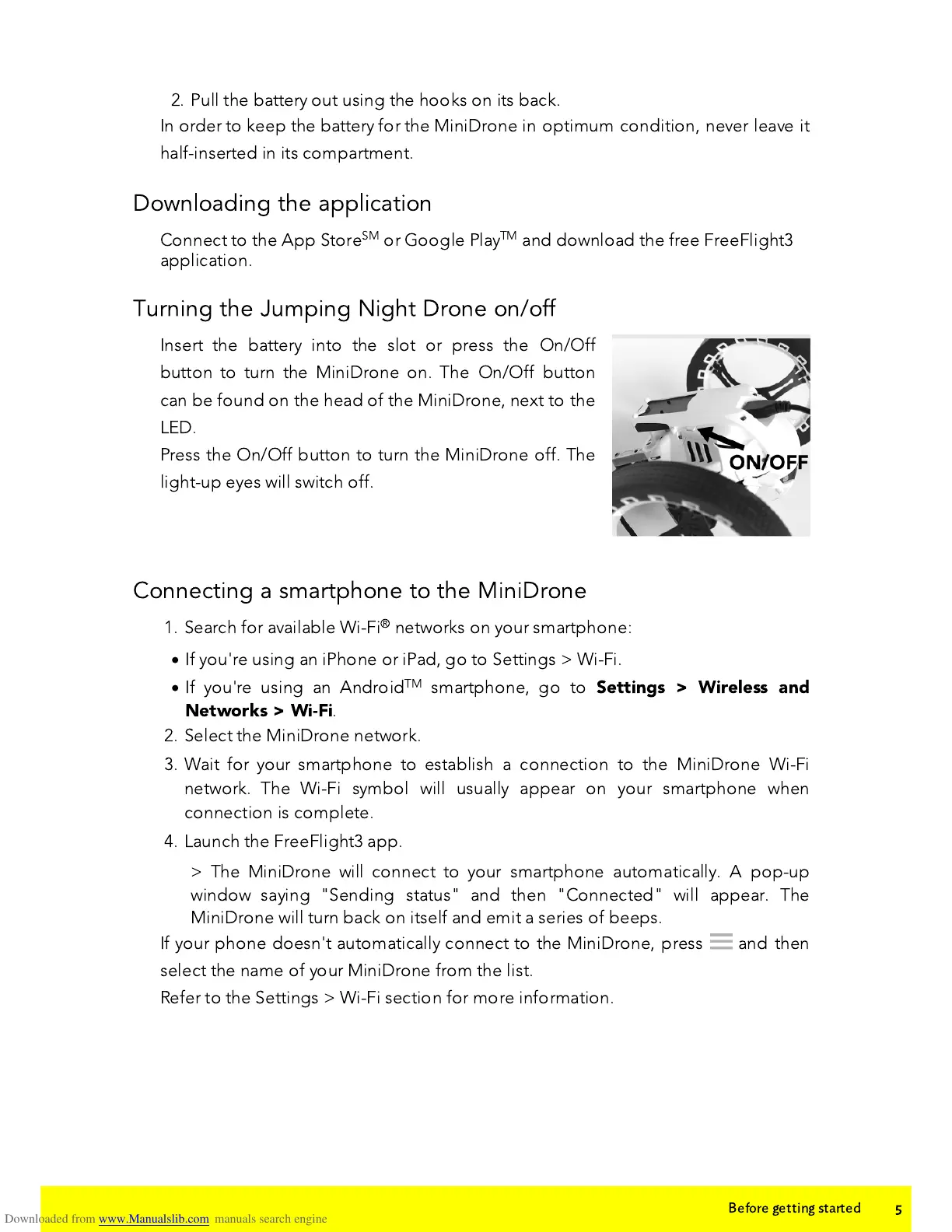
Insert the battery into the slot or press the On/Off
button to turn the MiniDrone on. The On/Off button
can be found on the head of the MiniDrone, next to the
LED.
Press the On/Off button to turn the MiniDrone off. The
light-up eyes will switch off.
Connecting a smartphone to the MiniDrone
1. Search for available Wi-Fi
®
networks on your smartphone:
·
If you're using an iPhone or iPad, go to Settings > Wi-Fi.
·
If you're using an Android
TM
smartphone, go to
Settings > Wireless and
Networks > Wi-Fi
.
2. Select the MiniDrone network.
3. Wait for your smartphone to establish a connection to the MiniDrone Wi-Fi
network. The Wi-Fi symbol will usually appear on your smartphone when
connection is complete.
4. Launch the FreeFlight3 app.
> The MiniDrone will connect to your smartphone automatically. A pop-up
window saying "Sending status" and then "Connected" will appear. The
MiniDrone will turn back on itself and emit a series of beeps.
If your phone doesn't automatically connect to the MiniDrone, press and then
select the name of your MiniDrone from the list.
Refer to the Settings > Wi-Fi section for more information.





 To Next Page