18 19
1. Connect your USB drive to a computer and make sure that it contains
no files in .plf format.
2. Go to the Sequoia help page: www.parrot.com/uk/support/
3. Download the update file available in .plf format.
4. Copy the file to the root directory on your USB key without putting it
in a folder or renaming it.
5. Connect your micro USB OTG cable to the USB host port on the
multispectral sensor.
6. Connect the USB key containing the update file to the other end of
the cable.
7. Turn on Sequoia.
> The update runs automatically. During the update the multispectral
sensor light flashes orange (diagram I). Once the update is com-
plete the light turns green.
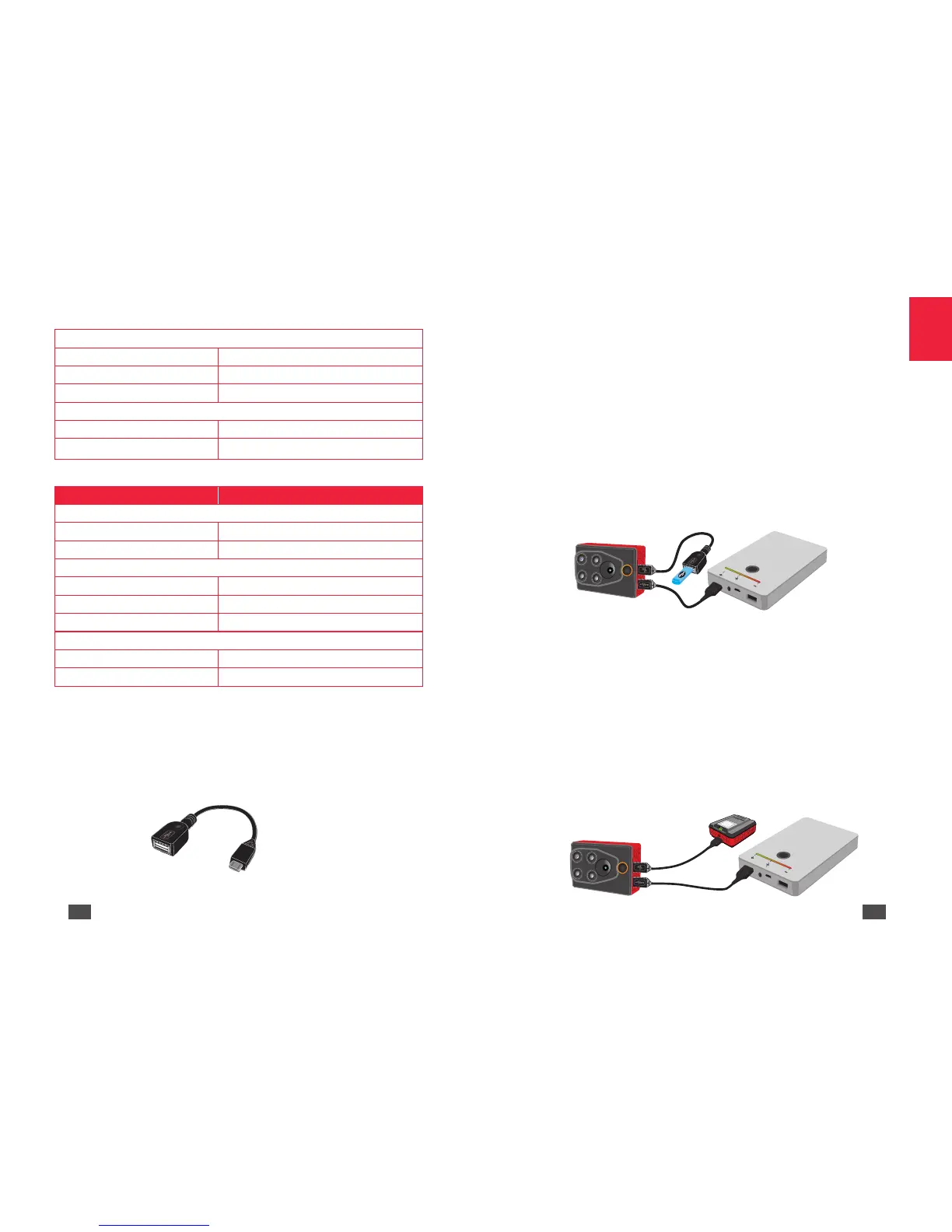
Diagram I
Via an SD
Before you begin make sure that the multispectral sensor is connected to
the sunshine sensor.
1. Connect your USB key to a computer and make sure that it contains
no files in .plf format.
2. Go to the Sequoia help page: www.parrot.com/uk/support/
3. Download the update file available in .plf format.
4. Copy the file to the root directory on your SD Card without putting it
in a folder or renaming it.
5. Insert the SD card in the sunshine sensor.
6. Turn on Sequoia.
> The update runs automatically. During the update the multispectral
sensor light flashes orange (Diagram J). Once the update is com-
plete the light turns green.
Diagram J
Calibration
Flashing purple The sensor needs to be calibrated
Flashing green Calibration in progress (pitch axis)
Flashing blue Calibration in progress (roll axis)
Photo shoot
Continuous blue Shot being taken
Continuous light green At least one of the four sensors is enabled
Sunshine sensor
LED properties Meaning
Problem
Continuous red Hardware malfunction
Flashing yellow SD Card full
Calibration
Flashing purple Calibration in progress (yaw axis)
Flashing green Calibration in progress (pitch axis)
Flashing cyan Calibration in progress (roll axis)
GPS/GNSS
Continuous yellow GPS /GNSS connection not established
Continuous green GPS /GNSS connection established
UPDATING SEQUOIA
There are two ways to update Sequoia.
Via USB
To update Sequoia via USB you must use a micro USB OTG cable male
plug with a USB female socket (Diagram H).
Diagram H


 To Next Page
 Loading...