Revision 25 of DOCU225, © Copyright
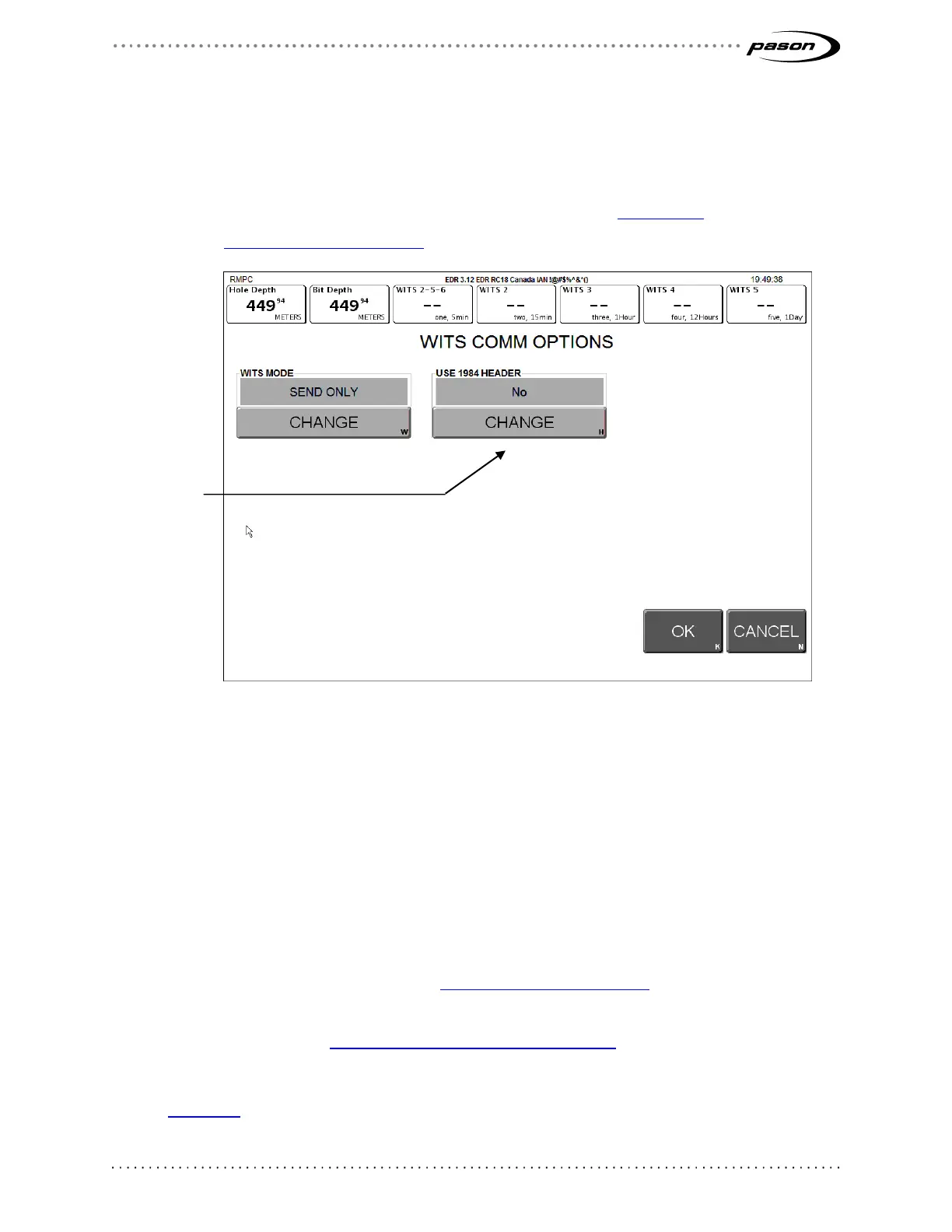
5. In the WITS Mode box, click the Change button to toggle to the mode you want
to use (Send and Receive, Send Only, or Receive Only). If you select Send Only
mode, the EDR displays a Use 1984 Header box that enables you to add or
remove Pason’s 1984PASON/EDR header (refer to What is the
1984PASON/EDR Header on page 7)
Figure 10: WITS Comm Options screen
6. When you are finished, click OK. The EDR returns to the Comm Port Setup
screen.
7. Click Exit to return to the EDR main screen.
4.5 Selecting WITS Codes
There are several ways to specify which WITS codes the EDR sends, as described
below, but the EDR is hard-coded to receive specific codes. The EDR can receive WITS
record 01, 02, 07, 08, 09, 11, 12, 17, 18, and 63 packets, plus custom WITS codes (see
the full table of valid WITS codes in Default Pason WITS Codes on page 32). If you need
the EDR to receive a code not listed in the table, you need to set up a custom WITS
code as described in Configuring Custom WITS in the EDR on page 24.
Depending on the type of workstation you are logged on to, the WITS setup screen in
Figure 11 on page 23 includes the elements in the table below.
Click Change
to turn the
header on or



 To Next Page