Date: 08-20-2019 51 PAX Customer Support
Version: 1.0 support@pax.us
(877) 859-0099
www.pax.us
17.12 When I hold down the power button, my E700 won’t power up. What should I do?
Ensure your E700 is plugged into its power source and that the power plug is firmly seated. A red power
indicator light above the E700 display screen confirms that the unit is charging.
If the power indicator light flashes red and green alternately, there is a charging problem.
17.13 How do I adjust the brightness of the display?
On the E700, the display brightness can be adjusted within the Settings mode. From the terminal idle
screen, select Settings, scroll down to the Device section, select Display, then select Brightness level.
Move the slide to the right to brighten the display or to the left to darken the display.
There is also a selectable “Adaptive brightness” option, below the Brightness level slide, which optimizes
the brightness level based on available light.
Adjusting E700 Brightness Level
17.14 What is the screen resolution? Can I change the screen resolution?
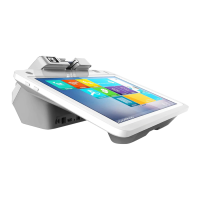
The screen resolution for the 12.5” clerk-facing E700 screen is 1920 x 1080 pixels. The E700 screen is in
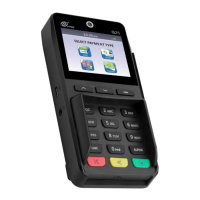
landscape format. The screen resolution for the 4.3” Q20 screen is 480 x 272 pixels. The Q20 screen is in
landscape format. The screen resolution for the E700 and the Q20 are fixed and cannot be changed.


 To Next Page