17
Recent Destinations
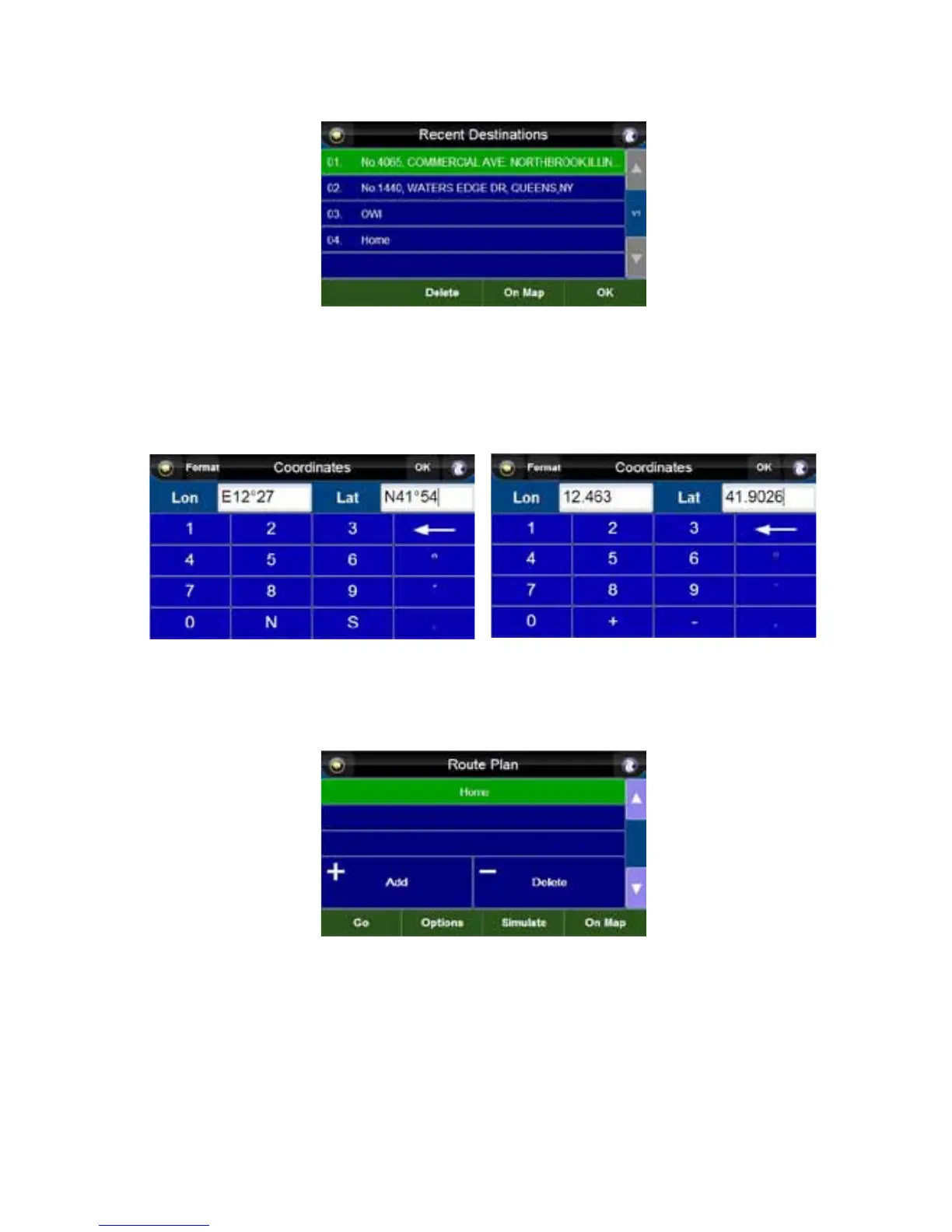
Press the “Recent Destinations” button to display a list of destinations recently entered. Selecting the
desired destination takes you to the “Route Plan” screen, with the selected location as your end point.
Coordinates
Press the “Coordinates” button to display the “Coordinates” screen.
Here, you can enter the coordinates of your desired destination. Press the “Format” button to switch
between degree and digital format. Degree format requires cardinal directions (E or W, N or S) to be
entered, and digital format requires that at least one value (longitude or latitude) have a “-” before it.
Press “OK” to take you to the “Route Plan” screen, with the selected location as your destination.
Home
Press the “Home” button to take you to the “Route Plan” screen, with your home address as your
destination. If you have not entered your desired home address, follow the on-screen directions to set
up your home address.



 To Next Page