Based on the city chosen, a list of streets intersecting the Street
you entered will appear. Tap on the desired Street and tap the
Next button.
Note: If desired Street not available, reverse the order in which you enter
the intersecting streets.
You have the option to select this location as an Origin,
Destination, or a Multi-Stop. Highlight your selection, and tap OK.
Note: If you would like to Save this location, refer to Section 6.4 Saving
Position as a Favorite, Contact, or Home
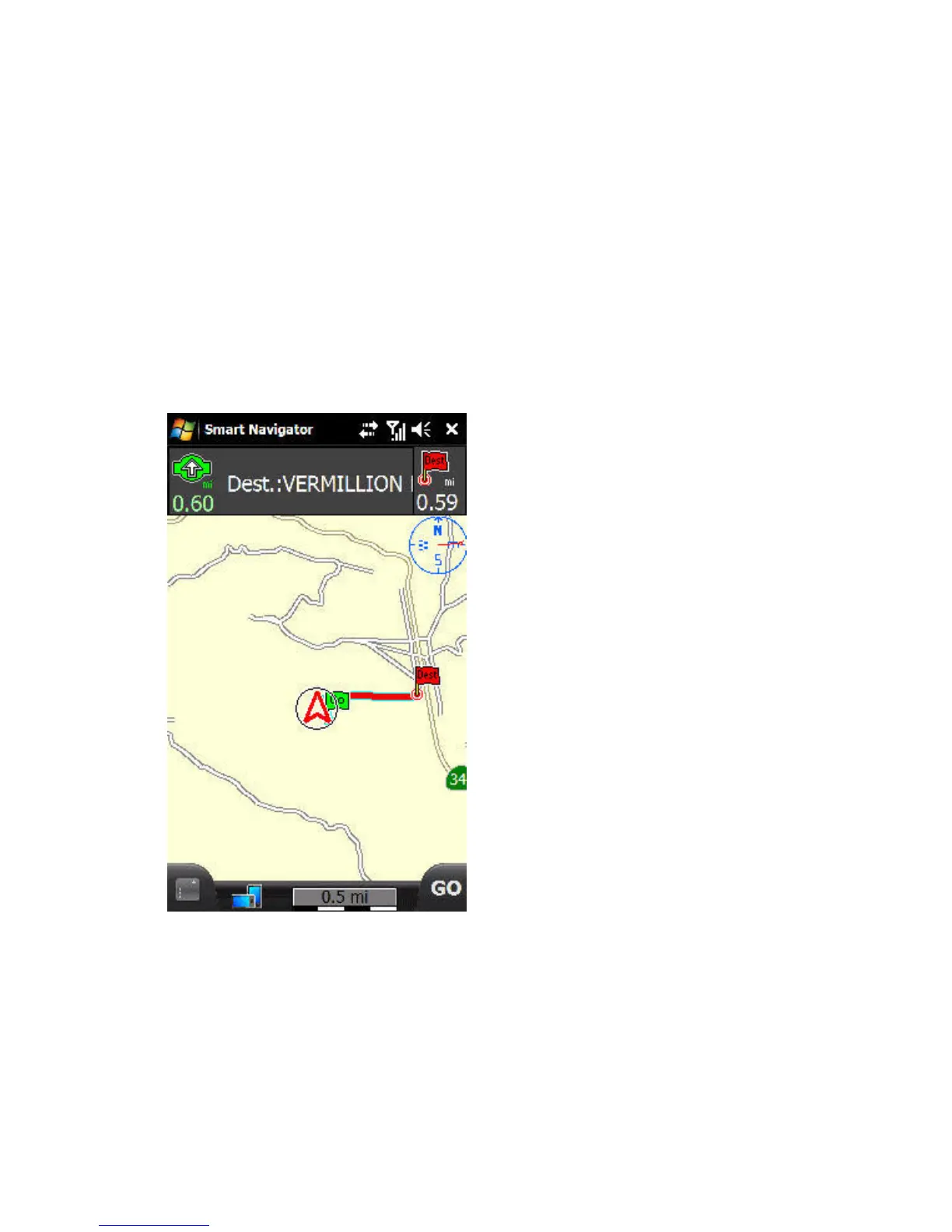
The Route will be displayed
on the screen, zoomed in on
the Destination. The on-
screen text directions
display at the top (if in
Simulation Mode or if GPS
lock is acquired). Origin
displays as a Green Flag,
Destination as a Red Flag,
and Multi-Stop(s) as Purple
numbered Flags.
You are now ready to
navigate.



 To Next Page