To begin Recording a Trip, Tap Menu à Tools à Record a
Trip and choose the recording interval. Enter a name for this
specific Trip, and tap the Next button when finished.
Note: To Record a Trip, you must have a GPS Lock, with or without a
Route created.
Viewing a Trip Trace
To view or use a pre-recorded Trip Trace, tap Menu à View
à Moreà My Trips
Trace Files will be
displayed. Select the Trip
Trace of your choice, tap
the Next button when
finished
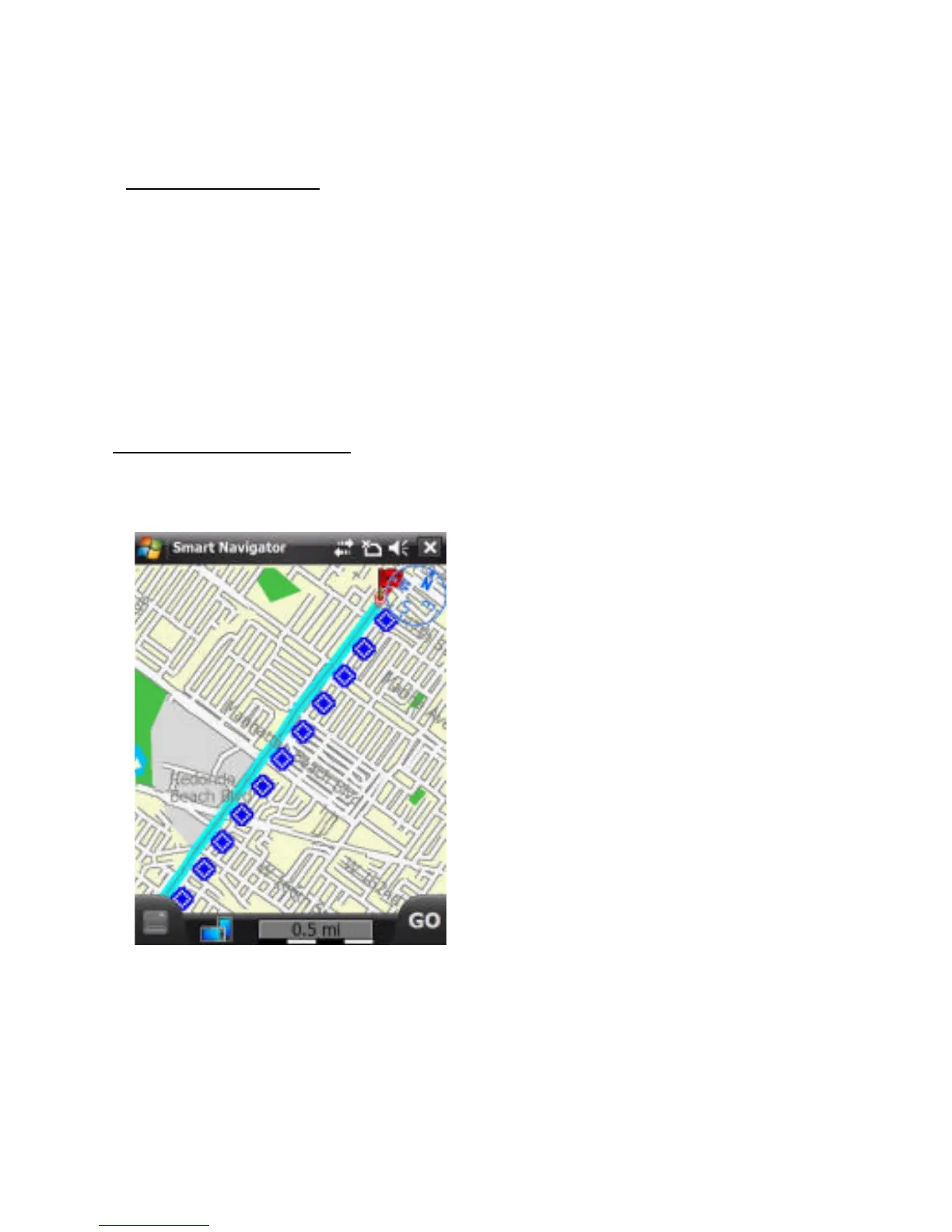
Your Trip Trace will be
displayed with blue
diamonds, representing
the markers (or bread
crumb trail) recorded for
you to follow.
Note: When Viewing a previously Recorded Trip Trace, it will not
provide an actual Route, text directions, or voice prompts. It will only
provide markers (bread crumb trail) to follow.



 To Next Page